



A WordPress support ticket system is a tool inside your site that turns each client request into a numbered ticket with a status, a priority and an owner, so no request is lost in an inbox. This guide shows how to set one up in six steps with HiveCRM: create the ticket, set its priority, assign it, reply with or without the client seeing it, resolve it, and let clients follow along from a portal.
Thank you for reading this post, don't forget to subscribe!
Table of Contents
What is a support ticket system, and why does an inbox not work?
A support ticket is a running report on a problem: it holds the issue, its status and other relevant data, and it often involves priorities and oversight as well as the answer itself. Help desk software lets the people answering keep track of requests and the other customer-care issues around them.
A shared inbox does the opposite. A request arrives as one email among hundreds, so five things go wrong:
- Nobody owns it. Two people reply, or neither does.
- There is no status. You cannot tell open requests from finished ones.
- Urgent looks like everything else. A broken checkout sits next to a typo fix.
- History is scattered. The earlier answer is in someone else’s mailbox.
- The client cannot see anything. They email again to ask for an update.
A ticket system fixes each of these, and if it lives in WordPress next to your clients and invoices, you do not need another login.
What does a ticket hold in HiveCRM?
Every HiveCRM ticket carries the same fields, so everyone reads it the same way.
| Field | What it is for |
|---|---|
| Ticket number | An automatic reference such as TIC-0097 |
| Subject and description | What the client asked for, in their words |
| Requester | The client or contact who asked |
| Related project | Optional link to the client’s project |
| Status | For example Open, In Progress, On Hold or Resolved |
| Priority | Low, Medium, High or Urgent |
| Resolution due date | When you promise to be done |
| Assigned staff | The one person who owns the ticket |
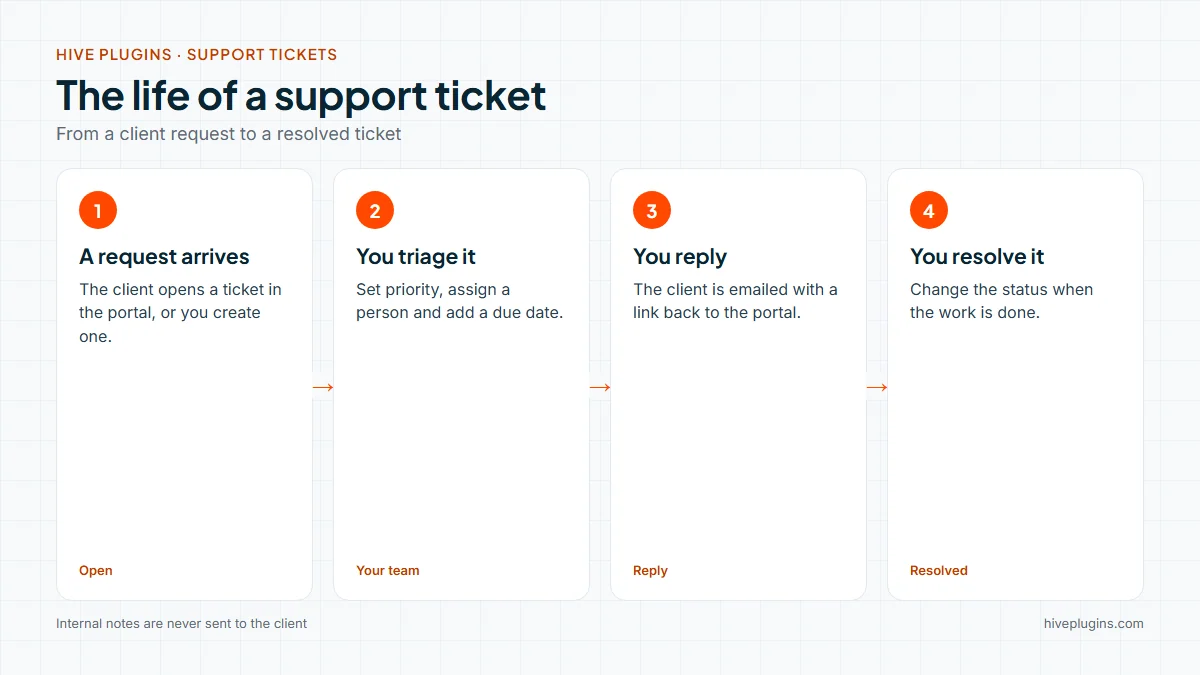
How do you run a WordPress support ticket system in 6 steps?
1. Create the ticket
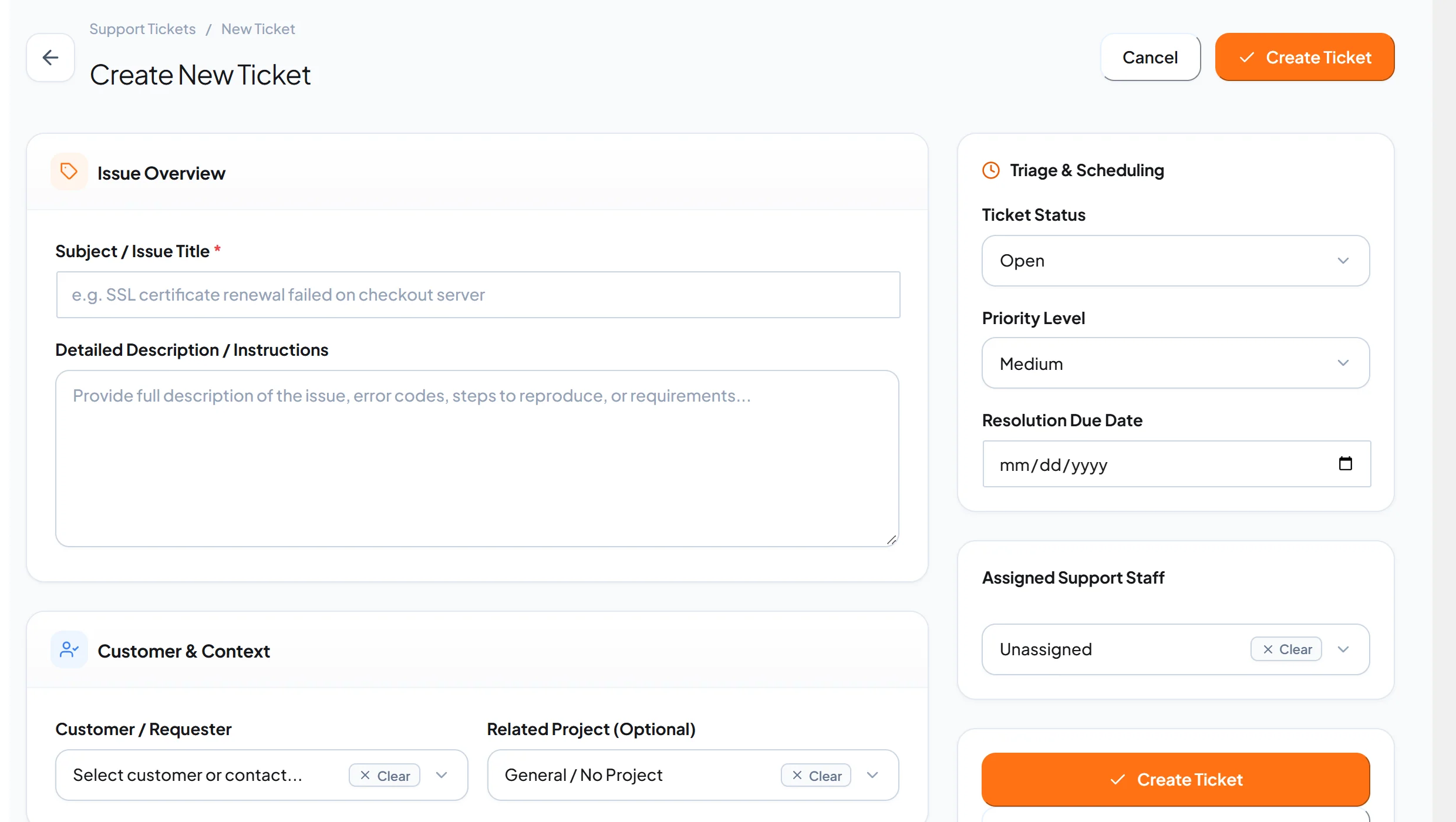
A ticket starts in one of two ways: a client opens it from the client portal, or you create it yourself when a request arrives by phone or chat. Choose New Ticket, enter the subject, describe the issue, and pick the requester. A related project is optional but useful when the request belongs to a job you are already doing.
2. Set the priority and the due date
Choose a priority from Low, Medium, High or Urgent and add a resolution due date. Decide the rules once and apply them every time. A broken checkout or a site that is down is Urgent, a form that does not send is High, and a copy change is Low.
3. Assign one owner
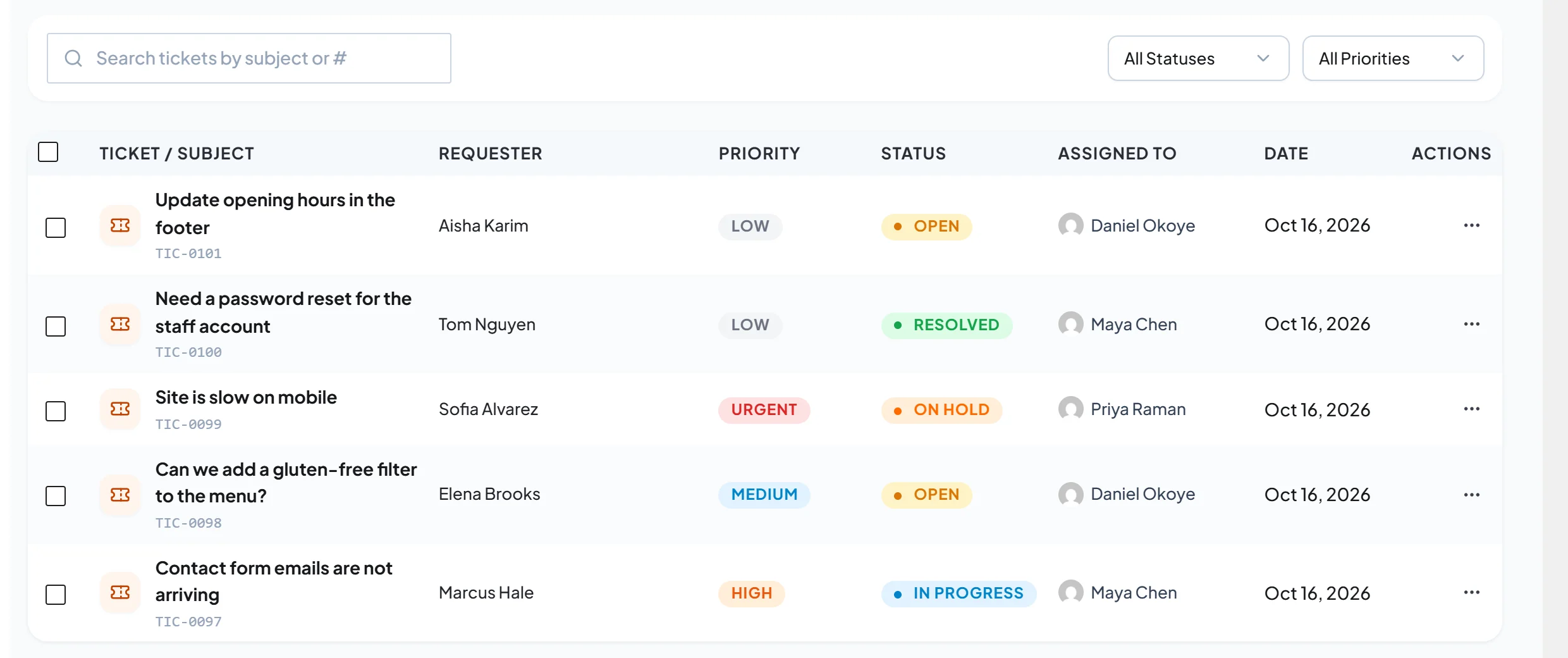
Pick the assigned support staff member. One owner per ticket is the single biggest improvement over an inbox. The tickets list then shows each request with its requester, priority, status and owner, and you can search by subject or number and filter by status or priority.
4. Reply to the client, or leave a note for your team
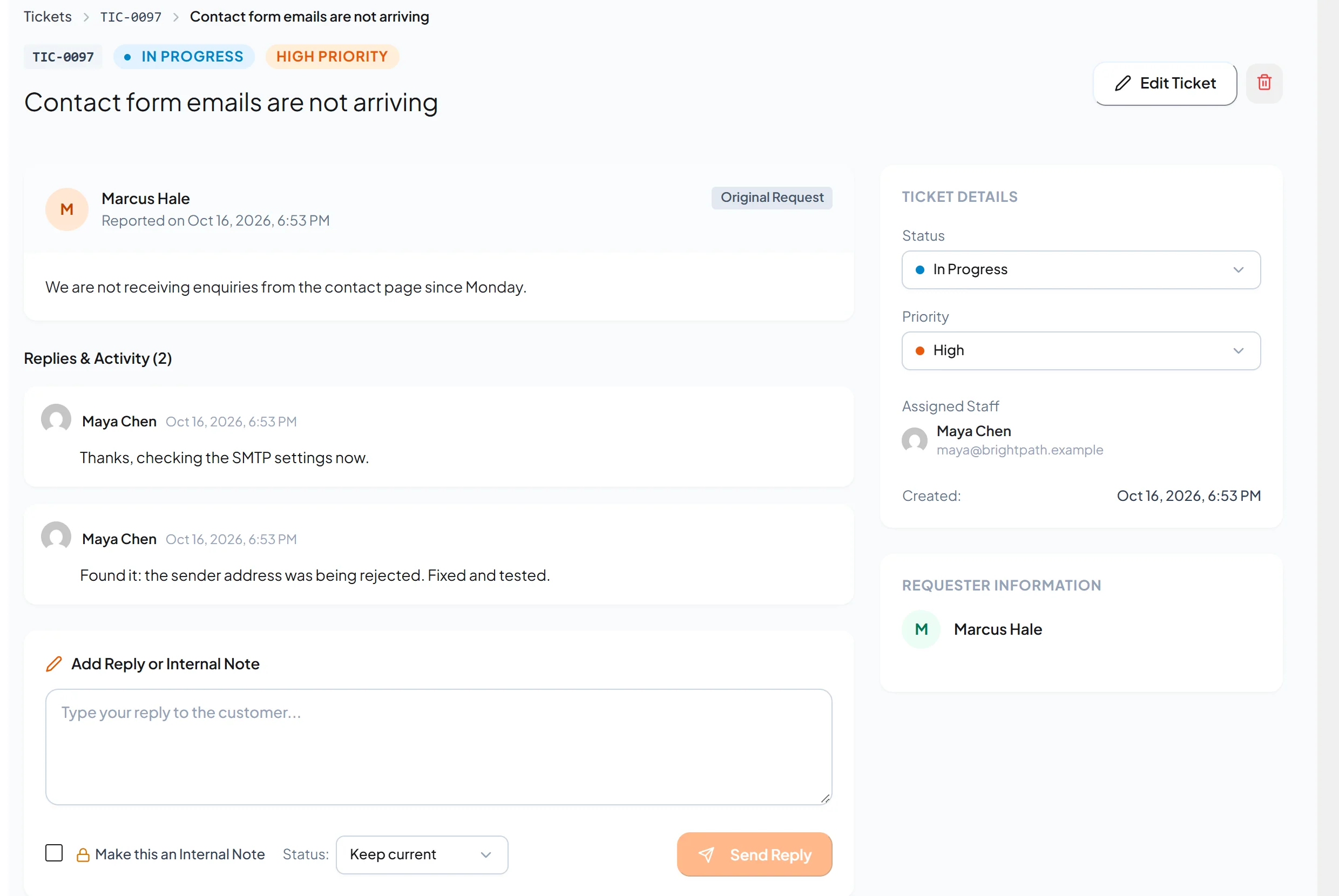
Open the ticket to see the original request and the thread of replies. Write your answer in the reply box and send it. HiveCRM emails the client the text of the reply with a link that opens the ticket in their portal. Tick Make this an Internal Note when the message is only for your team, because internal notes are never sent to the client. You can also change the ticket’s status in the same step.
5. Let your team know when the client answers
When a client replies from the portal, the assigned staff member gets a notification in HiveCRM and an email, and each person can switch that email on or off in their notification preferences. If a ticket has no assignee, every admin and manager is alerted instead. One limit to know: the client replies in the portal, so replying to the notification email itself does not add to the ticket.
6. Resolve the ticket and keep the record
When the work is done, set the status to Resolved. The ticket and its thread stay in HiveCRM, so you can find the answer the next time the same question comes up. For a client who keeps asking about the same thing, the thread is also proof of what you agreed.
What does the client see?
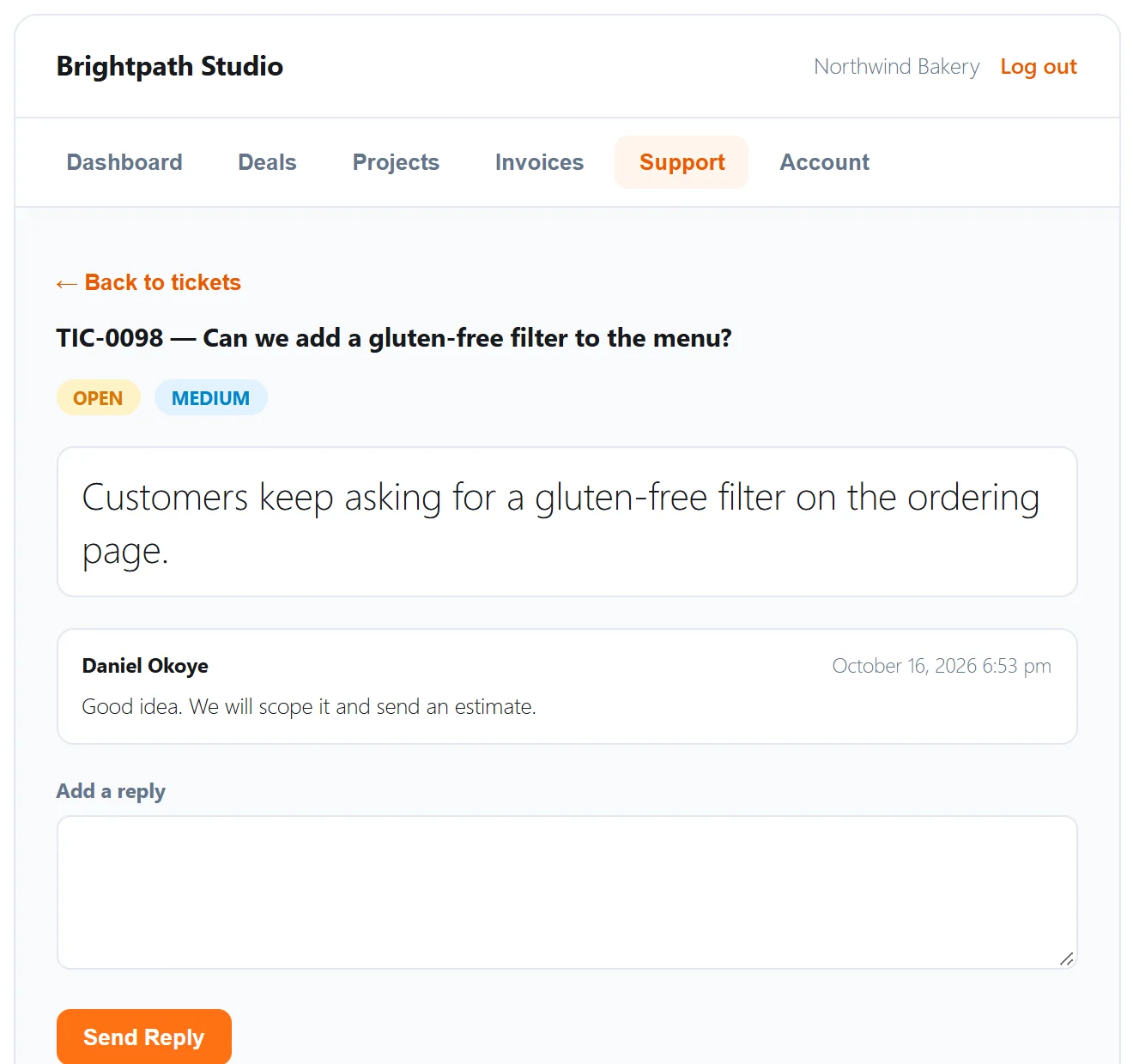
Clients sign in to the client portal and open the Support tab. They see their own tickets, with a status badge, and a New Ticket button. Opening a ticket shows its status, priority, the description, your replies by name, and a box to answer. The guide to a client portal in WordPress shows how to set it up.
How can workflows and AI help?
Two options save time once the basics work. First, workflows: you can build an automation that reacts to a ticket, for example a workflow that emails the assigned person when a ticket is created with Urgent priority, or one that triggers when a ticket gets a reply, with a condition on whether the last reply came from the client or from staff. Second, an AI assistant connected through HiveCRM’s MCP server can list tickets, read one, get ticket statistics and reply, with the permissions of the account that connected it. The guide to a WordPress MCP server explains how, and says why replies from an assistant also reach the client by email.
When is a ticket system worth it?
A ticket system is worth it when more than one person answers clients, when requests mix with project work, or when clients ask for updates. If you answer two emails a week alone, an inbox is fine. For everyone else, a WordPress support ticket system pays back the first week you stop asking “did anyone reply to that?”. The overview of a WordPress CRM plugin explains how tickets fit next to leads, invoices and projects.
Frequently asked questions
What is a WordPress support ticket system?
It is a tool inside your WordPress site that records each client request as a ticket with a status, priority and owner, so requests are tracked until they are resolved.
Can clients open tickets themselves?
Yes. In HiveCRM, clients open tickets from the Support tab of the client portal and can reply to your answers there.
Does the client get an email when I reply?
Yes, for every reply that is not an internal note. The email contains your reply and a link that opens the ticket in the client portal.
Can I write notes the client cannot see?
Yes. Tick Make this an Internal Note before you send, and the message stays with your team.
Can I answer a ticket by replying to the email?
Not at the moment. Clients and staff reply inside the portal or the dashboard, and the email is a notification with a link.
Keep client requests in one place
If you want tickets, invoices, projects and the client portal in one WordPress dashboard, see how HiveCRM works, and browse the full feature list. The guide to a client onboarding checklist shows where the first support request fits in a new client’s first month.