


A WordPress contact form not sending email is one of the most common problems on small business sites, and it costs real enquiries. The form says “Thank you”, yet nothing reaches your inbox. The form itself is rarely the cause. Usually WordPress hands the message to your server, and the server’s mail is blocked, unauthenticated or filtered. This guide gives nine checks in the right order, and a way to make sure you never lose a lead while you fix it.
Thank you for reading this post, don't forget to subscribe!
Table of Contents
Why is my WordPress contact form not sending email?
When a visitor submits a form, WordPress passes the notification to its mail function, wp_mail. WordPress’s developer reference describes it as sending an email in the same way as PHP’s mail function, and it warns that a successful result does not mean the recipient got the message. It only means WordPress handed the message on without an error.
That is why a form can say “sent” while nothing arrives. A message can fail in three places: on your server, which may block or limit mail, at the receiving mailbox, which may reject mail it cannot verify, or in the inbox, where a filter files it as spam.
What are the 9 checks, in order?
Work through the checks from top to bottom when your form is not sending email. Each one rules out a layer, so the first change that fixes the problem tells you where it was.
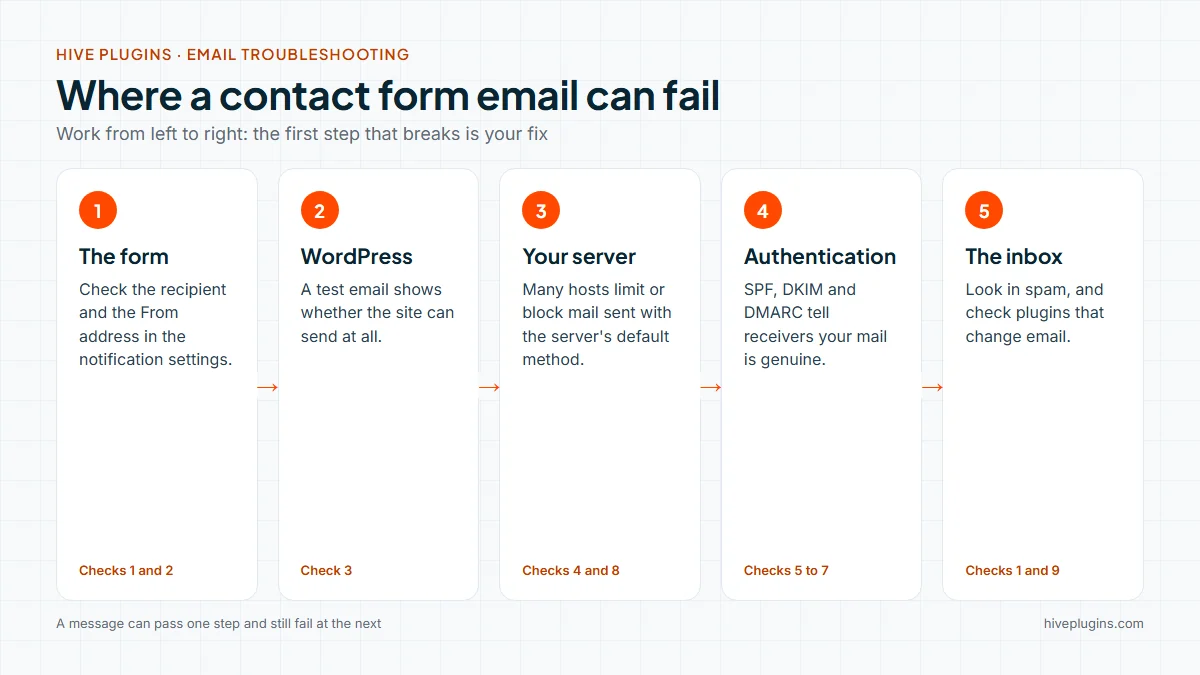
- Look in spam and check the recipient. Search the spam folder and your mail filters. Then open the form’s notification settings and confirm that the “To” address has no typo and is the mailbox you are checking.
- Send from an address on your own domain. Many forms put the visitor’s address in the From field. Receiving servers often reject that, because your server is not allowed to send mail for the visitor’s domain. Use an address at your own domain as the sender, and put the visitor’s address in Reply-To.
- Send a test email from WordPress. Use the test feature of an SMTP or email-logging plugin to send a plain message to yourself. If that fails too, the problem is your site’s email setup, not the form.
- Send through SMTP instead of the server’s default mail. By default WordPress uses the server’s built-in mail method. Switching to authenticated SMTP, or to an email service’s API, sends the message through a provider that receiving servers already trust.
- Add an SPF record. SPF is an email authentication method that lets a receiving server check whether the sending server is authorised to send mail for your domain. Add the server or service you send through to your domain’s SPF record.
- Turn on DKIM. DKIM lets the owner of a signing domain take responsibility for a message by associating the domain with it. Your email provider gives you the record to add at your DNS host.
- Publish a DMARC record. DMARC is an email authentication protocol that gives domain owners a way to protect their domain from being used by someone else. Start with a monitoring policy, so you can see who sends mail as your domain before you enforce anything.
- Ask your host about limits. Some hosts disable or rate-limit the server’s default mail, or block outgoing mail on certain ports. Ask support whether outgoing mail is allowed and which method they recommend.
- Rule out plugin conflicts. A security, caching or email plugin can alter or block outgoing mail. Disable them one at a time on a staging copy of the site and test after each change. Also check that the form’s notification is switched on and has a subject and a message. A regular WordPress maintenance checklist catches these conflicts early.
If SPF, DKIM and DMARC are new to you, this short explainer, CertMike Explains DMARC, DKIM and SPF from the channel of Mike Chapple, covers what each record does in plain terms and supports checks 5 to 7.
How do you stop losing enquiries while you fix it?
An enquiry should never exist only as an email. While you fix delivery, the safest habit is to save every submission somewhere you can see it.
HiveCRM can do that: it creates a lead from the form submission, so the enquiry appears in your Leads screen with its source. Open Settings, Integrations & Webhooks and stay on the Form Integrations tab. Pick your form plugin, switch on Enable Lead Capture, choose the default lead source and stage, and map the form’s fields to the lead’s fields. Fields you do not map are still recorded in the lead’s notes.
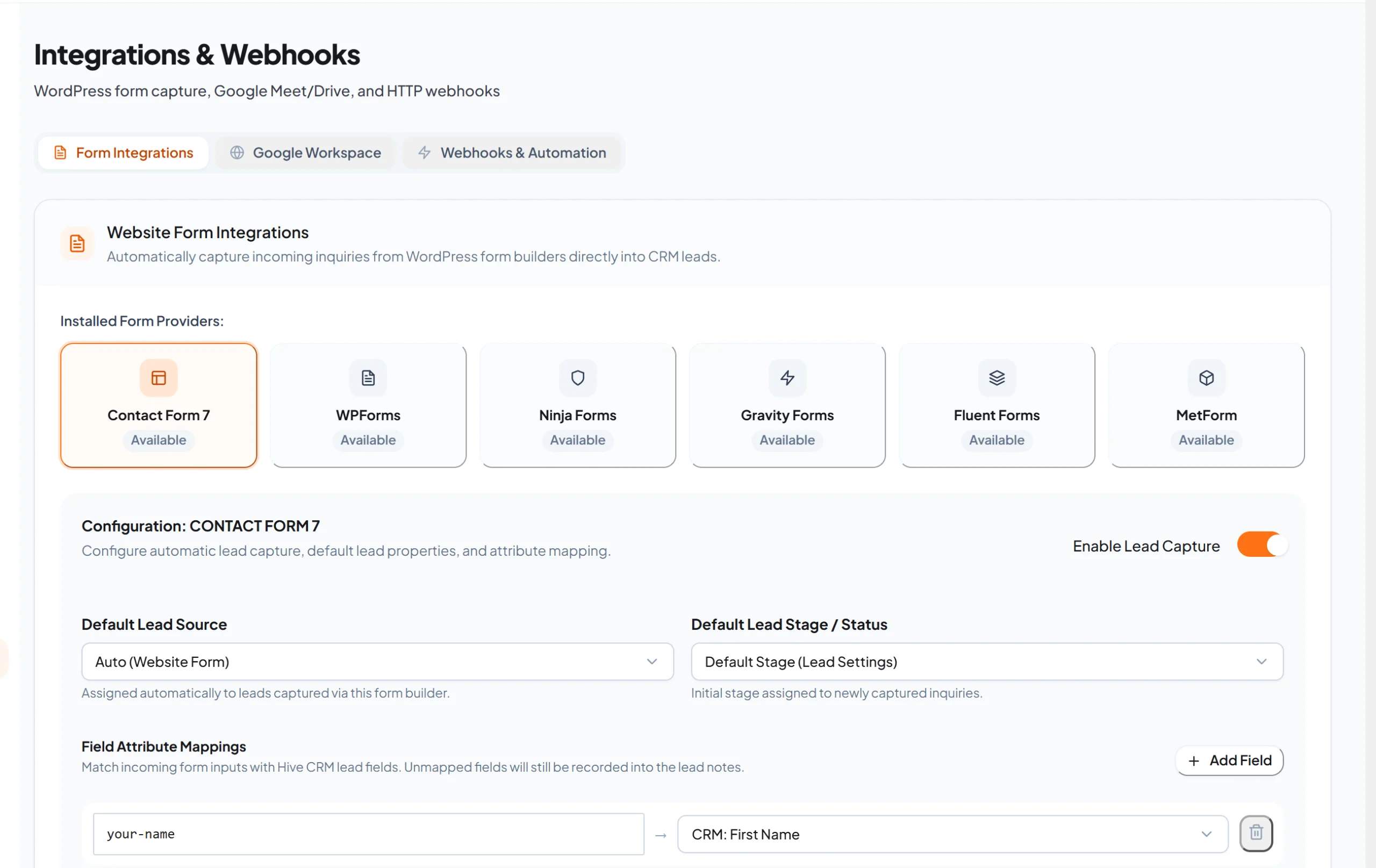
One thing matters here. For all six supported form plugins (Contact Form 7, WPForms, Gravity Forms, Ninja Forms, Fluent Forms and MetForm), HiveCRM builds the lead from the submitted entry, not from the email. With Contact Form 7, the lead is created even when Contact Form 7’s own email fails to send. A submission that Contact Form 7 itself rejects, for example because a required field is empty or the entry is flagged as spam, does not become a lead.
To test, submit the form yourself from another address, then check both your inbox and the Leads screen. If your form is not sending email right now, the Leads screen is where you will still see the enquiry. The guide to managing leads shows what to do with it next, and how to follow up with a lead covers the reply.
Can HiveCRM’s own emails use SMTP too?
Yes. HiveCRM sends its own emails, such as estimates, ticket replies and workflow messages, through the transport you choose under Settings, Email & SMTP. You can keep the default WordPress mail, use a custom SMTP server, or use an email service’s API. A live delivery test sends a real message to check your DNS records, mail routing and authentication, and a Delivery Logs tab shows what was sent.
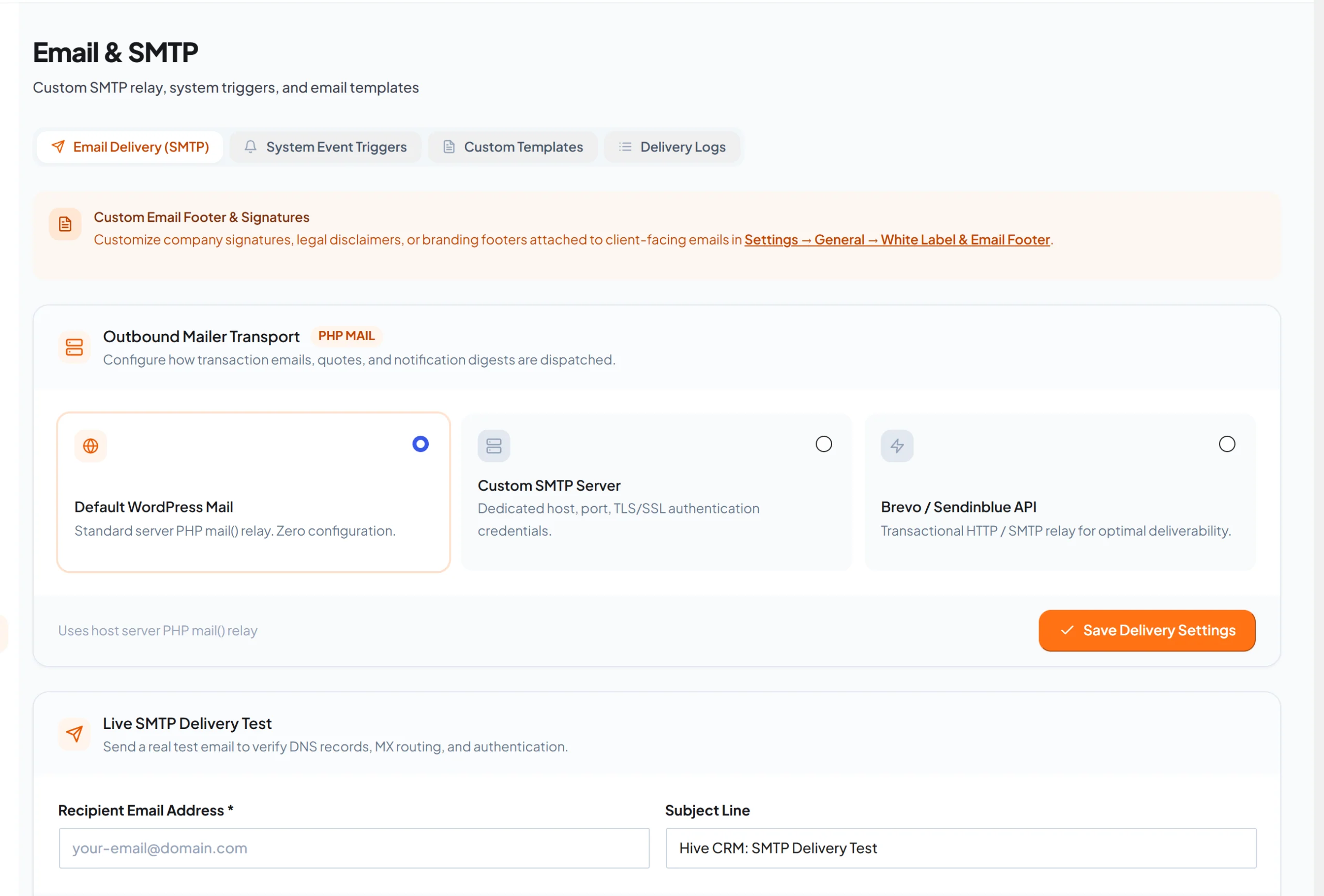
These settings apply to the messages HiveCRM sends. Your form plugin’s own notification emails still depend on the setup you made in checks 3 and 4.
Frequently asked questions
Why is my WordPress contact form not sending email even though it says the message was sent?
The form only confirms that WordPress accepted the message. WordPress's developer reference notes that a successful result does not mean the recipient received it, so the failure happens later: on the server, at the receiving mailbox or in the inbox.
Do I need an SMTP plugin?
Often, yes. Sending through authenticated SMTP or an email service's API is a common fix, because the message then comes from a provider that receiving servers already know.
What do SPF, DKIM and DMARC do?
They are three ways for a domain owner to prove that mail is genuine (the guide to WordPress email deliverability goes deeper). SPF lists which servers may send for your domain, DKIM ties a message to your domain, and DMARC protects your domain from being used by someone else.
How can I test without waiting for a real enquiry?
Send a test email from your SMTP plugin, then submit the form yourself from a different address. Check the inbox, the spam folder and, if you use HiveCRM, the Leads screen.
Will HiveCRM keep my enquiries if email breaks?
Yes, for all six supported form plugins, including Contact Form 7. The lead comes from the submission, not from the email, so a failed notification does not stop it. Fix the email anyway, so you are told about each new enquiry.
Capture every enquiry as a lead
If you want every form entry to land in one list with its source, see how HiveCRM connects to your form plugins and read the guide to integrations and webhooks. The email and SMTP settings guide covers the transport options. To bring in more enquiries, see the guide to a WordPress lead generation plugin. For the bigger picture, the guide to choosing a WordPress CRM plugin explains what else a CRM keeps for you, and HiveCRM puts it all in one dashboard. The feature list shows the rest.