

A WordPress client portal is a private area of your site where each client signs in to see their own proposals, invoices, projects and support tickets. It replaces long email threads with one place to look, and it runs on your own WordPress site, under your own domain. This guide shows how to set up a WordPress client portal with HiveCRM in six steps, using real screens from a demo studio with fictional clients.
Thank you for reading this post, don't forget to subscribe!
Table of Contents
What is a WordPress client portal, and who needs one?
A client portal is a login area where a client sees only their own records. For a freelancer, an agency or a service business, that usually means the things clients keep asking about: what they owe, what is in progress, and where their request stands.
You need one when clients start sending the same questions by email: "Can you resend the invoice?", "Where is the project up to?", "Did you get my request?" Each of those is a few minutes of your time, and a portal answers all of them without you. It also pairs well with a written client onboarding checklist, because giving the client one place to look is one of its steps.
If you are still deciding which tool should hold your client records, start with the guide to choosing a WordPress CRM plugin.
What can clients see in the HiveCRM client portal?
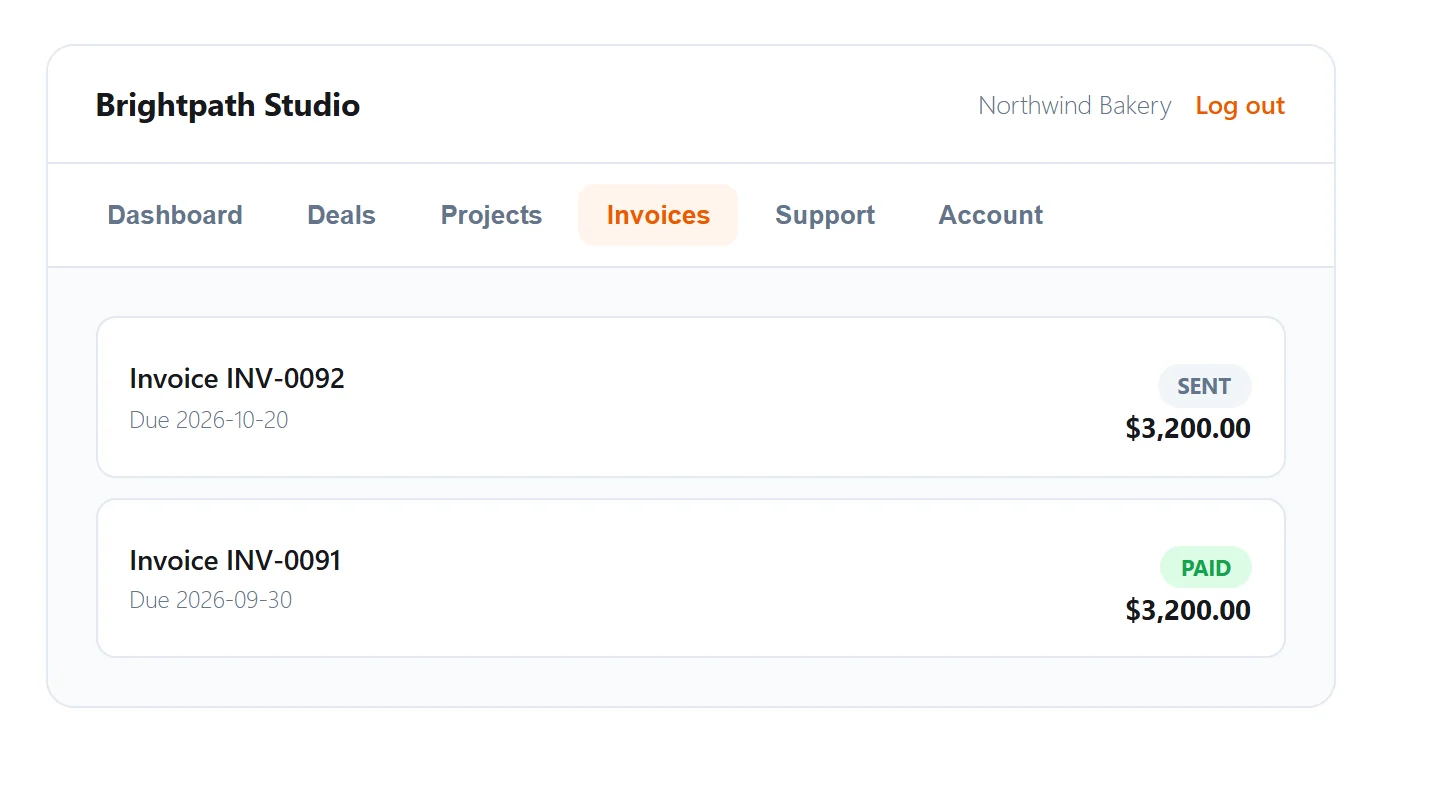
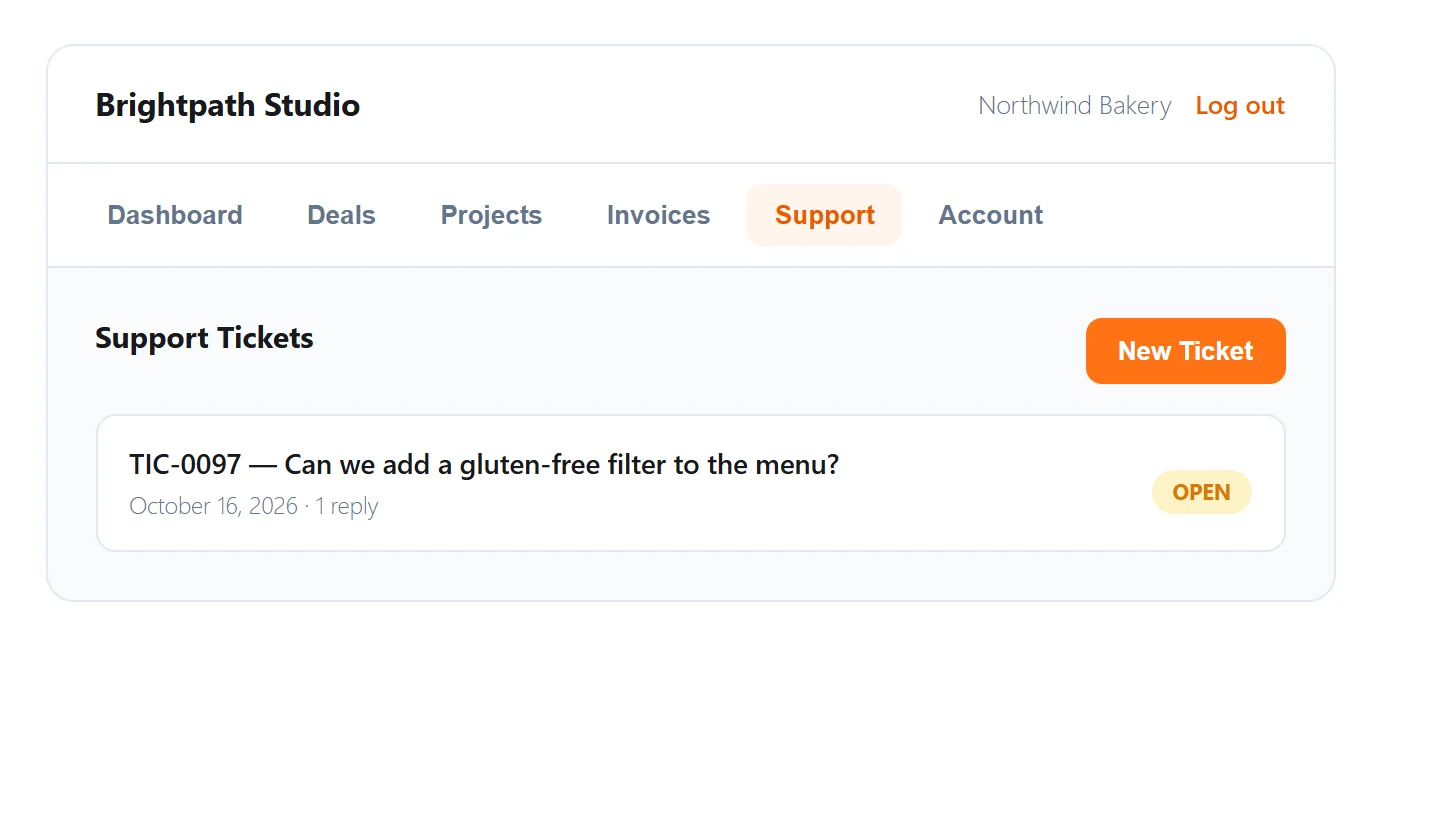
When a client signs in, the portal opens on a dashboard and shows six tabs: Dashboard, Deals, Projects, Invoices, Support and Account. The dashboard summarises what they owe, their active deals, their projects and their open tickets.
Each tab is limited to that client's own records. The invoices tab, for example, lists each invoice with its number, due date, status and amount.
The support tab lists the client's tickets with their status and how many replies they have, and it has a button to open a new ticket.
How do you set up a WordPress client portal?
The WordPress client portal takes six steps. Most of them are switches, so the whole setup takes a few minutes.
-
Check the portal page. The portal is added to a page with the
[hive_crm_portal]shortcode. A shortcode is a WordPress-specific code that lets you place a feature on a page with one line. HiveCRM creates a Client Portal page with that shortcode for you, and you can also add the shortcode to any other page. Visitors who are not signed in see a short "Please log in" message.
-
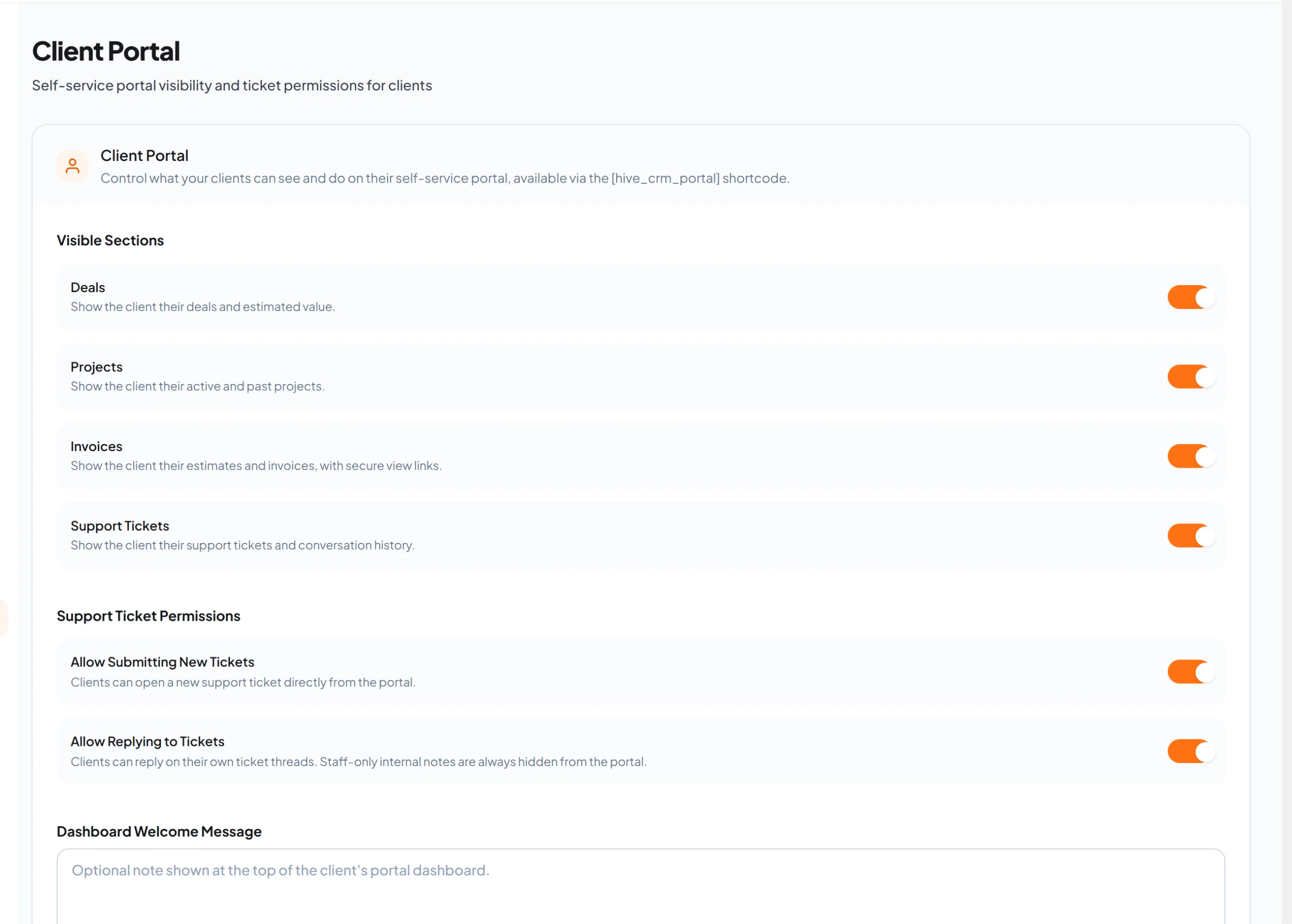
Choose what clients can see. Open Settings, Client Portal. Four switches control the sections: Deals, Projects, Invoices and Support Tickets. Switch off anything you do not want clients to see. The Deals switch matters most if you would rather not show clients the estimated value of their deals.
-
Decide what clients can do with tickets. On the same screen, two switches control whether clients can open new tickets and whether they can reply to their own tickets. Staff-only internal notes are always hidden from the portal, whatever you choose.
-
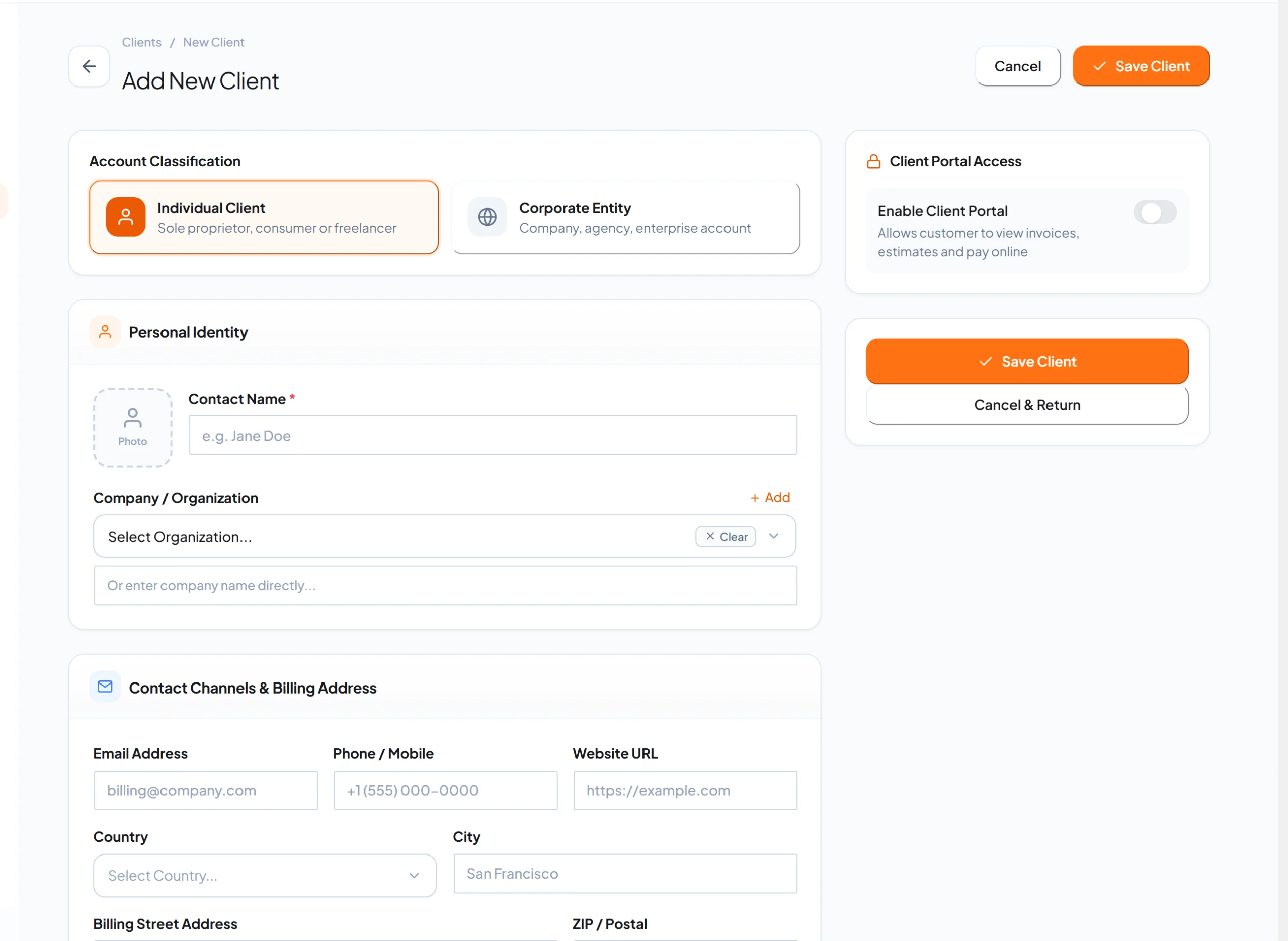
Add the client and switch on portal access. Go to Clients and add a new client. In the Client Portal Access box on the right, switch on Enable Client Portal.
-
Let HiveCRM create the login. When portal access is on, HiveCRM creates a WordPress user for that person, with their email address as the username and a generated password, and emails the password to them. If the email address already belongs to a WordPress user, HiveCRM adds the client role to that account instead. Clients then sign in on your portal page.
-
Check it as the client. Sign in with the client's details in a private browser window and open each tab. Look for anything you did not mean to show, then adjust the switches.
WordPress has six pre-defined roles, from Administrator to Subscriber. The client role is a separate one that HiveCRM adds, and it has only the basic read capability, the same single capability as the Subscriber role. Clients can sign in, but they are not given any power over your site.
What happens when a client pays or replies?
The portal is not only for looking. When you have turned on a payment gateway, a client can pay an unpaid invoice online with Stripe Checkout or PayPal, and the invoice marks itself paid. The documentation for the client portal and the payment gateway settings explain the setup.
Tickets work in both directions, and the guide to a WordPress support ticket system covers the staff side. When your team replies to a ticket, the client receives an email with the reply and a link to the ticket. When a client replies from the portal, the assigned team member is alerted in the CRM and by email.
What should you check before you invite clients?
A short check saves awkward moments. Run through this list before the first invitation:
- Deals value: decide whether clients should see the estimated value of their deals, and switch the Deals section off if not.
- Ticket rules: decide whether clients can open tickets, and whether they can reply to them.
- Welcome message: write the dashboard welcome message in your own words, so the portal sounds like your business.
- The login email: make sure your site can send email, so the client receives their password. If it cannot, fix that first.
What does a client do on their first visit?
On the first visit the client signs in with their email address and the password you sent, and lands on the dashboard. A typical first session looks like this:
- They check what is due. The dashboard shows the amount due, and the invoices tab lists each invoice with its status. If a payment gateway is on, they can pay from there.
- They look at their project. The projects tab shows each project and its status, so they stop writing to ask for an update. The guide to a client project tracker in WordPress shows how to keep that status current.
- They open a ticket when they need something. The request is recorded and assigned to your team, instead of sitting in a personal inbox.
- They set their own password. The account tab lets them change the generated password to one they will remember.
Each of those is one fewer email for you to answer.
Frequently asked questions
Do clients need a WordPress account for the portal?
HiveCRM creates a login for each client who has portal access, so you do not set one up by hand. They sign in on the portal page of your site.
Can clients pay invoices in the portal?
Yes, once you have enabled a payment gateway. Clients can pay an unpaid invoice with Stripe Checkout or PayPal, and the invoice then marks itself paid. The guide to a WordPress invoice plugin covers the invoice side.
Can I hide parts of the portal?
Yes. Four switches control the Deals, Projects, Invoices and Support Tickets sections, and two more control what clients can do with tickets.
Can clients see my internal notes?
No. Staff-only internal notes on a ticket are always hidden from the portal.
Does the portal use my own domain?
Yes. The portal is a page on your own WordPress site, so clients see your domain and your theme's header and footer around it.
Set up your own client portal
If you run client work on WordPress, see how HiveCRM puts leads, estimates, invoices, projects, tickets and the client portal in one dashboard. The guides for configuring the client portal and managing clients cover each setting in more detail.