

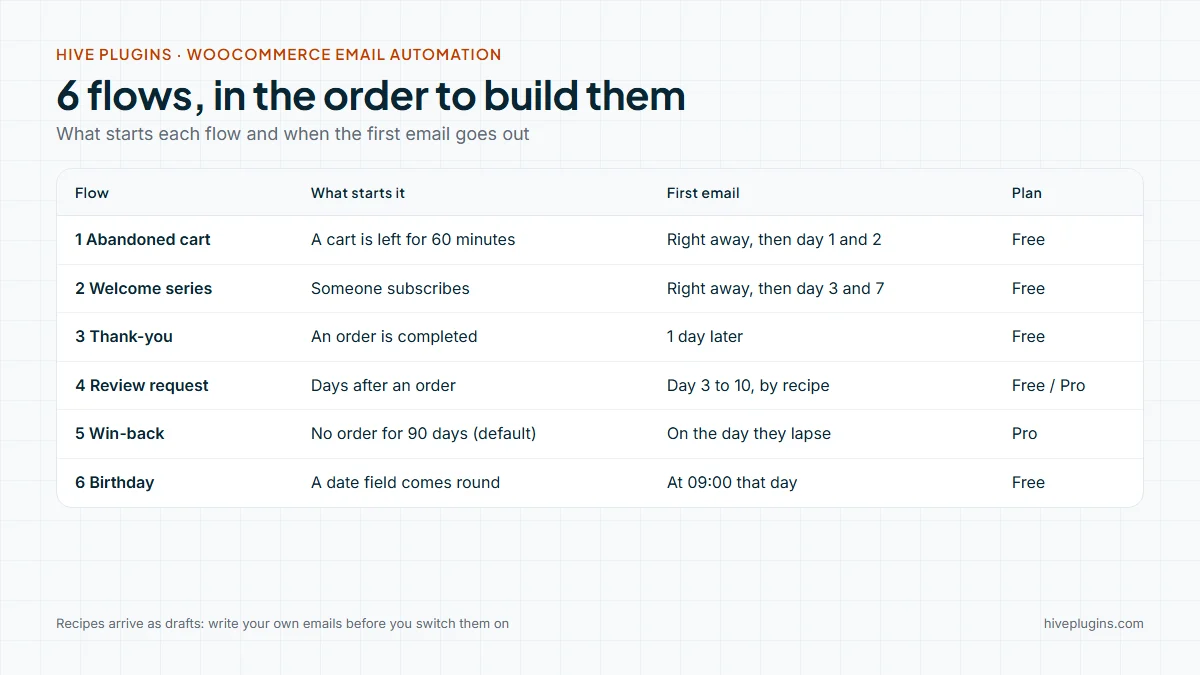
WooCommerce email marketing automation means emails that send themselves when a shopper does something: signs up, leaves a cart, buys or goes quiet. Six flows cover most small stores: an abandoned cart reminder, a welcome series, a post-purchase thank-you, a review request, a win-back and a birthday email. This guide shows what starts each one, when to send it, the order to build them in, and how Hive Mail sets each up inside your WordPress site.
Thank you for reading this post, don't forget to subscribe!
Table of Contents
At a glance
| Build order | Automation | What starts it | Hive Mail plan |
|---|---|---|---|
| 1 | Abandoned cart | A cart with an email address is left for 60 minutes (the default) | Free |
| 2 | Welcome series | Someone subscribes | Free |
| 3 | Post-purchase thank-you | An order is completed | Free |
| 4 | Review request | A set number of days after an order | Free for the thank-you version, Hive Mail Pro for a dedicated recipe |
| 5 | Win-back | A customer has not ordered for a number of days (90 by default) | Hive Mail Pro |
| 6 | Birthday | A date in a field comes round | Free |
Does WooCommerce email marketing automation come built in?
WooCommerce sends emails about orders and accounts, but its documentation does not list newsletters or abandoned-cart reminders among them. Those come from a plugin. Hive Mail is an email marketing and automation plugin that runs inside your WordPress site, reads your WooCommerce orders, and sends the marketing side.
The table compares what WooCommerce lists in its own Email settings documentation with what you add.
| Email or job | WooCommerce itself | Added by a plugin such as Hive Mail |
|---|---|---|
| Order confirmations to the customer: on-hold, processing, completed, refunded, failed | Yes | No, Hive Mail sends no receipts |
| New order and cancelled order alerts to you | Yes | No |
| New account, password reset, confirm email address, customer notes | Yes | No |
| A review request after a purchase | Yes, when the customer review request feature and its email are switched on | Yes, as a timed flow |
| A newsletter to subscribers | Not on its list | Yes |
| Abandoned cart reminders | Not on its list | Yes |
| Welcome series, win-back, birthday | Not on its list | Yes |
The same documentation says that extensions commonly add further emails to WooCommerce. The split worth remembering is simple: WooCommerce sends the emails a customer needs about an order, and your marketing plugin sends the emails you choose to send. For a wider comparison of criteria, read the guide to choosing a WordPress email marketing plugin.
What must be in place before you automate anything?
Email marketing automation for a shop needs three things: a working sending method, permission to email the people involved, and emails you have written yourself. Recipes arrive as drafts with sample subjects and placeholder pictures, so nothing goes out until you switch the flow on.
- A sending method. Hive Mail sends through WordPress mail (any SMTP plugin), Mailgun or SendGrid. The readiness checklist in Settings > Sending shows what is missing. Google's sender guidelines ask bulk senders for SPF, DKIM and DMARC, so check your domain early. The guide to WordPress email deliverability shows how.
- Permission. Marketing emails go only to people who agreed. Hive Mail adds an email sign-up box to the WooCommerce checkout (classic and block checkout) that is never ticked in advance. Ticking it subscribes the customer and saves the time and exact wording as proof. The guide to double opt-in on WordPress explains the confirmation step. Buyers who do not tick it become transactional contacts: they can receive emails about their order, never campaigns or marketing flows.
- Your own words. Open each email in the recipe and replace the sample text before you switch the flow on.
This is information, not legal advice.
1. How do you set up an abandoned cart email?
Start here, because a shopper who left a cart has already chosen products. The flow starts when a cart with an email address has had no order or change for the waiting time, 60 minutes by default. Three reminders then go out over about three days. The abandoned cart email guide covers the wording; this is the setup.
- Recipe (Free): Automation > Automation recipes > Abandoned cart recovery > Use this automation. Put the
{{cart_url}}merge tag in each email: it holds the restore link. - Timing: the first email goes out right after the cart counts as abandoned, then waits of 1 and 2 days. A Goal named "Cart recovered" stops the reminders when the person orders.
- Who is emailed: only people who may be emailed. A guest who did not tick the checkout box is tracked but never emailed.
- The restore link: it refills the visitor's cart and sends them to the checkout. It replaces whatever is in their current cart, so keep the wording clear.
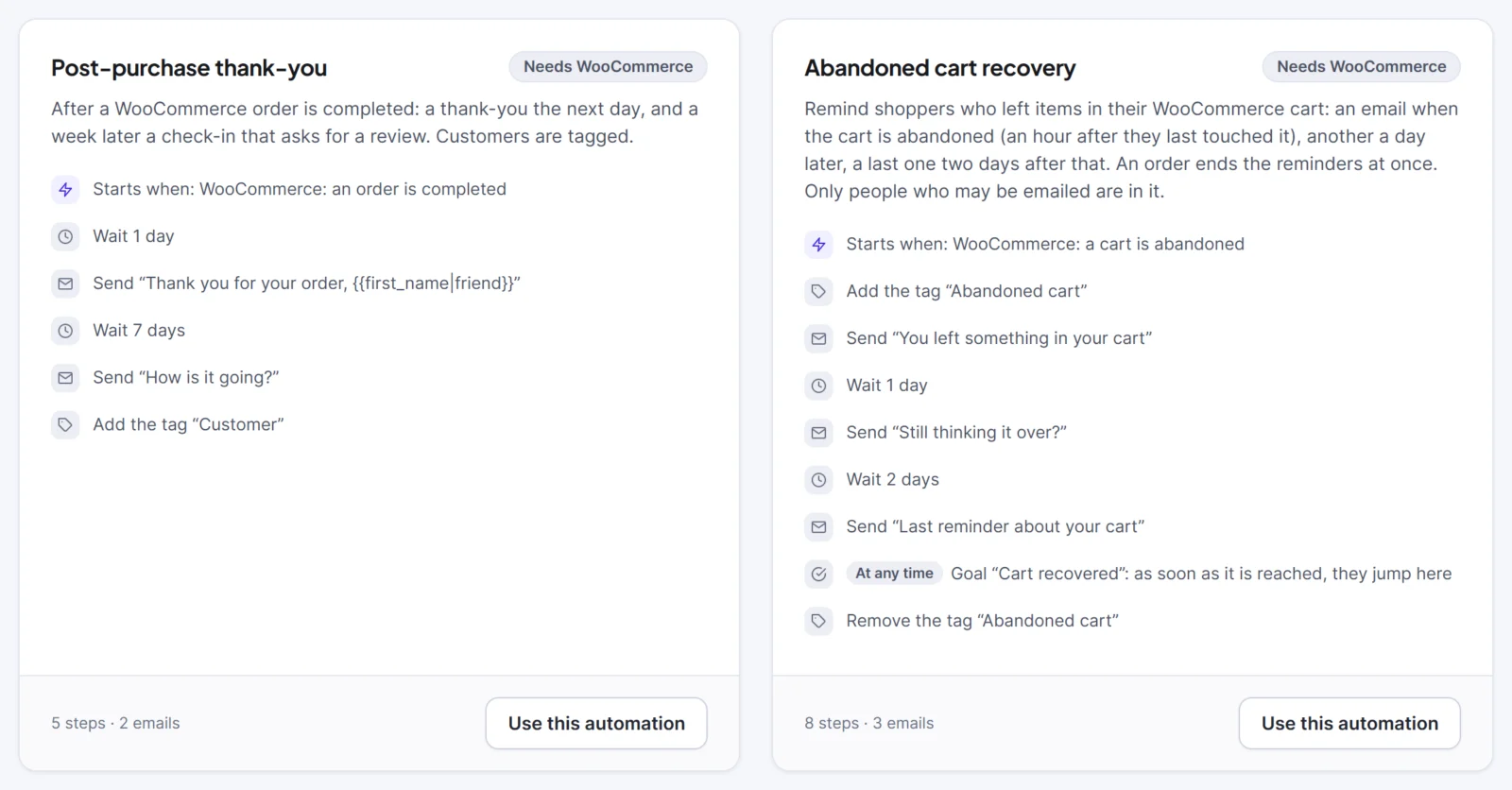
The recipe page at Hive Mail abandoned cart recovery lists the steps in full.
2. How do you set up a welcome series?
A welcome series answers the question every new subscriber has: what will I get from you? It starts when someone subscribes and runs three emails over about a week. The welcome email series guide gives the copy for each.
- Recipe (Free): Welcome series: a welcome email, a wait of 3 days, a "getting the most out of your site" email, 4 more days, a short question, then the tag "Welcome series". Each person goes through it once.
- For a store: use the second email to point at your best-selling categories or your returns page, and the third to ask what they hoped to find.
3. How do you set up a post-purchase thank-you?
A thank-you shows the order is in good hands and gives you a place to answer first questions. It starts when an order is completed. If you sell downloads instead, the guide to Easy Digital Downloads email marketing covers the purchase flows.
- Recipe (Free): Post-purchase thank-you: a thank-you after 1 day, a "How is it going?" email 7 days later, and the tag "Customer".
- Keep the order email clean. WooCommerce already sends the receipt. Keep a note that reaches every buyer about the order itself, without offers. An email that carries an offer is marketing, so send it only to people who ticked the box.
4. How do you ask for a review?
Ask once the product has had time to arrive and be used. In Hive Mail the second email of the thank-you recipe is the natural place: put your review link in it. WooCommerce can also send its own review request email when its customer review request feature is on, so choose one source and avoid sending both.
Hive Mail Pro adds two review recipes: Ask for a review (two emails, 3 and 10 days after a tag is added) and First WooCommerce order: welcome and a review (a welcome, the tag "Customer", and a review request 10 days later).
5. How do you win back customers who stopped ordering?
A win-back flow reaches customers whose last order is a set number of days old. It needs order history, which is why it comes fifth.
- Trigger (Hive Mail Pro): "WooCommerce: a customer has not ordered for a while". You choose 7 to 730 days (90 by default), and can limit it to customers with a minimum number of orders or amount spent. Hive Mail checks once a day.
- Recipe (Hive Mail Pro): Win-back: customers who have not ordered for 90 days: a miss-you email with no offer, then a week later, if they have not ordered, a second note with a coupon made for that customer (10% off for 14 days in the recipe, which you can change).
- The coupon step (Hive Mail Pro): it makes a normal WooCommerce coupon that only the customer's email address can use, once, until a date you choose. Details are in coupons, order status and win-back in flows.
- On the free plugin: build a segment with the rule "has not ordered in the last 90 days" and send it as a campaign.
A customer who lapsed more than 30 days before you switch the flow on is left out, so launching it never emails people who stopped ordering long ago. A win-back email is marketing, so it reaches only people who gave permission.
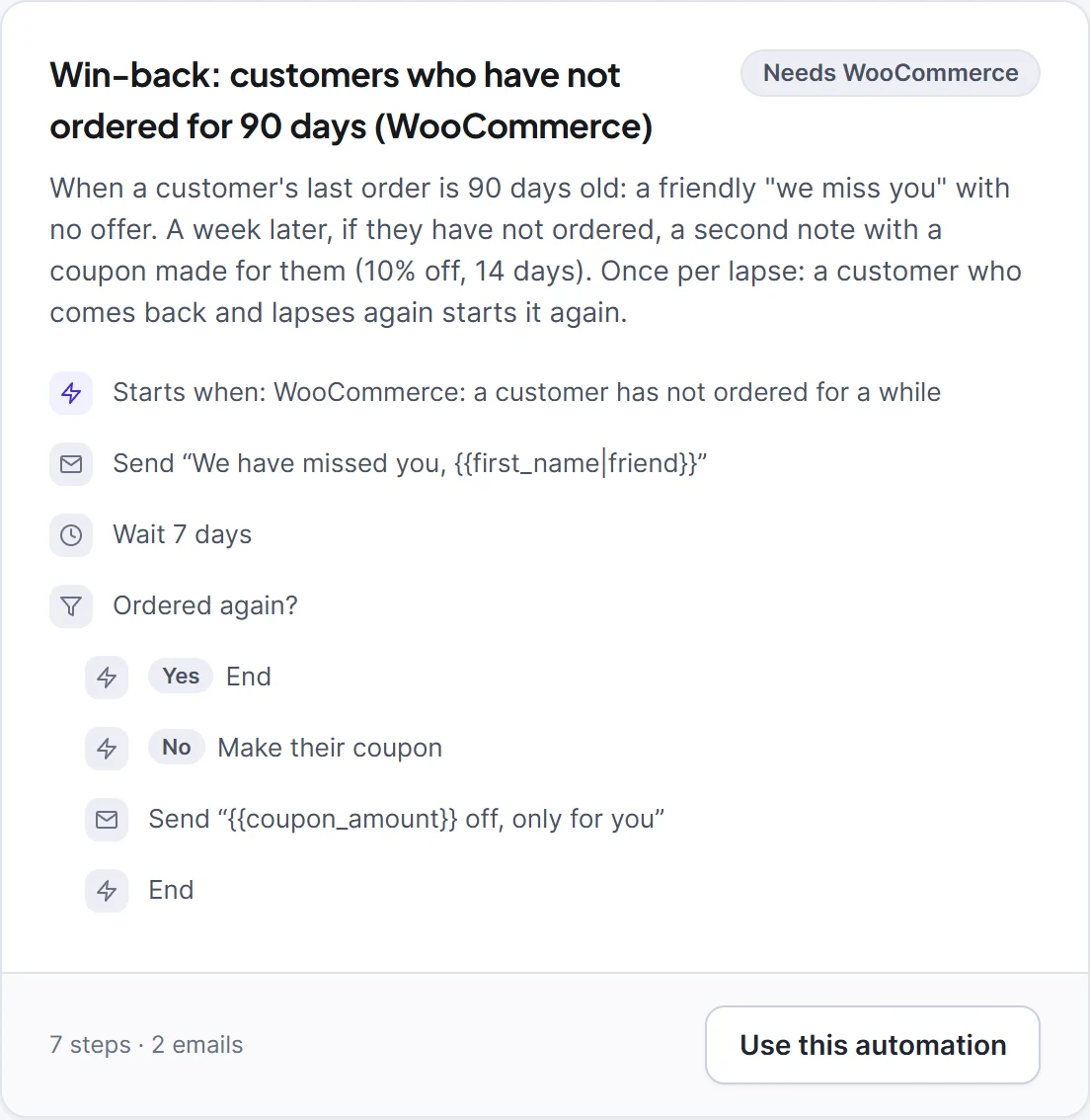
The picture shows the Win-back recipe card on the recipes screen.
6. How do you send a birthday email?
A birthday email is cheap to run and warm in tone, but it needs a date you may not have. That is why it comes last.
- Recipe (Free): Birthday or anniversary. It starts when a date in a contact field comes round (a field named Birthday, at 09:00) and sends a "Happy birthday" email. For an anniversary, pick another date field in the trigger.
- The data: the recipe creates the Birthday date field if it does not exist. Fill it by import or on the contact's profile, and only collect birthdays you will use.
See the birthday recipe for the steps.
In what order should a small store build these flows?
Build your email marketing automation in the order above. The reasoning is practical: the abandoned cart reminder reaches people already close to buying, the welcome series needs only a sign-up, the thank-you and review emails need orders to start, the win-back needs order history, and the birthday needs data most stores have not collected yet. To change a recipe or build your own flow, read the guide to email automation workflows on WordPress.
A realistic plan for a first week:
- Day 1: check the sending method, switch on the checkout box and track abandoned carts (Settings > WooCommerce).
- Day 2: install the abandoned cart recipe, write the three emails, run a test and switch it on.
- Day 3 to 4: the welcome series.
- Week 2: the thank-you and the review request.
- Later: win-back once you have a few months of orders, and the birthday flow if you hold the dates.
Before you switch any flow on, use the checklist below.
- The sending method passes a test email.
- The From address is on your own domain.
- Every sample subject and picture is replaced.
- The flow's Test run has been read.
- The checkout box wording is yours, and it is not pre-ticked.

How do you know your email marketing automation is working?
Look at the numbers the shop gives you. The Abandoned carts tab shows carts waiting, recovered carts and a recovery rate. The flow reports show who entered and finished each flow. Hive Mail also credits an order to the last email a customer clicked in the previous 7 days, shown as attributed revenue on campaign, flow and Reports screens. It shows which emails were followed by a purchase, not that they caused it.
A flow earns its place when it is easy to run and the numbers move in the right direction. If a flow needs weekly attention, simplify it. WooCommerce's own guide to ecommerce email marketing names these six among its automation emails: welcome, post-purchase thank-you, abandoned cart, review request, win-back and birthday.
For a seasonal sale, add one more plan on top of these flows: the Black Friday email schedule for WooCommerce lays out six dated emails.
Set up your first email marketing automation
Install the free Hive Mail, switch on WooCommerce abandoned-cart tracking and start with recipe number one. The WooCommerce page describes what Hive Mail reads from your shop, and the WooCommerce documentation lists every trigger and merge tag. Win-back and the coupon step are part of Hive Mail Pro; see the Hive Mail pricing page for the plans.
Frequently asked questions
Does WooCommerce have email marketing built in?
No. WooCommerce sends transactional emails about orders and accounts, and its Email settings documentation does not list newsletters or abandoned-cart reminders. You add a plugin for marketing emails.
What is the best WooCommerce email marketing automation to start with?
Start with an abandoned cart email, because those shoppers have already picked products. Then add a welcome series and a post-purchase thank-you.
Do abandoned cart emails need the customer’s permission?
Treat them as marketing. Hive Mail emails abandoned carts only for people who may be emailed, such as subscribed contacts or guests who ticked the checkout box. A guest who did not tick it is never emailed. Rules differ by country, and this is information, not legal advice.
Can I use WooCommerce email marketing automation on the free plugin?
Yes for the abandoned cart, welcome, thank-you and birthday flows. The win-back trigger, the coupon step and the extra review recipes are in Hive Mail Pro.