

A welcome email series is a short set of automatic emails that starts the moment someone subscribes. Three emails over a week are enough: a welcome that delivers what you promised, a message that shows how to get value from you, and one question that starts a conversation. In Hive Mail, an email marketing and automation plugin that runs inside your WordPress site, a ready-made recipe builds all three in a few clicks.
Thank you for reading this post, don't forget to subscribe!
Table of Contents
Welcome email series at a glance
- Emails: three, on day 0, day 3 and day 7.
- Starts when: a contact subscribes. With double opt-in that is the moment they confirm.
- Built with: the Welcome series recipe in Hive Mail (free). It makes the flow, three emails and a tag.
- You write: the three emails. The recipe only gives a sketch, and you must replace it.
- Runs: once per person.
- Copy below: for a newsletter, a shop and a service business.
What is a welcome email series, and why send one?
A welcome email series is the first automated conversation with a new subscriber. The person has just opted in, so they expect to hear from you and are paying attention. A single welcome email wastes that moment. Three emails let you confirm what they signed up for, show where to start and ask what they need. If your list does not exist yet, the guide to start a newsletter on WordPress covers the steps that come first.
It also protects your sending. Google asks bulk senders to keep the spam rate below 0.30%, with 0.10% as the target. People complain about email they do not recognise. An early email that says who you are, what to expect and how to leave costs you nothing and makes later campaigns less of a surprise.
What are the three emails in a welcome email series?
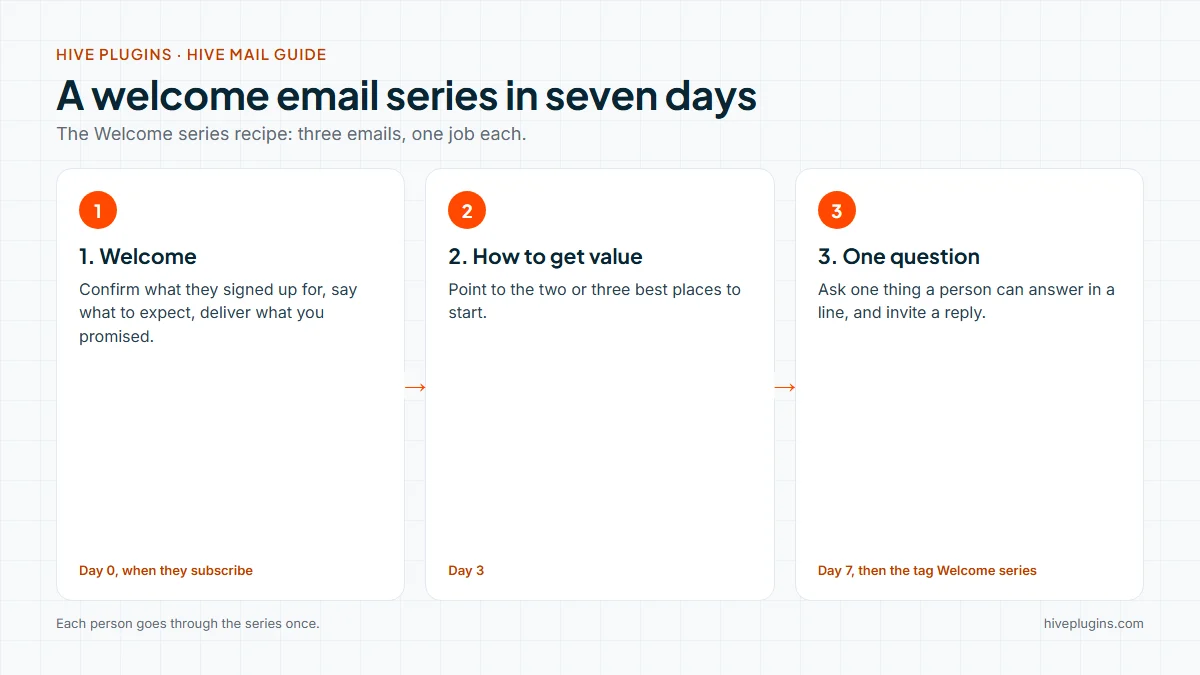
Send the first email at once, the second three days later and the third four days after that. Each has one job and one link. This matches the Welcome series recipe in Hive Mail.
| When | Its one job | Subject ideas | |
|---|---|---|---|
| 1. Welcome | Day 0, right after they subscribe | Confirm what they signed up for, say what to expect and how often, deliver anything you promised | "Welcome to {{site_name}}", "You are in: what happens next" |
| 2. How to get value | Day 3 | Point to the two or three best places to start | "Getting the most out of {{site_name}}", "Start here" |
| 3. One question | Day 7 | Ask one question and invite a reply | "A quick question", "What would help you most?" |
Keep the series to three. A fourth email is easy to add later when your own report shows people are still clicking.
What should each welcome email say?
Write in plain words, name the sender, and put one link in each email. Below is copy for three kinds of site. Replace the words in square brackets and read each email aloud before you send it. The footer, with your business name, address and unsubscribe link, is added for you.
Email 1: the welcome. Open with thanks, then the promise, then the single link.
| Site | Subject | Body (first lines) | The one link |
|---|---|---|---|
| Newsletter | "Welcome to {{site_name}}, here is what to expect" | "You are in. The next issue arrives on [day], then every [week or month]. Each one takes about [five] minutes to read." | Your best past issue |
| Shop | "Thanks for joining {{site_name}}" | "Expect news about new products and sales [once a week]. Delivery usually takes [3 to 5] working days and returns are free within [30] days." | Your delivery and returns page |
| Service business | "Welcome, and what happens next" | "Thanks for signing up. Here is how a project usually starts, and what each step costs in time." | Your process page or booking link |
Email 2: how to get value. Three days is long enough to be forgotten and short enough to be remembered. Give three options, not twelve.
- Newsletter: three posts that new readers like most, with one sentence on each.
- Shop: the size guide, your best-selling category and how to track an order.
- Service business: one project you are proud of, your process and how to book a first call.
Email 3: one question. Ask something a person can answer in one line.
- Newsletter: "What is the one thing you want to get better at this month? Reply to this email."
- Shop: "What were you hoping to find today? Reply and a real person will read it."
- Service business: "What is the one problem you would like solved first? Reply with a sentence."
Only promise a reply if someone will read it. In the Send an email step you can set From name, From email and Reply-to. Empty fields use the defaults in Settings > General. Give each personal tag a fallback, such as {{first_name|there}}, so nobody gets "Hi ,".
How do you build a welcome email series in Hive Mail?
Use the Welcome series recipe, rewrite its three emails and switch it on. A recipe is a ready-made flow that Hive Mail builds as a draft, so nothing is sent until you say so.
- Open Settings > General and check the sender name, the From email and the business address.
- Go to Automation > Automation recipes and click Use this automation on Welcome series.
- Click Create the draft flow, then Open it on the canvas.
- Open each of the three emails and write them in your own words. The starting designs are only a sketch, and they use placeholder pictures and sample subjects.
- Click an empty spot on the canvas and check that the This flow panel says "Ready to switch on."
- Click Test run, pick a contact and run it. Nothing is sent. Then switch the flow on.
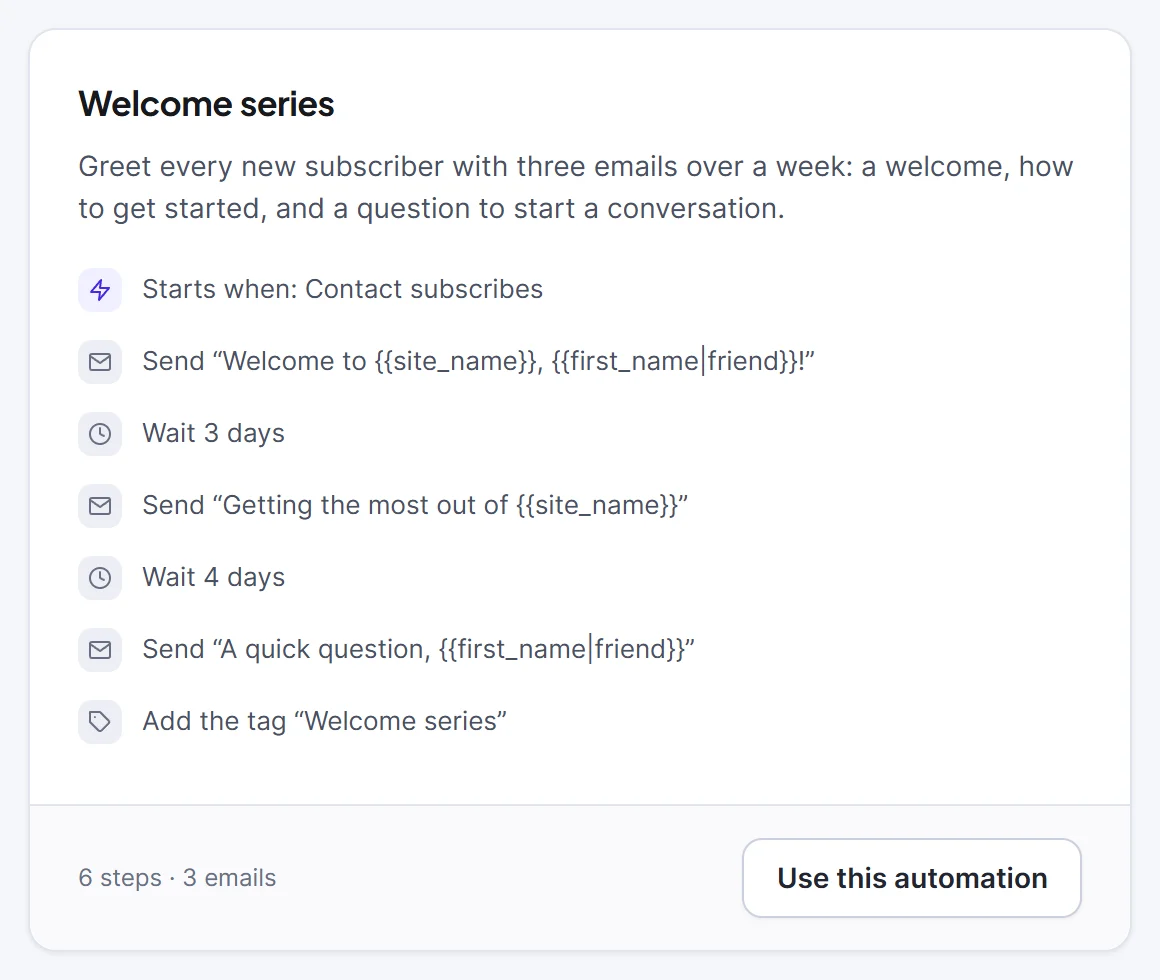
Do not switch the recipe on before you have written your own emails. The sample subjects and pictures are placeholders.
The recipe starts from the trigger Contact subscribes, waits 3 days, sends the second email, waits 4 days and sends the third. It then adds the tag "Welcome series" and lets each person through once. Use Contact subscribes, not Contact is created, because a contact can stay pending after they are created.
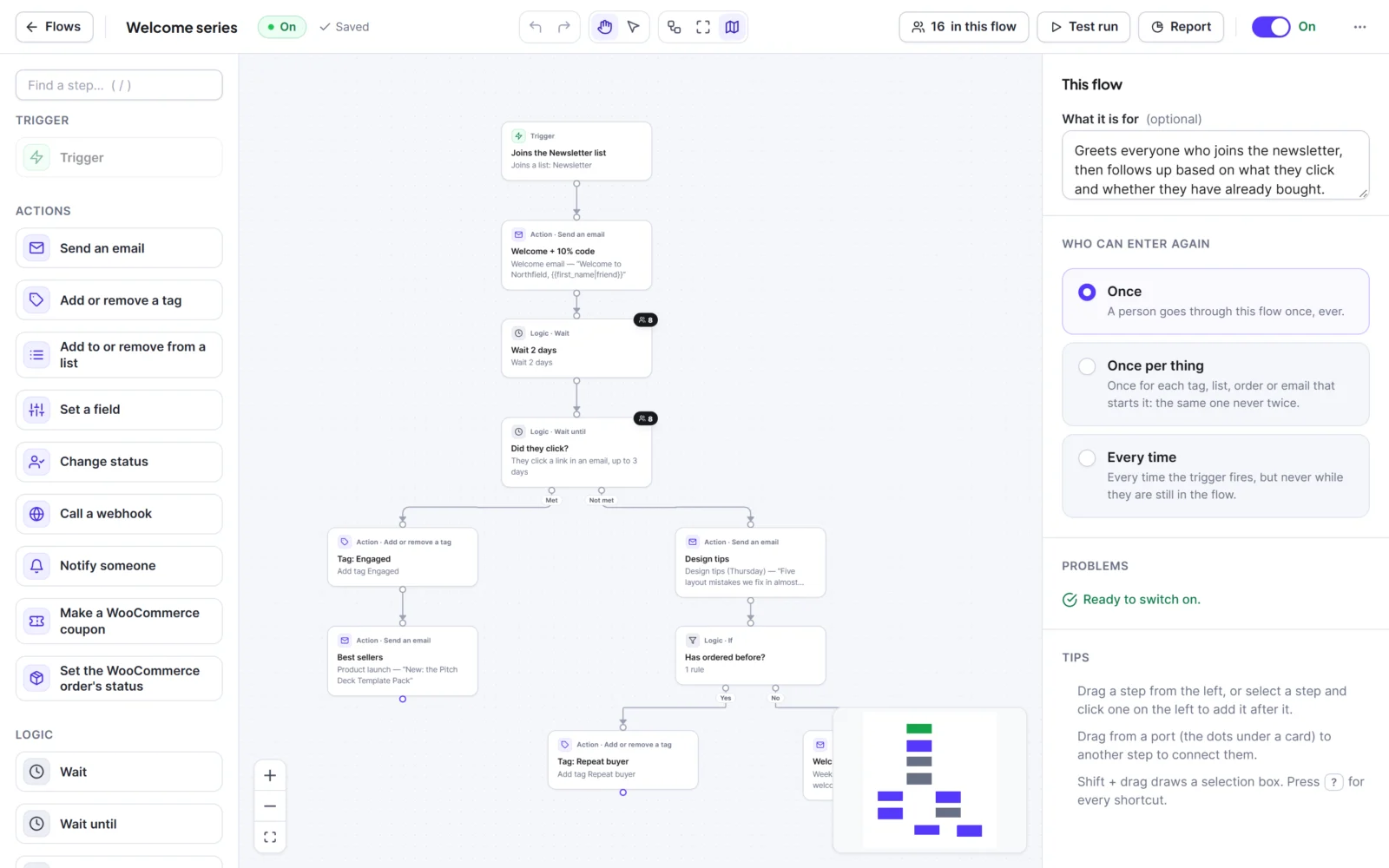
The picture shows a welcome flow like this: it starts when someone joins the Newsletter list, waits 2 days, then splits into people who click and people who do not, with four emails in all.
A flow reacts only to new events. People who subscribed before you switched it on do not get the series. On the Flows list, open the row menu, click Add people…, choose lists, tags or segments and click Add them to the flow. Only subscribed people are counted. The full steps are in the automation recipes guide and in build your first flow. To change the recipe or build your own, read the guide to email automation workflows on WordPress.
Does double opt-in change the welcome email series?
Yes, in one way: the series starts later. With double opt-in a new subscriber stays pending until they press the button in the confirmation email. Pending people get no marketing email. Contact subscribes fires when they confirm, so email 1 goes out after the confirmation, not before.
The confirmation email is separate from the series. Hive Mail sends it from Settings > Compliance, where you can edit its subject and message. Write email 1 as a warm second hello, not a repeat of the confirmation. The guide to double opt-in on WordPress covers the full set-up. See double opt-in and the confirmation email.
How do you keep a welcome email series compliant?
Every marketing email needs a clear way to stop. Hive Mail adds a footer with your business name and address and an Unsubscribe link when your email has none of its own. It also adds the one-click unsubscribe headers that Gmail and Yahoo use for their own Unsubscribe button. Google lists one-click unsubscribe among the requirements for bulk senders.
In the United States the FTC's CAN-SPAM guide asks for a truthful From line, a subject line that matches the content, a postal address and an opt-out you honour within 10 business days. Your obligations depend on where your subscribers live, and this is information, not legal advice. Do not hide the unsubscribe link, and do not use the Transactional kind for a welcome series, because it is marketing.
Before you switch on, open Settings > Sending and run Is your site ready to send?. It checks your sending method, your From address and your SPF, DKIM and DMARC records. A welcome email that lands in spam never starts the conversation. The site readiness guide lists each check.
How do you improve a welcome email series after it is live?
Wait until a few dozen people have gone through it, then open the flow report. Use Report in the flow's row menu on Automation > Flows. It shows how many entered and finished, and a Steps table with Sent, Opened and Clicked for each email.
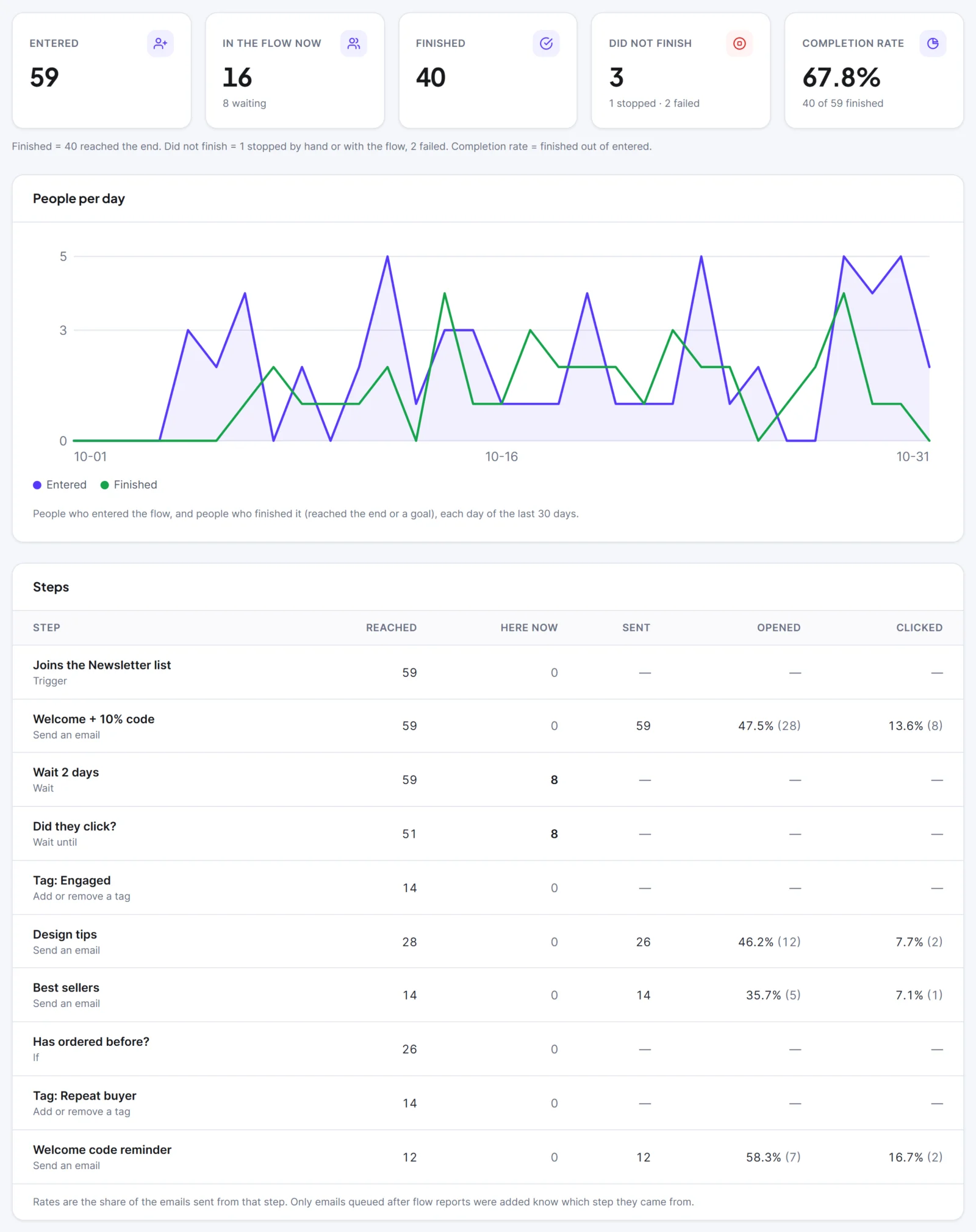
The picture shows the report of an example welcome flow, so its Steps table has more rows than three emails.
Look at clicks and replies before opens. Apple Mail privacy protection loads images for everyone, so open numbers are only a guide. A few things to change:
- Email 2 gets few clicks: you gave too many options. Cut to two links.
- Email 3 gets no replies: the question is too big. Ask for one word or one sentence.
- Shop buyers keep getting the series after they order: add a Goal step with the rule Purchases: has ordered. It takes anyone who orders out of the rest of the series.
You can edit a live flow at any time. People already inside finish the version they started, and new subscribers get the new one. Read more in re-entry, existing contacts and editing a live flow.
Start the welcome series today
Install the free Hive Mail, set your sender and open the Welcome series recipe. To see what else the canvas can do, read about Hive Mail automation. If you run a store, add WooCommerce abandoned cart emails next, so shoppers who leave a cart get three reminders. The guide to WooCommerce email marketing automation covers the shop version of this series. If you are still choosing a tool, read how to pick a WordPress email marketing plugin.
Frequently asked questions
How many emails should a welcome series have?
Three is a good start: a welcome, a message on how to get value and one question. It is short enough to finish and long enough to build a habit. Add more only when your own click numbers say people want more.
When should you send the first welcome email?
Right after the person subscribes. In Hive Mail the first email goes out as soon as the contact subscribes. With double opt-in that means right after they confirm, because pending people get no marketing email.
How long should you wait between welcome emails?
The Hive Mail recipe waits 3 days, then 4 days, so the emails land on day 0, day 3 and day 7. You can change each wait on the canvas, in minutes, hours, days or weeks.
Should a welcome email series include a discount?
Only if it fits your site, and not in the first email. Email 1 should deliver what you promised. A shop can mention a first-order offer in email 2 or 3, as long as the offer is real and the deadline is true.
Do you need Hive Mail Pro for a welcome email series?
No. The Welcome series recipe, the flow canvas, the triggers and the reports are in the free plugin. Pro adds more ready-made automations and designs.