

This page builds a welcome email followed by a follow-up three days later. Set the sender in Settings > General first; flow emails use it unless a step has its own.
Create the flow #
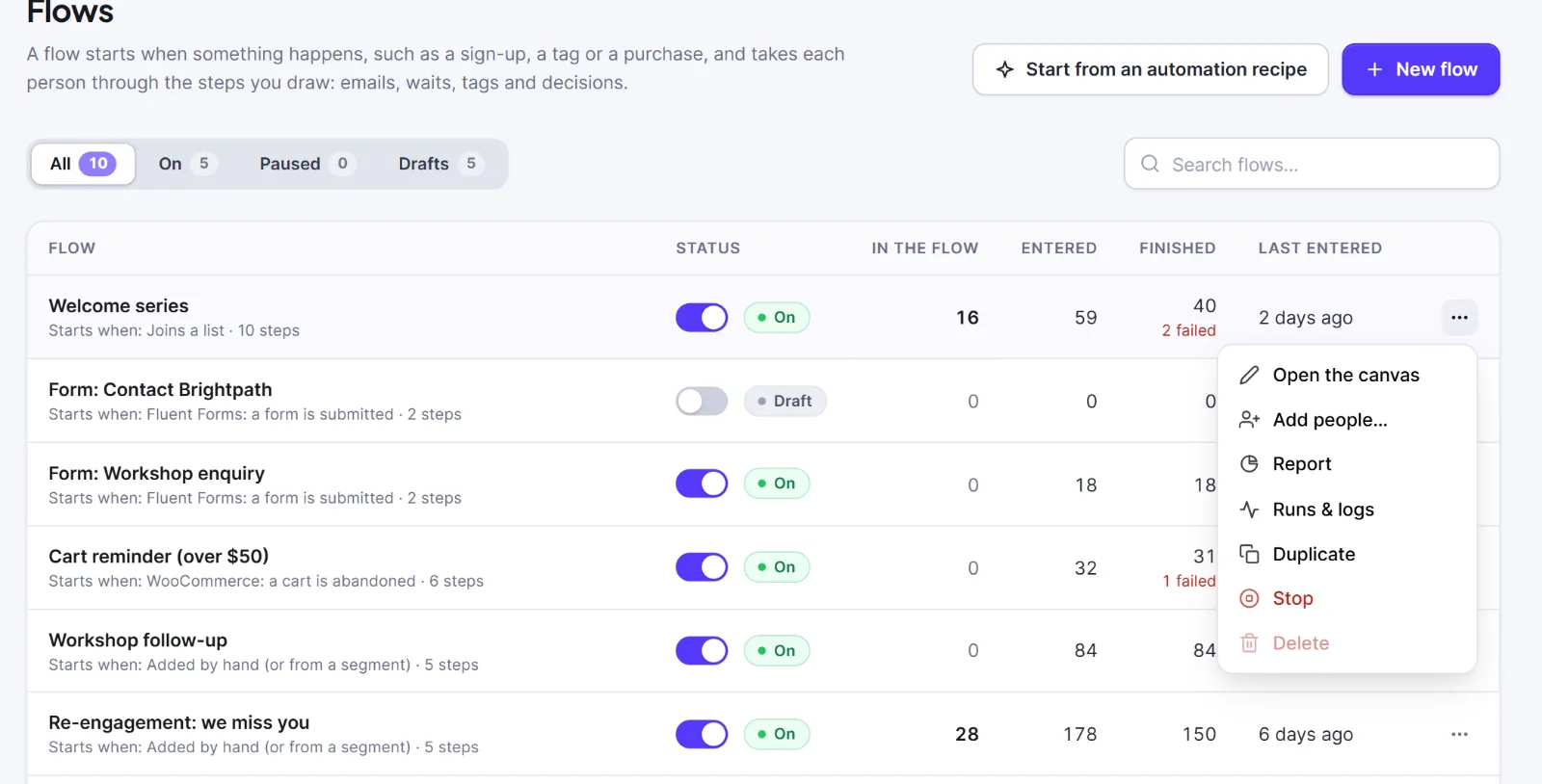
- Go to Automation > Flows and click New flow.
- Type a Name (for example "Welcome"). What it is for (optional) is a note for your team.
- Click Create flow. The canvas opens full screen. A new flow is always a Draft.
- On the card What starts this flow?, click Contact subscribes. To change it later, select the trigger card and use What starts the flow in the right panel (this clears its settings). See Triggers.
Add the steps #
- Click the + under the trigger, type "email" and choose Send an email.
- In the right panel click Choose an email, open Starters, pick Welcome and click Create the email from this starter. Type a Subject line, for example
Welcome to {{site_name}}!. - Click the + under the email card, choose Wait, and set Wait for to 3 and Unit to days.
- Click the + under the wait, choose Send an email, then pick or create the follow-up and write its subject.

Every step is described in Steps and Waits, conditions, goals and splits.
Test and switch on #
- Click an empty spot on the canvas. The This flow panel should say "Ready to switch on." If not, fix the Problems (see below).
- Click Test run, pick a contact and click Run the test. Nothing is sent or changed. The list shows each step and its way out (Yes, No, A, B, Met, Not met). Show on the canvas numbers the cards. An If or Goal is decided for the real person; a Wait until takes its "Not met" way. The test stops after 50 steps.
- Use the on/off switch in the top bar. The badge becomes On.

Work on the canvas #
The palette is on the left (Trigger, Actions, Logic), the canvas in the middle, the settings panel on the right. Click a card for its settings, an empty spot for the flow's own.
- Add a step: drag from the palette; click a palette step while a card is selected; click a + under a free port; or press
/to search. - Connect: drag from a port to the top of another step. Each port leads to one step; nothing leads into the trigger. To remove a line, select it and press Delete. Keyboard users use the What happens next pickers in the panel.
- Rename: double-click a card or press F2. Copy, cut, paste: Ctrl+C, X, V (also into another flow; a second trigger is left out). Duplicate: Ctrl+D. Delete: Delete.
- Top bar: Undo and Redo (last 100 changes), Tidy up, Fit the flow in view, Map, {n} in this flow (the people drawer), Test run, Report, and More (Who is in this flow, Runs & logs, Keyboard shortcuts, Stop the flow…). Press
?for all shortcuts.
Autosave #
Changes save by themselves; the top bar shows Saving… then Saved. Ctrl+S saves at once. If the flow was changed in another tab or by someone else, a red bar offers Load the saved version or Keep mine.
Problems that stop switch-on #
Red problems block switch-on; orange ones are advice. Click a problem to jump to the step.
| Problem | Fix |
|---|---|
| The flow needs a trigger | Choose one. |
| Add at least one step after the trigger | Add a step. |
| Choose the email to send / Write a subject line | Pick a template, type a subject. |
| Choose the tag / Choose the list | Pick one (it may have been deleted). |
| Enter the web address to call | Fill in the webhook address. |
| Add at least one rule | Add a rule to the If or Goal. |
| Subscribing someone needs the consent box ticked | Tick it on Change status, or pick another status. |
| The flow loops back without a delay | Put a Wait inside the loop. |
| Nothing leads to this step (orange) | Connect or delete it. |
Once the flow is On, a pill on each card shows how many people are there. To pause, use the same switch. To end all runs, choose More > Stop the flow….
Tip: There is no version history. Use Duplicate on the Flows list to keep a copy before a big change.
Next: Re-entry, existing contacts, and editing a live flow, Runs & Logs and flow reports.


