

A segment is a saved filter: "everyone who matches these rules, right now". Nobody is added by hand. People enter or leave as their status, tags, fields or activity change.
Create a segment #
- Go to Audience > Segments and press New segment.
- Type a Segment name. Only you see it.
- In "Include contacts who match [all | any] of these rules", choose all (every rule must match) or any (one is enough).
- Press Add a rule. Pick the Condition (for a custom field, also the Field), then the Operator, then the value.
- Repeat for more rules. Remove one with the x at the end of its row. A segment can have up to 30 rules.
- Watch Who matches right now, then press Save segment.

The preview updates about half a second after your last change. It shows how many contacts match, how many of them are subscribed, and the 10 newest matching people. Unfinished rows (amber outline) are not counted, and you cannot save until they are filled in or removed.
You can also start from Audience > Contacts: set your search and filters, then press Save as segment.
Conditions #
| Group | Condition | Operators | Value |
|---|---|---|---|
| Contact | Status | is, is not | Pending, Subscribed, Unsubscribed, Transactional, Bounced, Complained |
| Contact | Email address, Source, Country (2-letter code), Company, First name, Last name | is, is not, contains, does not contain, starts with, ends with, is empty, is not empty | text |
| Lists and tags | List | is in, is not in | one list ("is in" means subscribed to it) |
| Lists and tags | Tag | has, does not have | one tag |
| Custom fields | Custom field | by field type (below) | depends |
| Dates | Date added | is before, is on or after, is within the last [N] days, is more than [N] days ago | a date, or 1 to 3650 days |
| Dates | Date subscribed, Last activity | the four above, plus is set, is not set | same |
| Email activity | Email activity | received, opened, clicked, did not receive, did not open, did not click | ever, or the last 7 days, 30 days, 90 days, 6 months, year |
Text comparisons ignore capital letters, so "Email address ends with @example.com" finds one domain. Dates are whole days in your site's time zone.
Email activity uses the sending log. "Did not open an email in the last 30 days" also matches people who never received one. Per-person opens need per-contact tracking in Settings > Tracking & Privacy, and Apple Mail privacy opens do not count. See Email tracking.
| Custom field type | Operators |
|---|---|
| Text | is, is not, contains, has a value, has no value |
| Dropdown | is, is not, has a value, has no value |
| Long text | contains, has a value, has no value |
| Number | is, is not, is greater than, is less than, has a value, has no value |
| Date | is, is before, is on or after, has a value, has no value |
| Multi-select | includes, does not include, has a value, has no value |
| Checkbox | is checked, is not checked |
The negative operators also match people who have no value at all.
With a shop plugin active, more conditions appear. WooCommerce: Purchases, Number of orders, Total spent, Product, Product category, Last order date, Abandoned cart. Easy Digital Downloads: Purchases, Number of purchases, Total spent, Download, Download category, Last purchase date.
The segments list #
The list shows Contacts now, Rules and Last changed. Use ⋯ on a row for Edit rules, See the contacts, Count again or Delete. Click the number in Contacts now to open Contacts filtered by that segment.
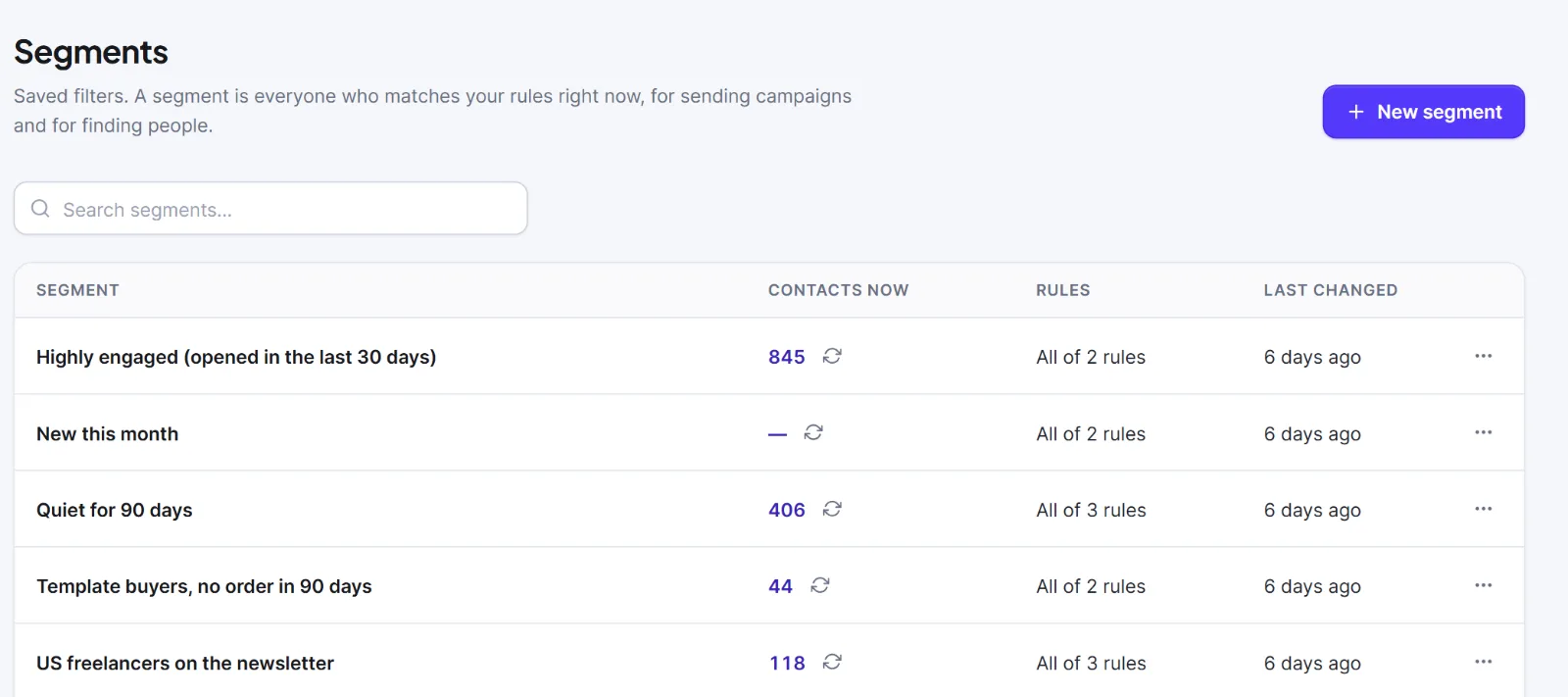
The saved count is recalculated when you save, when you press Count again, and every night. Who is in the segment is always worked out live when you use it, so the number can lag a little.
Use a segment in a campaign, in the Contacts "Any segment" filter, and in automation conditions. A contact's profile lists the segments that person is in.
Tip: Rules are one flat list joined by "all" or "any". You cannot nest groups or mix the two, so make two segments instead.
Warning: Deleting a segment removes only the filter. Contacts are untouched, but campaigns and flows that used it can no longer use it.
Next: Choose who gets a campaign, Lists, Tags.


