

A list is a named group of people you send to, like "Newsletter" or "Customers". One person can be on many lists. Lists are static: people are on one only because someone or something added them (by hand, import, form, flow or shop sync). To target people by rules, use a segment. Make your lists before you build a campaign, form or import.
Open Audience > Lists. Looking needs "See the audience"; changing needs "Manage the audience".
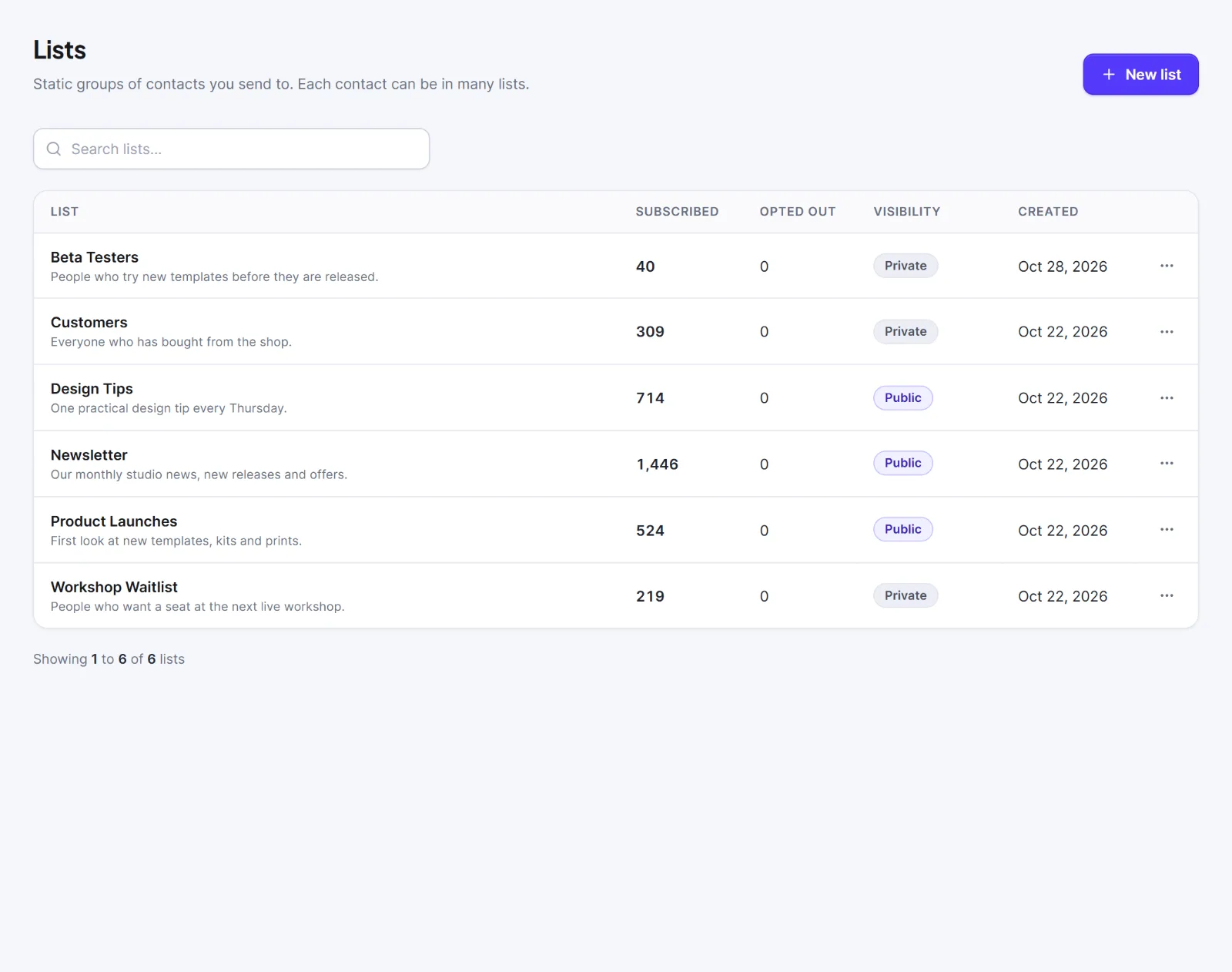
The table shows List (name and description), Subscribed, Opted out, Visibility (Public or Private) and Created. Counts leave out the trash and refresh within about 10 minutes. Click a row, or choose View contacts in the ⋯ menu, to open Contacts filtered to that list (subscribed people only). Use Search lists… to search names and descriptions.
Create or edit a list #
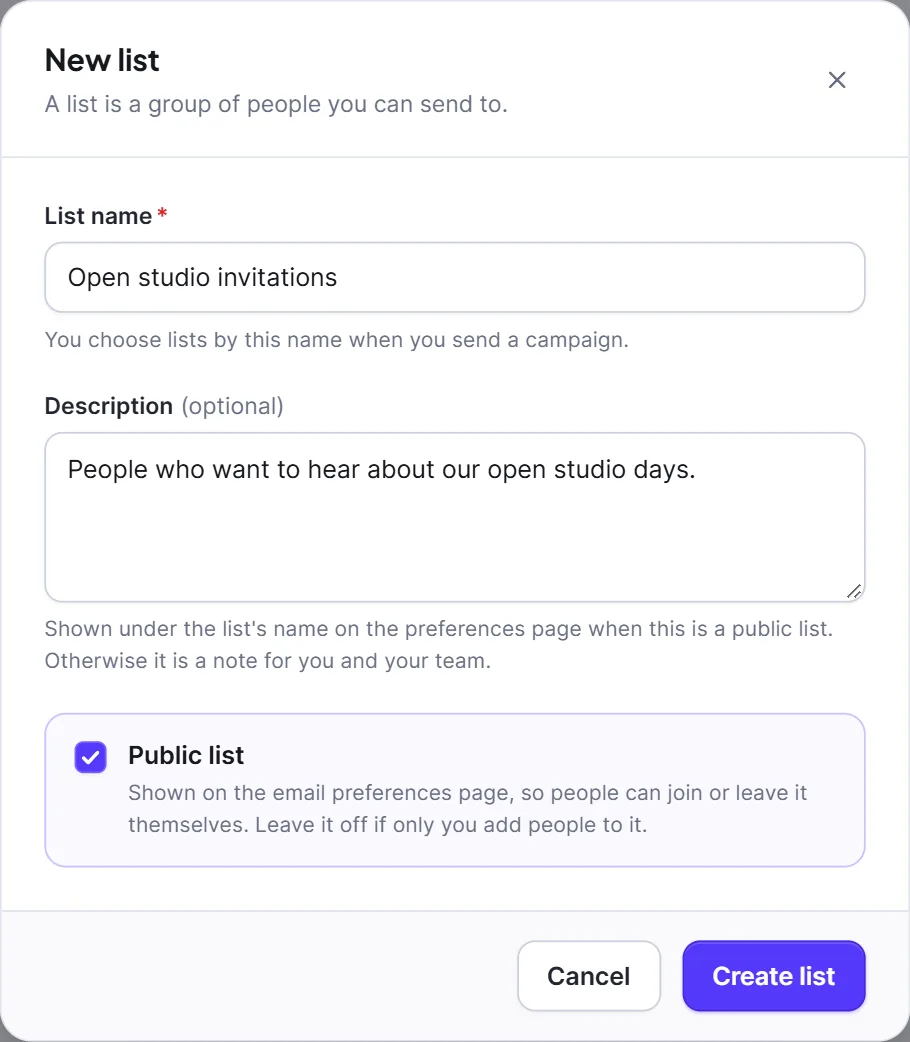
- Click New list (or ⋯ > Edit).
- Type a List name (required, unique, up to 150 characters).
- Optional: a Description (up to 500 characters).
- Optional: tick Public list.
- Click Create list (or Save changes).
| Setting | What it does | Default |
|---|---|---|
| List name | The name you pick in campaigns, forms and imports. | empty |
| Description | Shown under the name on the preferences page for a public list. Otherwise a note for your team. | empty |
| Public list | Shown on the email preferences page, so people can join or leave it themselves. | off (Private) |
What "Public list" does #
A public list appears, with its name and description, on the email preferences page, where a subscriber can tick or untick it. While at least one public list exists, marketing emails get a Manage preferences link in the footer (you can switch it off in Settings > Compliance) and the unsubscribe page offers "Only want fewer emails? Choose what you receive". Signup forms do not show a list chooser to visitors; you choose which lists a form fills when you build it. See Unsubscribe and email preference pages.
A person has one overall status and, per list, "subscribed" or "opted out". Someone who opts out of one public list stays subscribed overall, and adding them to that list again never undoes their opt-out. They must tick it on the preferences page or confirm through a signup form. See Contact statuses.
Delete a list #
- Open ⋯ > Delete.
- Read the dialog and click Delete list.
The people on it stay in your audience. Campaigns and flows that use the list no longer reach anyone through it. A signup form left with no list shows Needs a list and cannot be turned on.
Warning: Deleting a list cannot be undone.
Adding people to a list is quiet: nobody is emailed. Only Subscribed contacts get campaigns.
Next: Tags, Segments, Choose who gets a campaign.


