

Settings > Roles & Permissions decides who can do what in Hive Mail. You tick boxes for WordPress roles (Editor, Shop manager and so on) and can make exceptions for single people. You need the permission Manage settings; Administrators always have it. Roles themselves are managed in WordPress under Users.
By default only administrators (and a network's super admins) can open Hive Mail and they always have every permission. Everyone else sees nothing in the admin menu until their role gets Open Hive Mail.
Give a role access #
- In the card What each role can do, find the role in the left column. Your own role is marked Your role, the Administrator row Always has everything.
- Tick Open Hive Mail first; every other permission needs it.
- Tick the permissions the role needs. An editor who writes campaigns needs Open Hive Mail and Manage campaigns.
- Click the save button in the save bar ("Permissions saved"). Discard changes puts the boxes back. People see the change the next time they load a page.
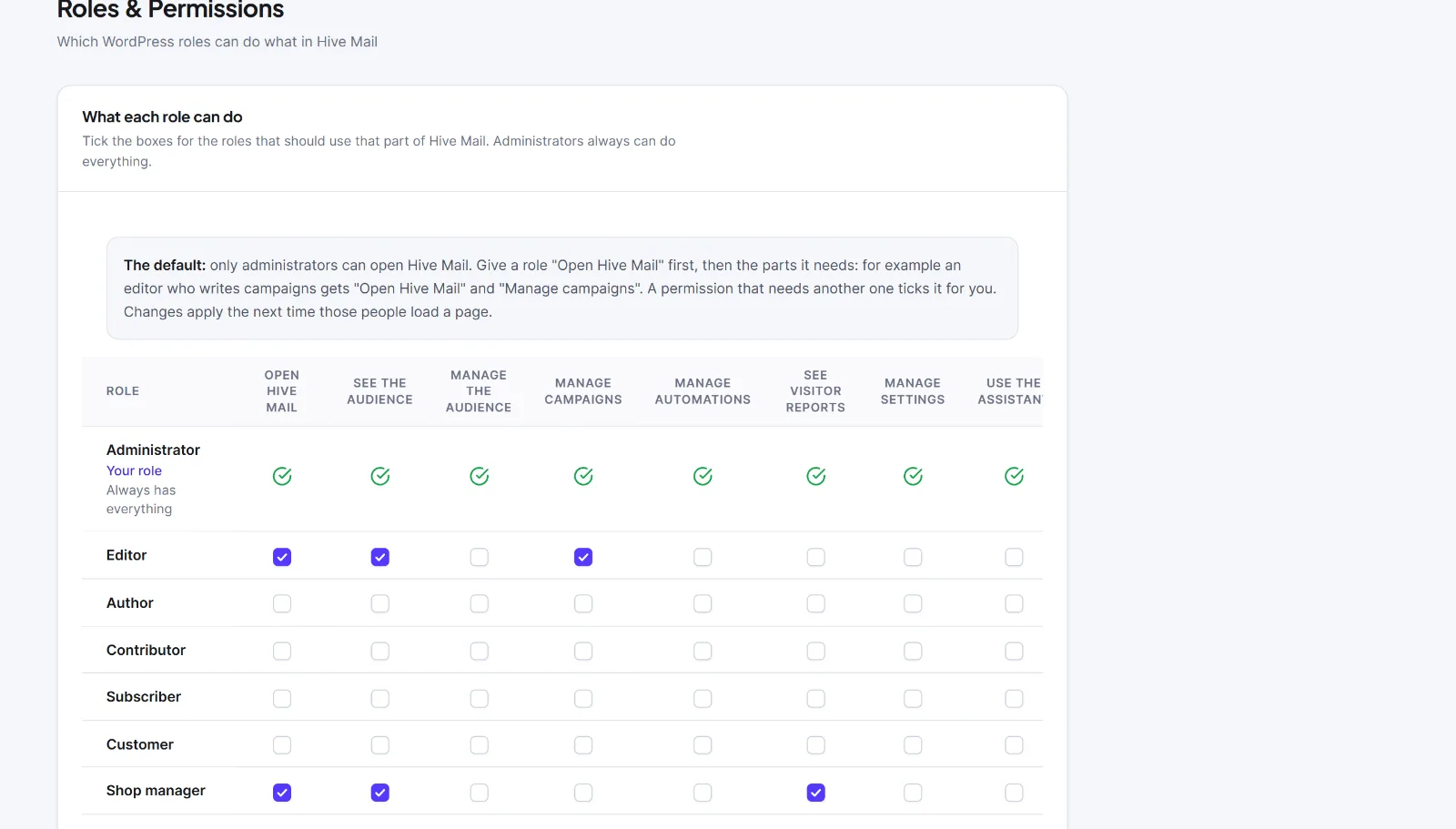
A permission that needs another one ticks it for you, and unticking a permission also unticks those that need it. For example, ticking Manage the audience ticks See the audience and Open Hive Mail.
Rules that protect you: the Administrator role cannot be changed; you cannot take Open Hive Mail or Manage settings from your own role (those boxes are locked on, so you cannot lock yourself out); a person with several roles gets the permissions of all of them.
The eight permissions #
| Permission | Needs | What it opens |
|---|---|---|
| Open Hive Mail | Nothing | Shows Hive Mail in the admin menu. Opens the Dashboard. Every other permission needs it. |
| See the audience | Open Hive Mail | Look at contacts, lists, tags, segments and each person's history, Check my list and shop customers. Cannot change anything. |
| Manage the audience | Open Hive Mail, See the audience | Add, edit, import, export and delete contacts, lists, tags, segments and custom fields; also signup forms and the do-not-email list. |
| Manage campaigns | Open Hive Mail, See the audience | Write, schedule and send campaigns, edit templates, read reports. Opens Messaging (Campaigns, Templates, Reports) and Deliverability (Sending Log, Bounces & Suppressions). |
| Manage automations | Open Hive Mail, See the audience | Build and switch flows on and off and see who went through them. Opens Automation: Flows, Automation recipes, Runs & Logs, Flow Studio. |
| See visitor reports | Open Hive Mail | Live, Pages, Sources, Conversions and visitor journeys. Opens Intelligence. |
| Manage settings | Open Hive Mail | Sending, tracking and privacy options, the system tools, Automation integrations (with Manage automations) and this page. |
| Use the assistant | Open Hive Mail | Shows the assistant icon in the top bar and lets the person chat with it. The assistant can only look at or make what the person's other permissions allow, and an administrator decides how far it may go in Settings > AI & MCP (The AI assistant). |
Warning: Give Manage settings only to people you trust with the whole plugin. Manage the audience lets a person delete contacts and export your whole list; treat it like access to your customer data.
For developers, the permissions are WordPress capabilities (manage_hivemail, hivemail_view_audience, hivemail_manage_audience, hivemail_manage_campaigns, hivemail_manage_automations, hivemail_view_intelligence, hivemail_manage_settings, hivemail_use_ai). API keys work as the person who made them, so they can do only what that person may do. See REST API: introduction and authentication.
Permissions for one person #
The card Permissions for one person is for exceptions: give a single person something their role does not allow, or stop them doing something it does.
- In Find a person, search by name, username or email. With no search it lists people who already have something set (up to 100); with a search it lists up to 20 matches.
- Click Set permissions next to the person (View for an administrator).
- In Permissions for {name} each permission shows Their role gives (Yes or No), For this person (Follow their role, Always allow, Always block) and They end up (Can or Cannot).
- Choose, then click Save ("Permissions saved").
Always block wins over the role, and it also blocks the permissions that need the one you blocked. For an administrator nothing can be set, and you cannot take Open Hive Mail or Manage settings from yourself.

Next: Activate and manage your license, Webhooks and API keys.


