

Connect a form you already built in another plugin, and every person who sends it becomes a contact in Hive Mail, with the lists, tags and emails you choose. Your form is not changed.
| Plugin | Needs | When Hive Mail hears the form |
|---|---|---|
| Fluent Forms | Plugin active | When a submission is saved |
| WPForms | Plugin active | When the form is processed and complete |
| Contact Form 7 | Plugin active | After the form's mail is sent; if that mail fails, nothing reaches Hive Mail |
| Gravity Forms | Plugin active | After a submission |
| Elementor forms | Elementor Pro | When Elementor Pro records a new form entry |
Before you start, one of these plugins must be active and contain your form (otherwise step 1 says "We didn't find a form plugin"; you can build a signup form instead). For welcome and follow-up emails, your site must be able to send.
Open the guide from Audience > Forms > New form > Connect a form from another plugin, or press Connect a form on the Forms screen or Dashboard. A progress card shows "Step N of 4"; nothing is made until the last step.
Step 1: Pick the form #
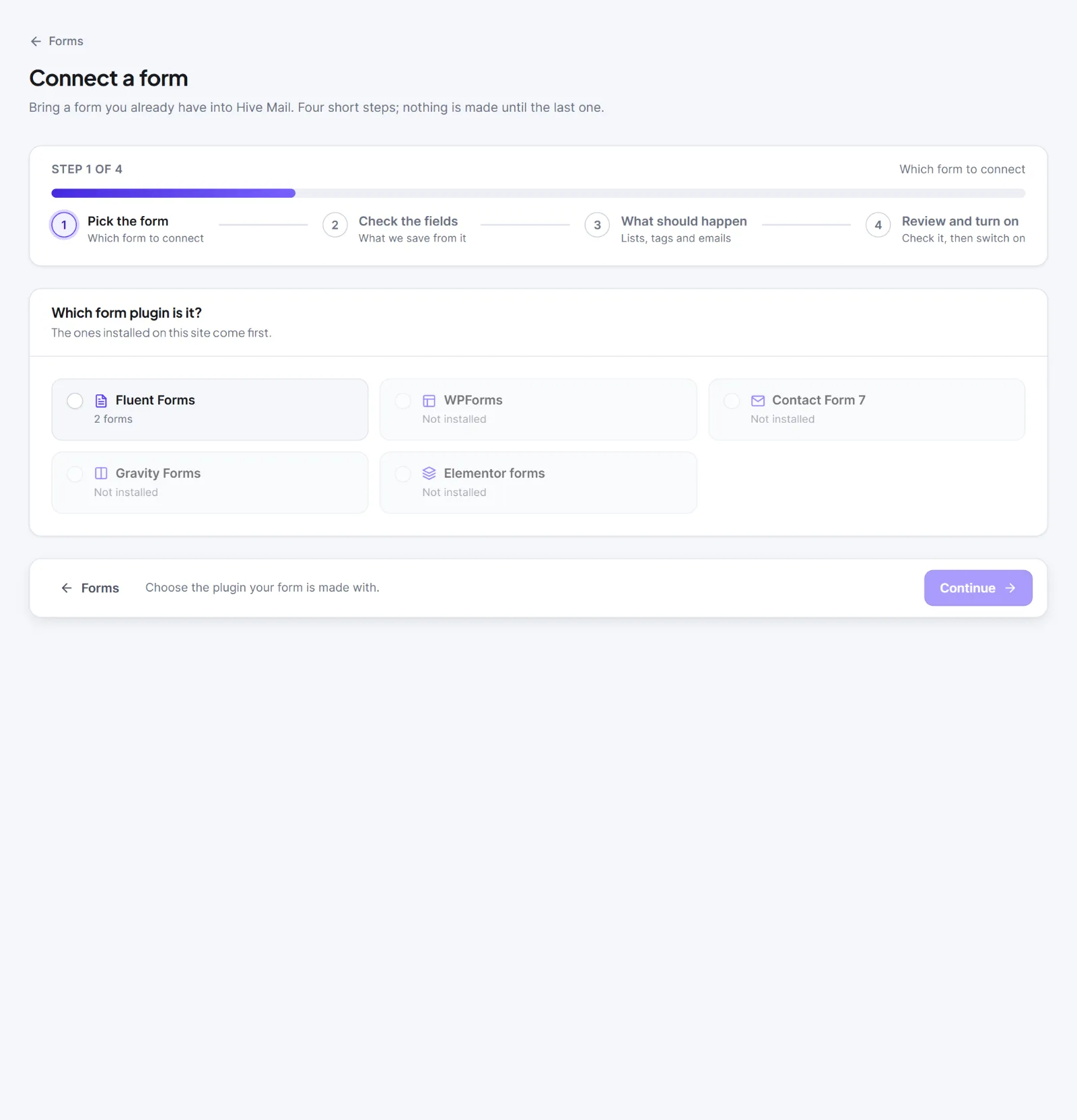
- Under Which form plugin is it?, choose a card. A card marked "Not installed" is greyed out.
- Under Which form?, choose your form (use Search your forms… with more than 8). Read the list again refreshes it.
- For Elementor forms, type the name you gave the form in The form's name, spelled the same way.
- Press Continue. A form already connected shows Already connected and Open its steps.
Step 2: Check the fields #
Under What we save from this form, check the rows **Email *** (required, chip Matched, Your choice or Choose a field), First name, Last name and Phone. A single "Name" field is split at the first space. Choose Do not save to skip a row.
- Check that Email shows the right field.
- Under Permission to email, choose the Consent box if your form has a tick box (My form has one picks it by hand). Then answer What about people who do not tick it?
- Only add people who tick it: the others are saved as contacts but never emailed.
- Add everyone, ask them to confirm by email: people who tick are subscribed at once; the others get a confirmation email.
- Under Other fields in this form, tick Save as a custom field for any extra answer to keep (Show N more reveals more).
- Press Continue.
For Elementor forms, or if reading fails, press Wait for a test entry and send your form once; Hive Mail checks every 3 seconds for ten minutes and keeps only field names and the first two letters of each answer. Or press Map the fields by hand and type each field name exactly as the form sends it. For other plugins, Check with a test entry confirms what the plugin sends.

Password, file upload, payment, signature, CAPTCHA, honeypot, step and section fields are never listed.
Step 3: What should happen #
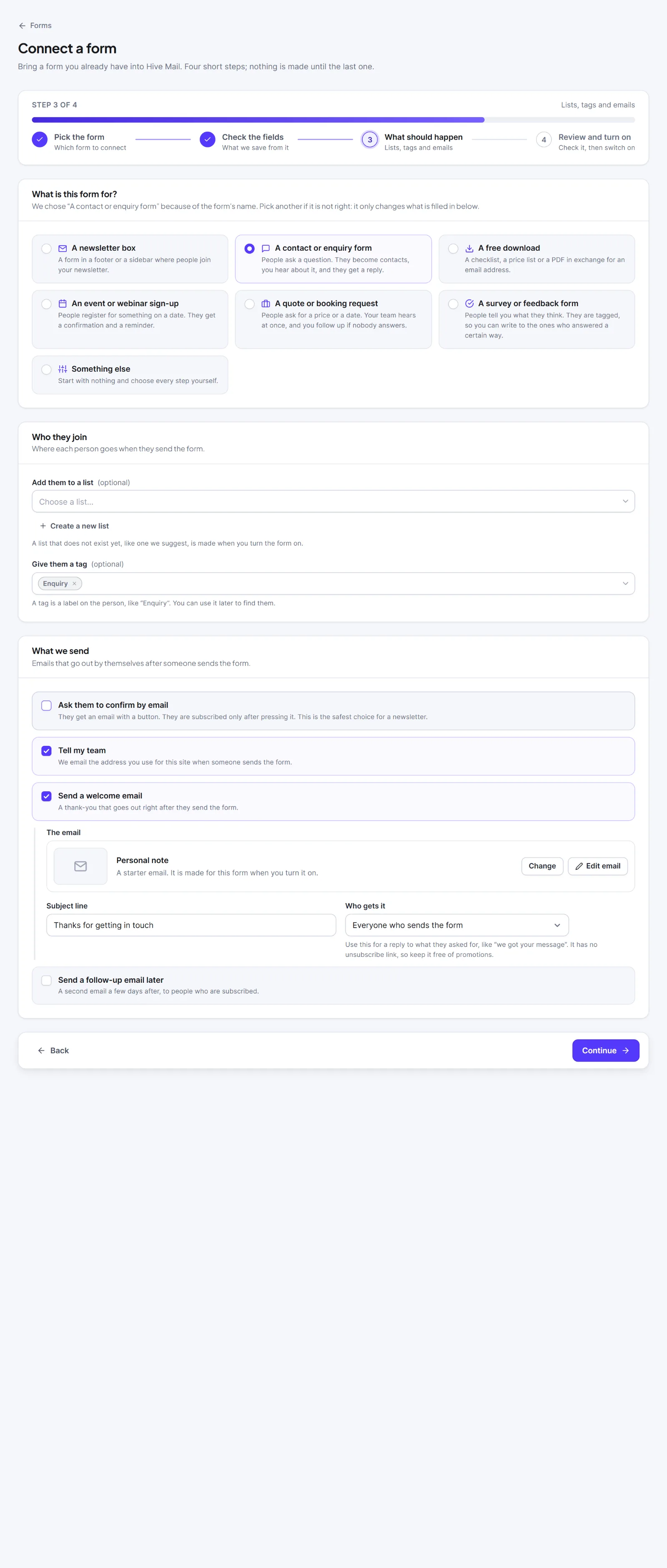
- Under What is this form for?, pick a card to fill in the choices below (you can change any): A newsletter box, A contact or enquiry form, A free download, An event or webinar sign-up, A quote or booking request, A survey or feedback form or Something else.
- Under Who they join, choose Add them to a list (optional) and Give them a tag (optional), or Create a new list. Missing lists and tags are made when you turn the form on.
- Under What we send, set the switches:
- Ask them to confirm by email: subscribed only after pressing the button. The safest choice for a newsletter.
- Tell my team: an email to the site administrator address.
- Send a welcome email: choose the email, the Subject line, and Who gets it ("Everyone who sends the form" or "Only people who are subscribed").
- Send a follow-up email later: choose the email, Send it after (1 to 60 days, default 3) and the Subject line.
- In the email chooser, pick a starter (Start from this email) or one of your own (Use this email). A starter is copied first, as "
- Press Continue.
| Use case | List | Tag | Confirm | Tell my team | Welcome | Follow-up |
|---|---|---|---|---|---|---|
| Newsletter box | Newsletter | Website | on | off | none | none |
| Contact or enquiry | none | Enquiry | off | on | on | none |
| Free download | none | Downloaded: | on | off | on | on, after 3 days |
| Event or webinar | Event: | none | off | off | on | on, after 5 days |
| Quote or booking | none | Quote request | off | on | on | on, after 7 days |
| Survey or feedback | none | Survey: | off | off | none | none |
| Something else | none | none | on | off | none | none |
Newsletter and event let each person in once; the others run every time the form is sent. A welcome email sent to "Everyone who sends the form" is a service email with no unsubscribe link, so keep it free of promotions.
Step 4: Review and turn on #
- Read Here is what will happen. Press Back if something is wrong.
- Switch on Connect ". Nothing happens until you do.
- Under Try it now, send your form once from your site. Hive Mail checks every 5 seconds for 2 minutes and shows "
was added just now". - Press Done. It opens the Connected forms tab.

Turning it on creates the missing lists and tags, copies the starter emails into Templates, and saves and switches on an automation called Form: (trigger "
How a submission is handled #
The contact's source is fluentforms, wpforms, cf7, gravityforms or elementor. A new contact is Subscribed only if the consent box was ticked; otherwise Pending, and asked to confirm when that switch is on. An existing contact's status never changes, except a Pending contact who now ticks the box becomes Subscribed. Unsubscribed, bounced and complained contacts are never subscribed again, and a suppressed address creates no contact.
Warning: Tick a consent box only if the form really shows one. Subscribing people without their agreement is your legal risk. Use Try it now every time.
This is information, not legal advice.
Next: Manage connected forms, A connected form does not add people.


