

The setup wizard opens over the Dashboard on a new site. It has four steps, sends nothing to your contacts, and you can skip any step. It opens by itself only for administrators, only if you have never saved it, and only when the site has no contacts (even in the trash) and no campaigns. It keeps showing until you finish or skip it.
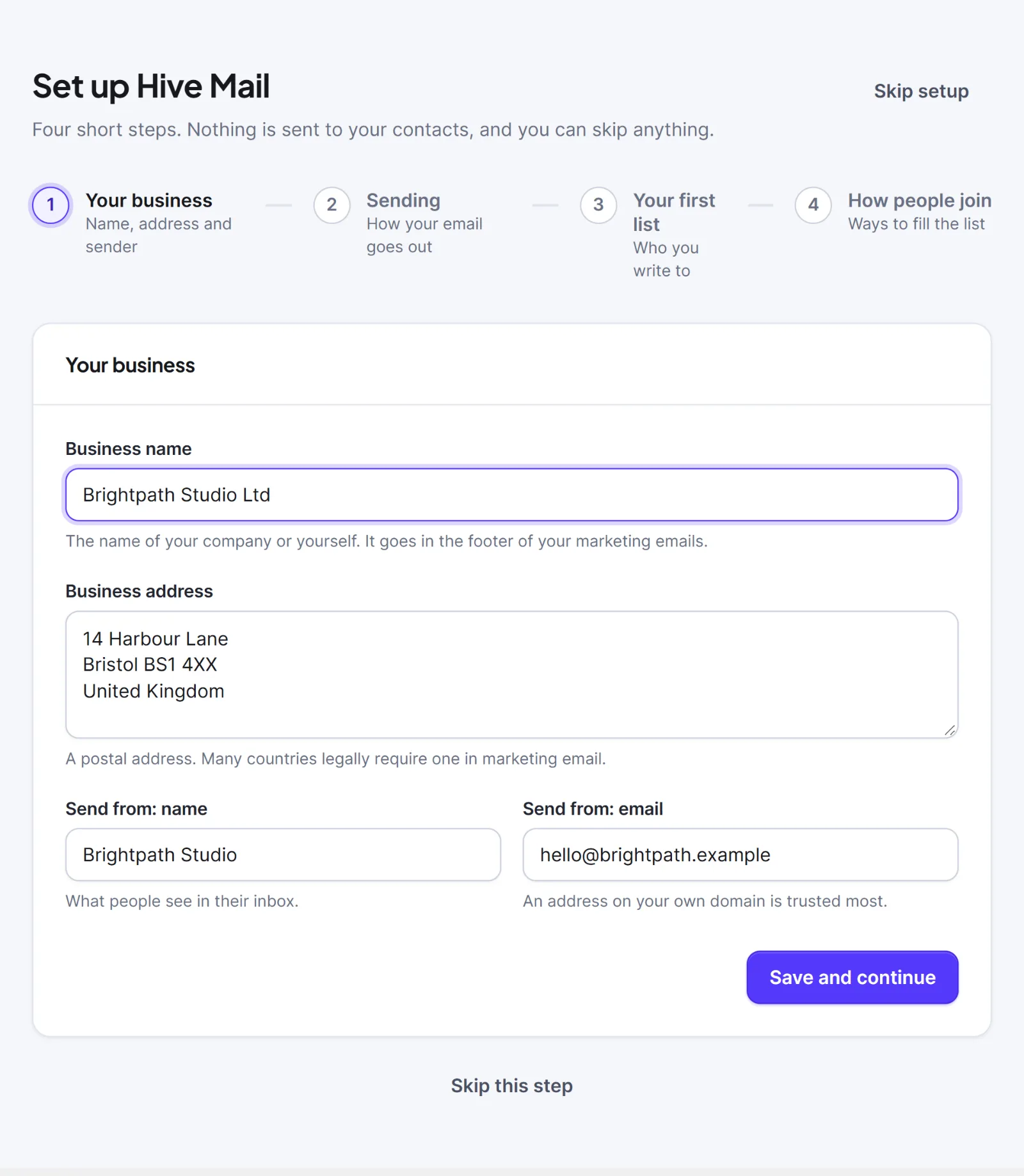
The progress row shows Your business, Sending, Your first list and How people join. Skip setup is at the top right.
Step 1: Your business #
- Type your Business name (printed in the footer of marketing emails).
- Type your Business address, a postal address.
- Type Send from: name. It starts as your site name.
- Type Send from: email. Use an address on your own domain. It starts as your site's admin email.
- Click Save and continue, or Skip this step.
These save to Settings > General (Business name, Business address, Default From name, Default From email).
Step 2: Sending #
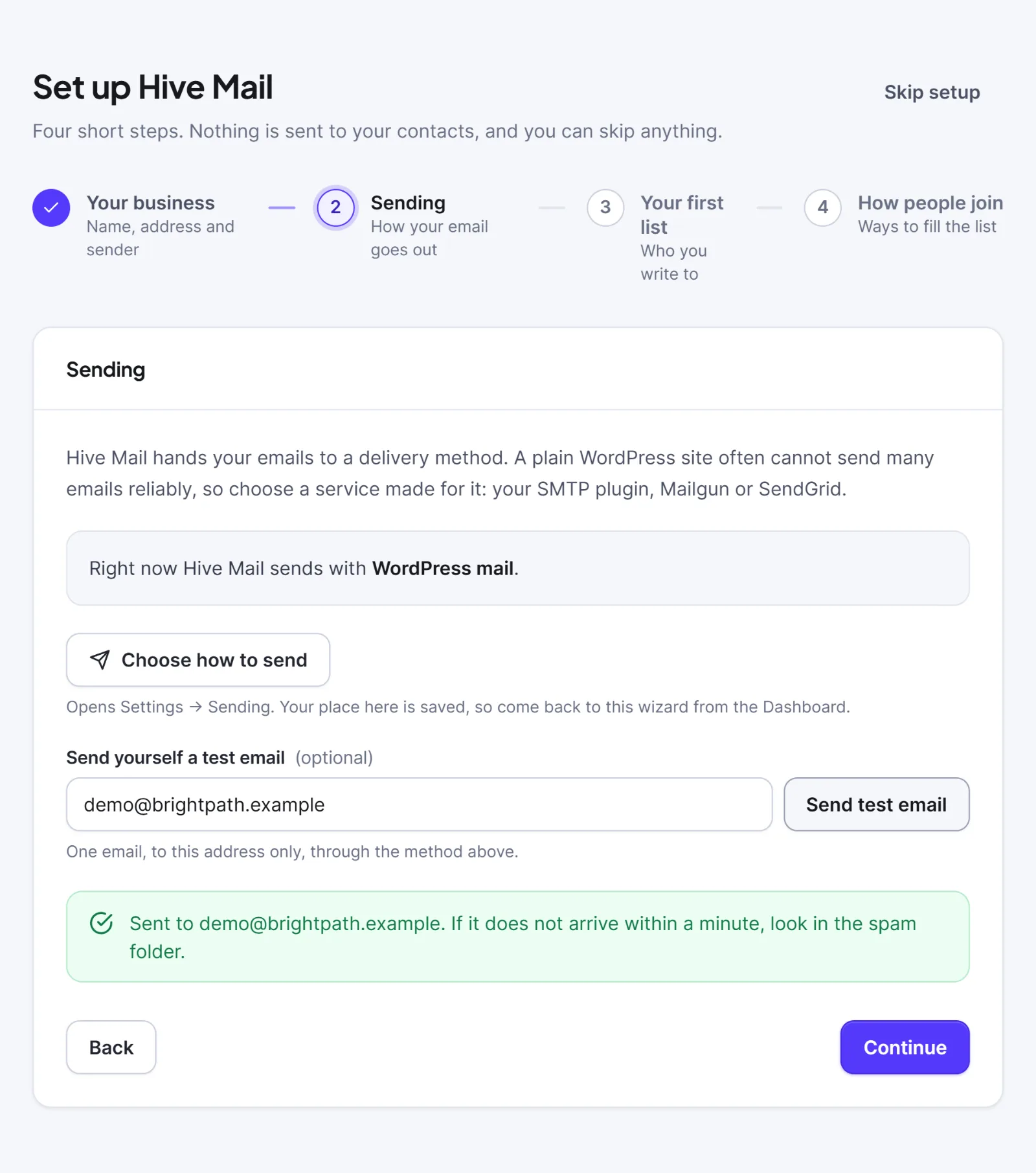
- The box shows how Hive Mail sends now, and names an SMTP plugin if it finds one. To change the method, click Choose how to send. This opens Settings > Sending; the wizard reopens on this step when you return.
- Optional: under Send yourself a test email (optional), check the address and click Send test email. One email goes to that address only.
- Click Continue.
A successful test also ticks the sending row of the First steps checklist. A failure shows The test email could not be sent with the reason.
Step 3: Your first list #
- Keep Name of your first list as "Newsletter", or type another name. If lists already exist, the field reads Another list.
- Click Create list and continue, or Skip this step (Continue without a new list if lists exist).
The list is created as a private list. You can make it public later. See Lists.
Step 4: How people join #
An empty list sends nothing, so this step links to four ways to fill it. Clicking one leaves the wizard.
| Link | Goes to |
|---|---|
| Import a file | Import / Export, for a CSV or another plugin. |
| Keep the form you have | Settings > Integrations, for Fluent Forms, WPForms, Contact Form 7, Gravity Forms or Elementor. |
| A signup form | Forms, to build a form in Hive Mail. |
| Add people by hand | Contacts. |
Click Finish setup to close the wizard.
Warning: Only add people who agreed to hear from you. See Consent and the law.
Run the wizard again #
Open Settings > Tools, find Setup wizard and click Run the setup wizard again. Only the wizard's own step is reset; nothing you saved changes.


