

The brand kit holds how your emails look: logo, colours, font, buttons, footer wording and social links. Save it once and new emails start from it. Put your logo in the WordPress media library first.
Save your brand kit #
- Open Settings > Email.
- In Logo, click Choose logo (later Replace logo or Remove). Set Width in emails and Logo description, usually your business name.
- In Colours and font, set the colours and Font.
- In Buttons, set Button colour (or Use brand colour), Button text colour and Corner radius.
- In Footer, type Footer text and add Social links with Add a link: choose a network and type the full address.
- Check the Preview card, then click Save brand kit. You see "Brand kit saved. New emails will start from it."
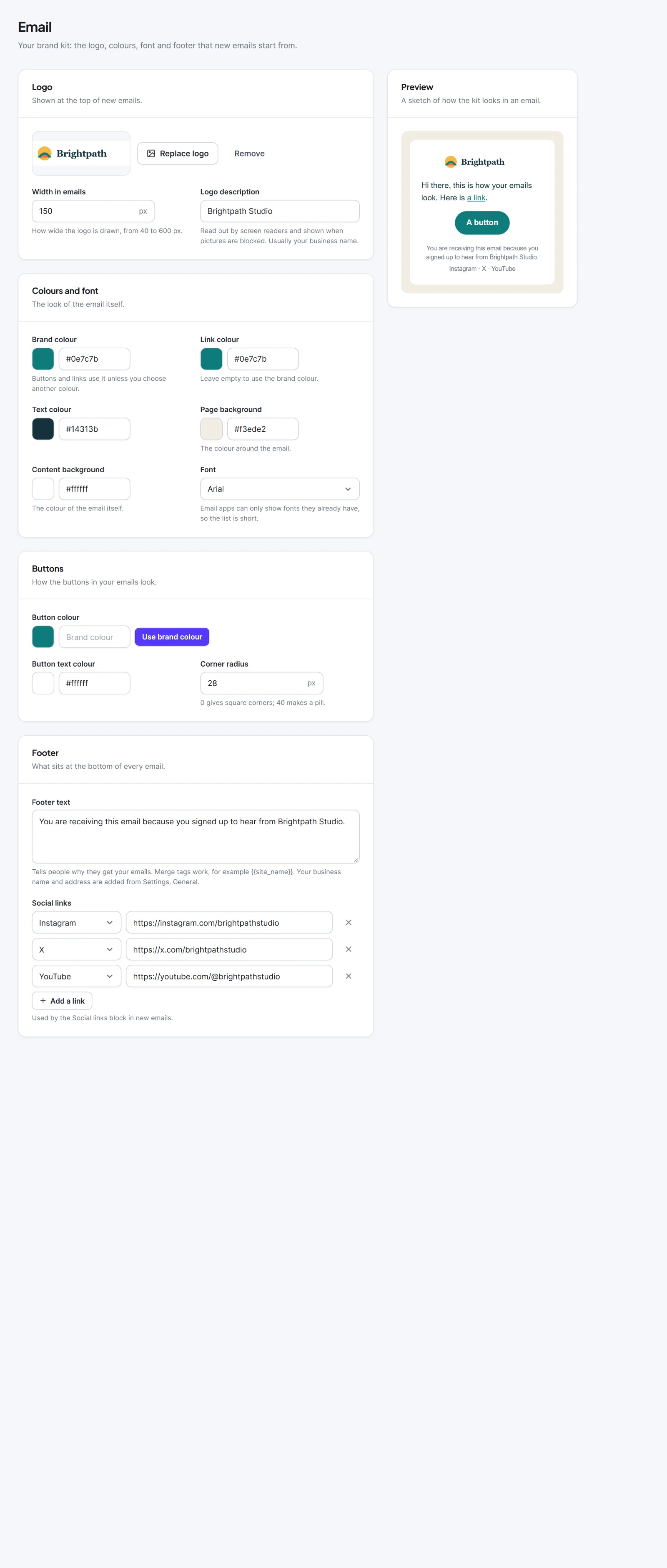 Email page with the logo, colours, buttons, footer and the preview card” class=”wp-image-2501″/>
| Setting | What it does | Default | Limits |
|---|---|---|---|
| Logo, Width in emails, Logo description | Picture, width, alt text | None, 160, empty | Width 40 to 600. Description up to 150 characters |
| Brand colour | Buttons and links | #5539fb |
Hex colour |
| Link colour | Links | Empty (brand colour) | |
| Text colour | Body text | #333333 |
|
| Page background | Colour around the email | #f4f4f7 |
|
| Content background | Colour of the email | #ffffff |
|
| Font | Font family | Arial | Arial, Helvetica, Verdana, Tahoma, Trebuchet MS, Georgia, Times New Roman, Courier New, System font |
| Button colour | Button background | The brand colour | |
| Button text colour | Button text | #ffffff |
|
| Corner radius | 0 is square, 40 is a pill | 6 px | 0 to 40 |
| Footer text | Why people get your emails; merge tags work, such as {{site_name}} |
Empty | 1000 characters |
| Social links | Links for the Social links block | None | Up to 10 |
An invalid colour falls back to the default. Mail apps only show fonts they already have, so the font list is short.
What it changes #
The kit only seeds new things. Nothing is seeded until you save it once: until then the box says "Not saved yet. Until you save it, new emails use each starter's own colours."
- New templates from a starter or from nothing take the colours, font, logo, footer text and links.
- A new Logo, Social links or Footer block takes the kit's logo, links or text.
- Use brand kit (in the Visual or Classic editor, left panel Email settings) applies the kit to an email you already have.
- Plain text and HTML emails, imports and copies of your own templates are never changed.
- Changing the kit later does not change emails or campaigns you already made, or pages shown to visitors such as the unsubscribe page.
A campaign started from a starter does not get the kit automatically: click Use brand kit in its editor.
Warning: Use brand kit overwrites the colours and font of the email you click it in.
Next: Templates, The Visual builder.


