

Audience > Contacts lists everyone you can email. Looking needs the permission "See the audience"; changing anything needs "Manage the audience" (both are given to administrators). See Settings: Roles & Permissions.
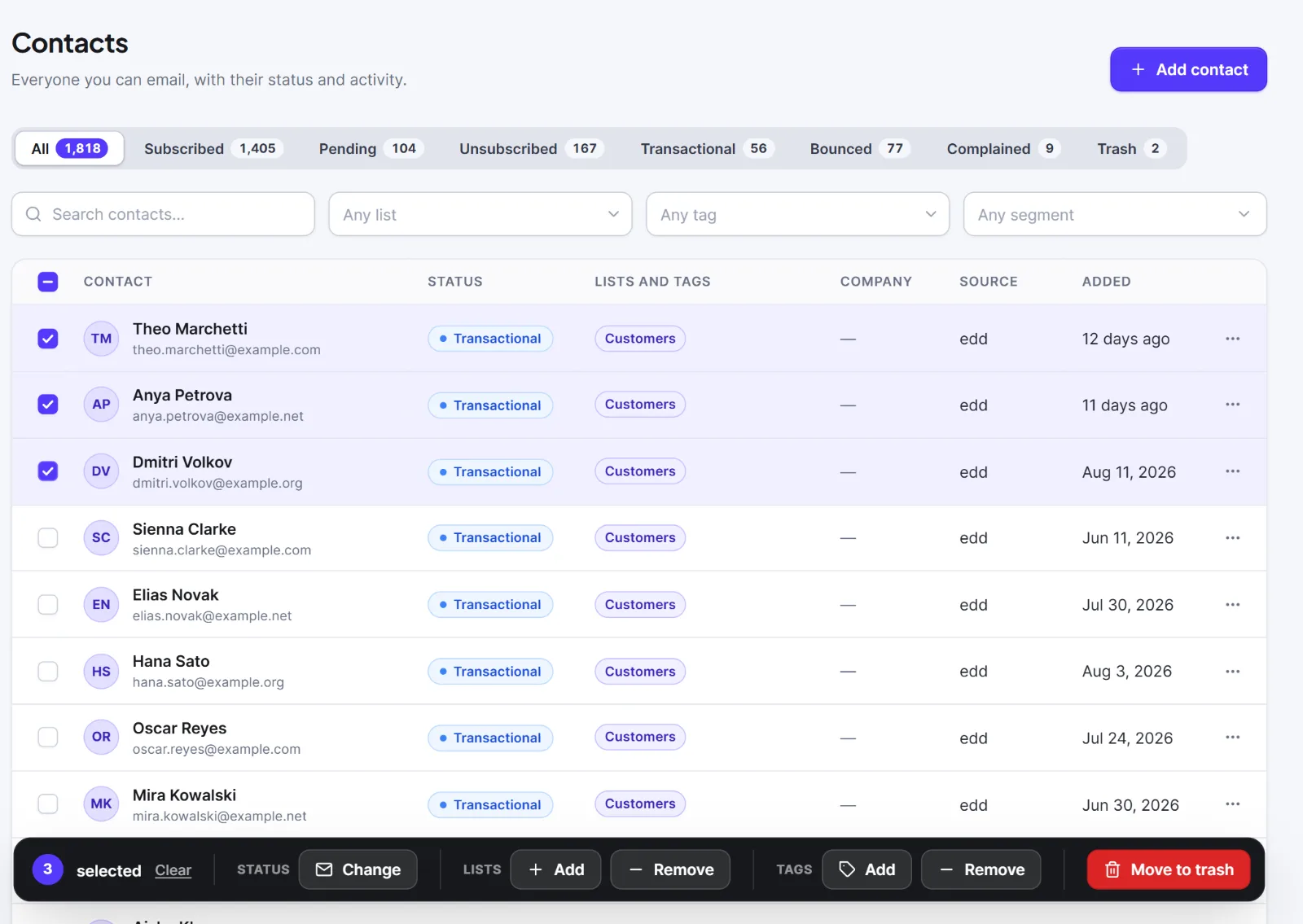
The screen has status tabs (All, Subscribed, Pending, Unsubscribed, Transactional, Bounced, Complained, Trash, each with a count that leaves out the trash), a search box and the filters Any list, Any tag and Any segment, then the table (Contact, Status, Lists and tags, Company, Source, Added) and a pager. The list is always newest first. See Contact statuses.

Add a contact #
- Click Add contact.
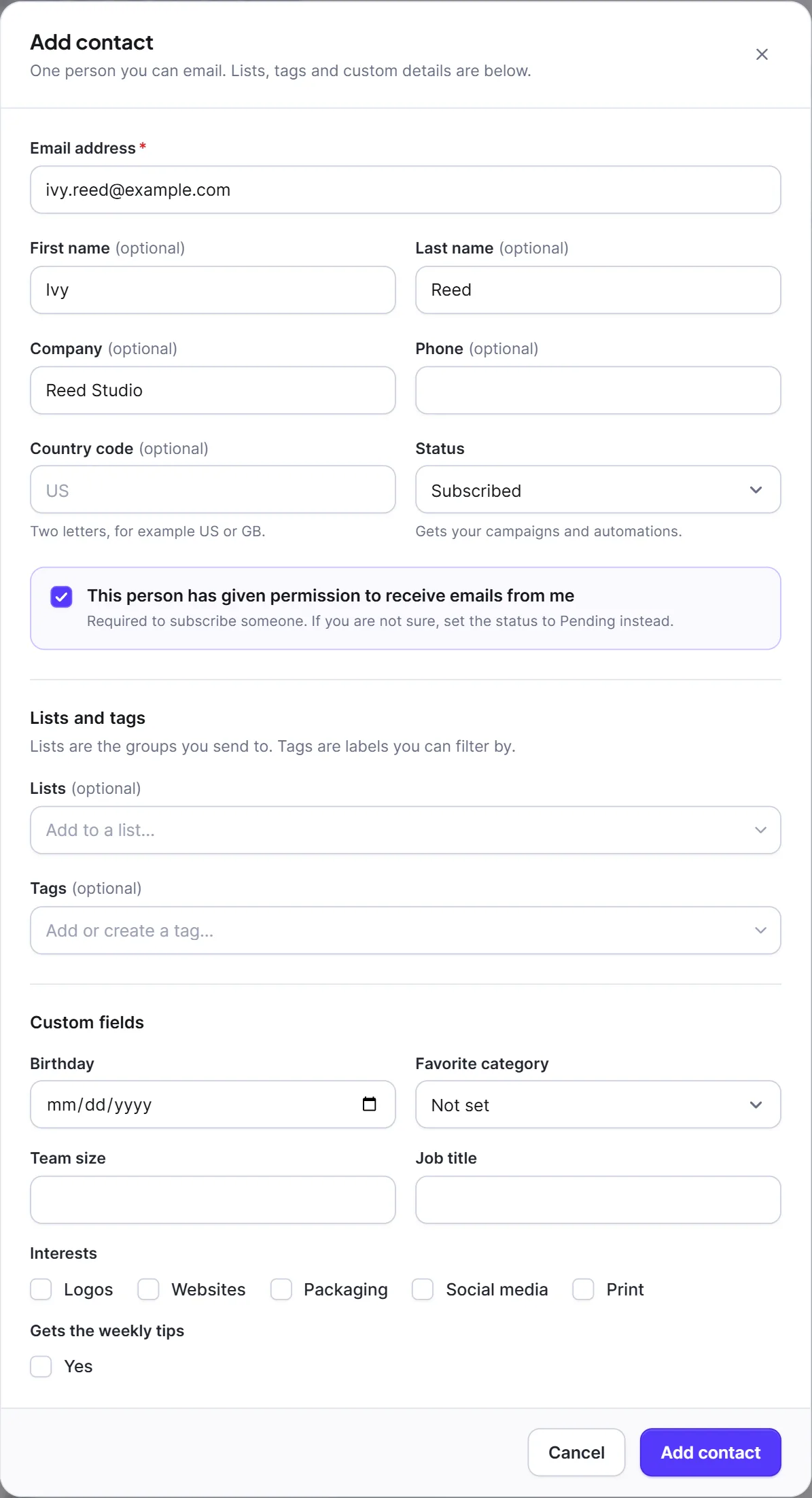
- Type the Email address, the only required field. It is saved in lower case and must be unique across your whole audience, trash included.
- Fill in what you know: First name, Last name, Company, Phone and Country code (two letters, such as US or GB).
- Leave Status on Pending unless the person clearly agreed. To add them as subscribed, choose Subscribed and tick This person has given permission to receive emails from me.
- Under Lists and tags, pick Lists with Add to a list… and Tags with Add or create a tag…. Fill in Custom fields if you have any. See Custom fields.
- Click Add contact.
To edit, open the row's ⋯ menu and choose Edit (or click Edit on the profile), change the fields and click Save changes. To change the status use Change status.
Find people #
- Search contacts… needs at least 2 characters and looks in email, first name, last name, company and the full name. It does not search phone, country, source or custom fields.
- Any list shows only people subscribed to that list. List, tag, segment and status filters combine: a person must match all of them. Clear filters resets them.
- Save as segment (shown when a status, list or tag is chosen) opens a new segment with those rules filled in. The search text is not kept. See Segments.
Filters and the page number are kept in the address, so you can bookmark a filtered view.
Change many contacts at once #
Tick rows, or the box in the table heading for the whole page (selection covers the current page only). A bar appears at the bottom:
| Button | What it does |
|---|---|
| Status Change | Sets Subscribed, Unsubscribed or Transactional for all selected. For Subscribed, tick These people have given permission to receive emails from me. To move people who unsubscribed, also tick Anyone here who unsubscribed has asked to join again and fill in How do you know? (required). |
| Lists Add / Remove | Adds to or removes from the lists you choose. Nobody is emailed, and someone who left a list on their own is not put back. |
| Tags Add / Remove | Adds or removes tags; you can create tags when adding. |
| Move to trash | Moves them to the trash. |
If some contacts cannot be changed, a warning gives the count and the first reason.
Delete and restore #
- Move to trash (row menu, bulk bar or profile) and confirm. The person stops receiving email and disappears from lists, counts and segments.
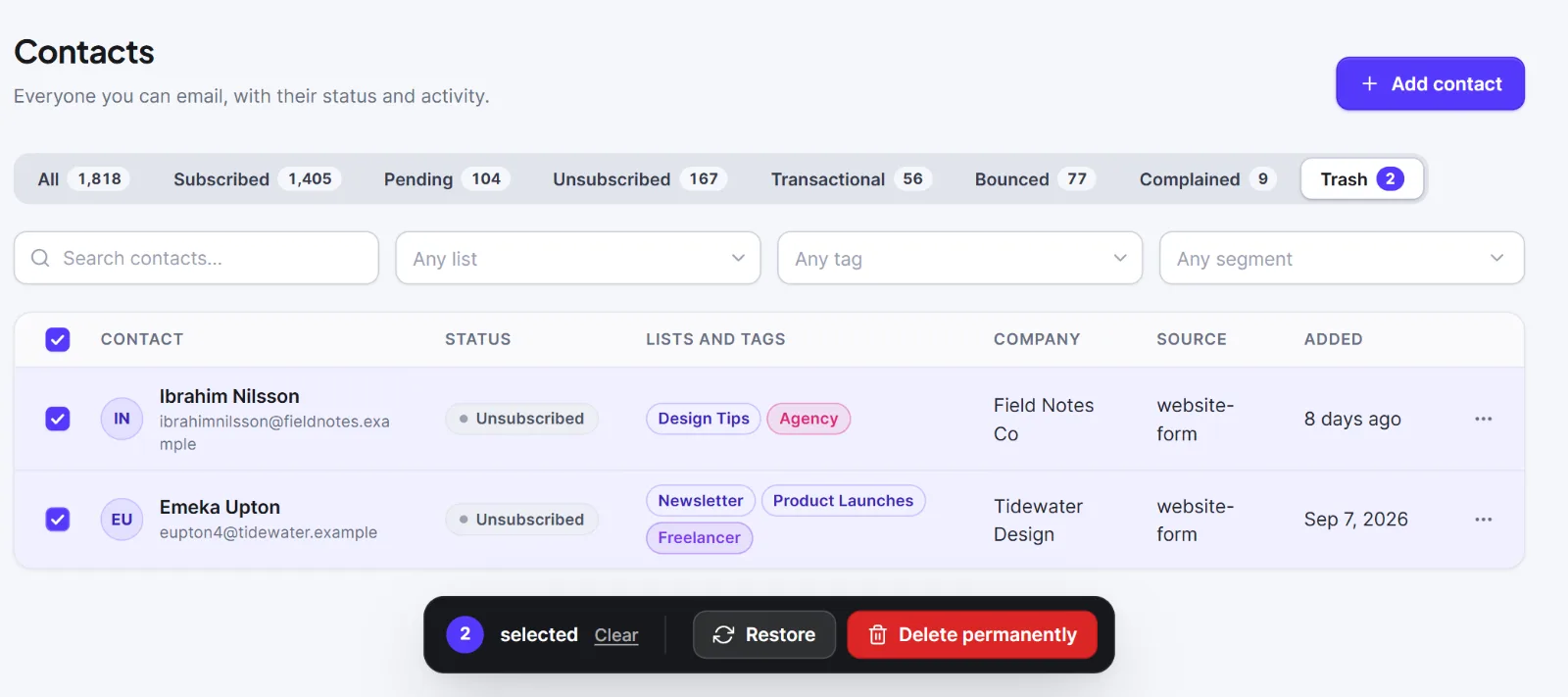
- Restore from the Trash tab brings the contact back exactly as it was.
- Delete permanently in the Trash tab cannot be undone.
Once a day Hive Mail permanently deletes up to 1,000 contacts that have been in the trash for more than 30 days. A permanent deletion removes the contact, its list and tag links, custom field values, timeline, automation runs, abandoned carts, shop customer row, attributed orders and visitor data. Emails already sent stay in the sending log as anonymous rows.
If the person was Unsubscribed, Bounced or Complained, Hive Mail keeps a one-way fingerprint of the address, not the address, so a later import or form cannot silently email them again. A contact in the trash cannot be edited, put on lists or imported over.
Warning: Delete permanently removes a person and their activity for good.
Two housekeeping settings in Settings > Compliance (both move contacts to the trash): remove the contact when their WordPress user is deleted, and remove people who never confirmed. See Settings: Compliance.
Next: Contact statuses, The contact profile, Import contacts from a CSV file.


