

Hive Mail is one item in the WordPress admin menu (Hive Mail). Everything else is inside the plugin's own left menu.
Find your way #
- The top bar has the logo, the search box Search anything… and your name. The sparkle icon next to the search box opens the AI assistant when you are allowed to use it.
- The left menu is in groups. Click a group's name to open it. One group is open at a time, and Hive Mail remembers your choice in this browser.
- To jump to any screen, click Search anything… or press Ctrl+K (Cmd+K on a Mac), type a word and pick a screen.
- Documentation at the bottom of the menu opens these pages in a new tab.
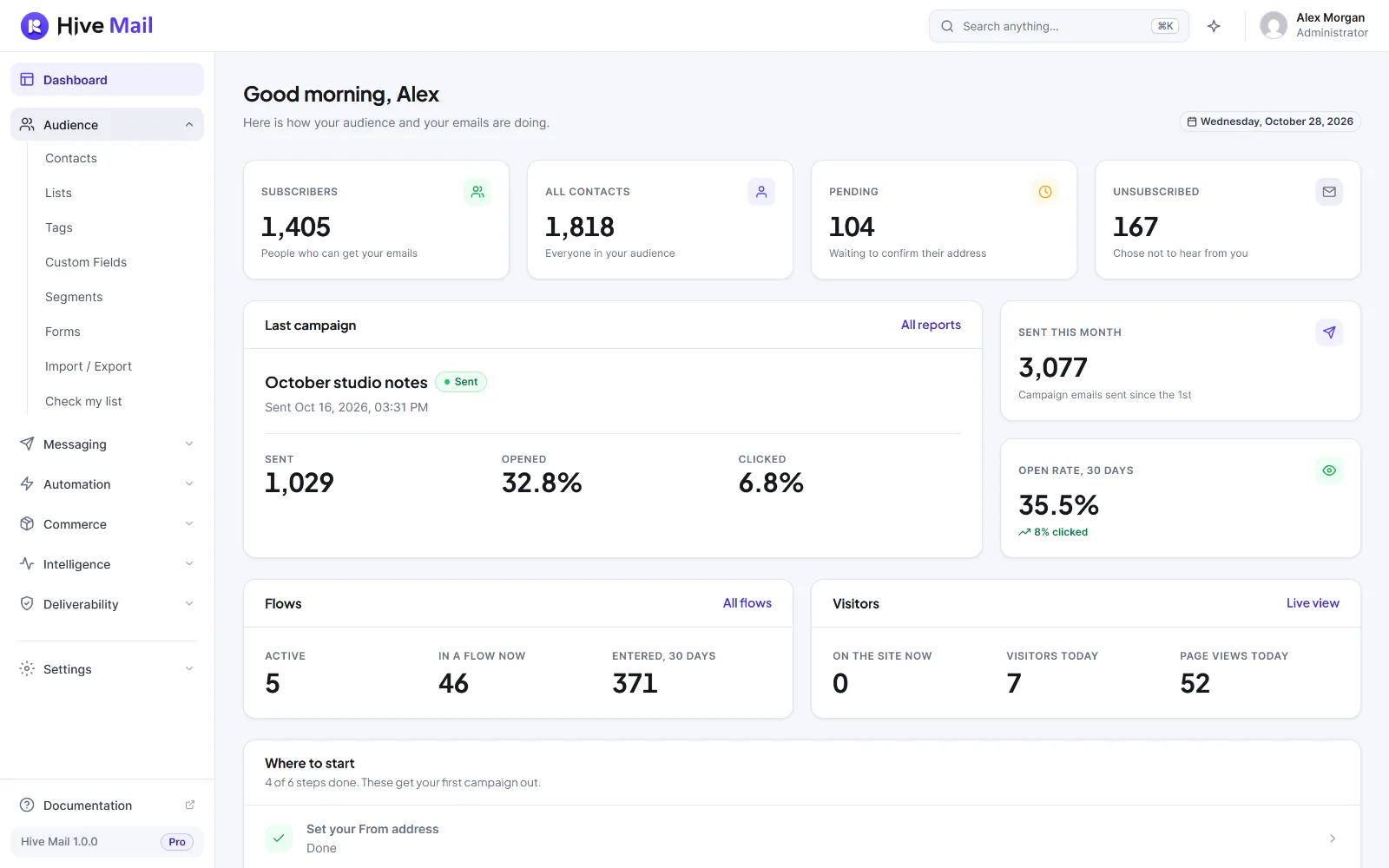
The Dashboard #
The first menu item shows a greeting and these cards:
- Four counters: Subscribers, All contacts, Pending and Unsubscribed. Contacts in the trash are not counted.
- Last campaign with Sent, Opened and Clicked, and a link All reports.
- Sent this month and Open rate, 30 days.
- Flows: Active, In a flow now and Entered, 30 days.
- Visitors, only when visitor tracking is on.
- Where to start. See First steps checklist.
Opens are a guide, not an exact count. See Email tracking.
Menu groups #
| Group | Screens | Read more |
|---|---|---|
| Audience | Contacts, Lists, Tags, Custom Fields, Segments, Forms, Import / Export, Check my list | Contacts, Segments, Signup forms, Check my list |
| Messaging | Campaigns, Templates, Reports | Create a campaign, Templates, Campaign report |
| Automation | Flows, Automation recipes, Runs & Logs, Flow Studio, Integrations | Automation basics, Recipes, Runs & Logs, Flow Studio, Integrations |
| Commerce | WooCommerce, Easy Digital Downloads. Appears only when one of them is active. | WooCommerce, Easy Digital Downloads |
| Intelligence | Live, Visitors & Journeys, Traffic Sources, Pages, Conversions. Empty until you turn on visitor tracking. | Marketing intelligence |
| Deliverability | Sending Log, Bounces & Suppressions | Sending log, Bounces and suppressions |
| Settings | The tabs below. |
Settings tabs #

| Tab | Page |
|---|---|
| General | Settings: General |
| Sending | Settings: Sending |
| Scheduler | Settings: Scheduler |
| Compliance | Settings: Compliance |
| Forms | Settings: Forms |
| Tracking & Privacy | Settings: Tracking & Privacy |
| Settings: Email (the brand kit) | |
| WooCommerce | Settings: WooCommerce, only with WooCommerce active |
| Easy Digital Downloads | Settings: Easy Digital Downloads, only with it active |
| Integrations | Settings: Integrations |
| Notifications | Settings: Notifications |
| Roles & Permissions | Settings: Roles & Permissions |
| Webhooks & API | Webhooks and API keys |
| Tools | Settings: Tools |
| AI & MCP | Settings: AI assistant |
| License | Activate and manage your license |
| Email footer | Settings: Email footer |
| Migration | Migrate from FluentCRM |
Settings tabs built as forms show a bar at the bottom: All changes are saved or You have unsaved changes, with Discard changes and Save changes.
Tip: A group missing from your menu means your account lacks its permission. By default only administrators have them. See Settings: Roles & Permissions.
Next: Key concepts, First steps checklist.


