

Your chats, plans and notes belong to you: other users, including administrators, cannot read them from any Hive Mail screen. Set up the assistant first: The AI assistant.
Under the message box #
| Control | What it does |
|---|---|
| + | New chat, or New chat without memory (reads and adds no notes) |
| Fast / Careful | Fast is quick and the default. Careful is slower, for longer writing |
| Memory | Pause or resume your notes, or open What it remembers |
| Gauge icon | Administrators only: Usage this month and Change the limit |
Stop ends the wait on your screen, but the answer is still saved in the chat. If a notice appears above a greyed-out box, read it: it says what to fix, such as Add a key or Change the limit.
Chat history #
Open the list. Click the clock icon (Recent chats) > All chats, or use Settings > AI & MCP > Your data > All chats.

Find and reopen a chat. Type in Search your chats (titles only), then click a title. The list shows up to 100 chats, newest first. A reopened chat shows its plans again, with what happened to each one.
Rename a chat. Click the pencil, type a title (up to 60 characters) and press Save or Enter.
Delete a chat. Click the bin, then Delete in the box "Delete this chat?". The chat's plans go with it.
Delete all chats. Press Delete all conversations, then Delete. Your notes stay.
Chats and their plans are deleted after the number of days in Keep conversations for (default 90) without a new message. A daily clean-up does this, so the site's cron must be working (Scheduled sending and cron).
Warning: Deleted chats, plans and notes cannot be brought back. Deleting a plan does not undo what it did: a draft or a sent campaign stays.
Memory #
Memory is a short list of plain notes about your brand, such as "We sell handmade candles to gift shoppers". The assistant reads them before it answers; when a note shaped an answer, a line under it says "Using your note:".
Open your notes. Press What it remembers on the full page, or use the Memory button.
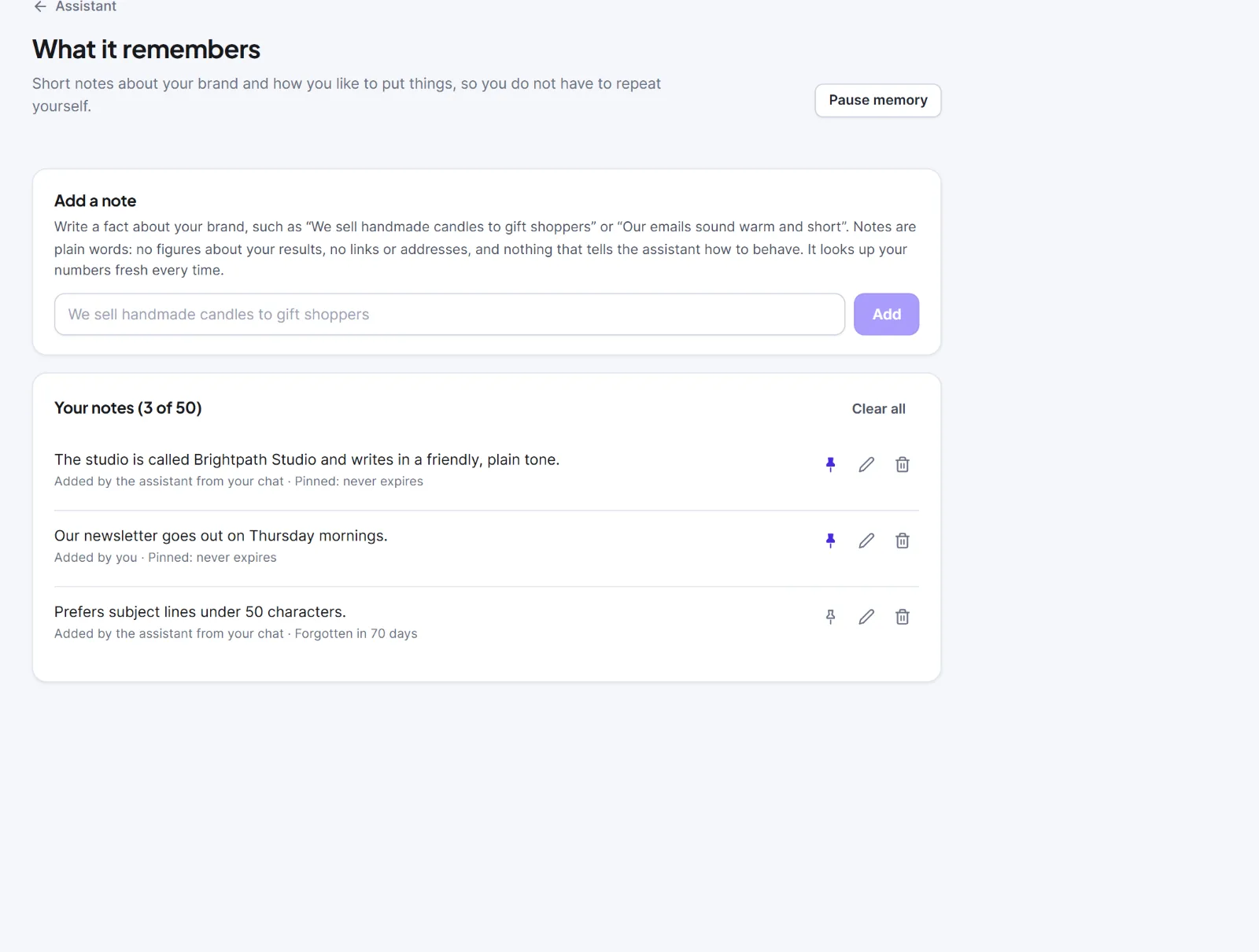
Add a note. Type a fact (5 to 160 characters) in Add a note and press Add. The limit is 50 notes. A note is refused if it:
- repeats another note;
- holds numbers about your results, such as "Our open rate is 40" (a time like "Fridays at 10" is fine);
- holds links, email addresses, code, passwords, keys or card details;
- gives the assistant an order ("Never mention discounts") instead of stating a fact.
Edit, pin or delete a note. In Your notes, use the pencil to edit, the pin to keep a note forever ("Pinned: never expires"), and the bin to delete it. Clear all removes every note. An unpinned note is forgotten 90 days after you added or last edited it ("Forgotten in N days").
Pause or skip memory. Pause memory stops the assistant using and adding notes in all your chats until you press Resume memory. New chat without memory or Turn it off for this chat (in the Memory menu, before your first message) does the same for one chat.
Notes the assistant adds. After an answer, it may add or remove up to three notes, only when you said something lasting about your brand. A line under the answer says "Memory updated", with a link to see them. This extra request sends your last six messages and your notes to the AI service, and its tokens count toward the monthly limit.
To delete everything the assistant keeps about you (chats, plans, notes and usage rows), use Delete my AI data in Settings > AI & MCP (Settings: AI assistant).
This is information, not legal advice.
Next: Settings: AI assistant.


