

Custom fields are extra details you keep on every contact, such as plan or birthday. Each field becomes a merge tag for emails and a condition for segments. Open Audience > Custom Fields. Looking needs "See the audience"; changing needs "Manage the audience". Choose the type with care: it cannot be changed later.
The table shows Field (with the choices for a Dropdown or Multi-select), Merge tag (with a copy button), Type and Filled in (how many contacts have a value). The arrows Move up and Move down set the order of the inputs in the contact dialog, the rows on the profile and the columns in the export.

Create a field #
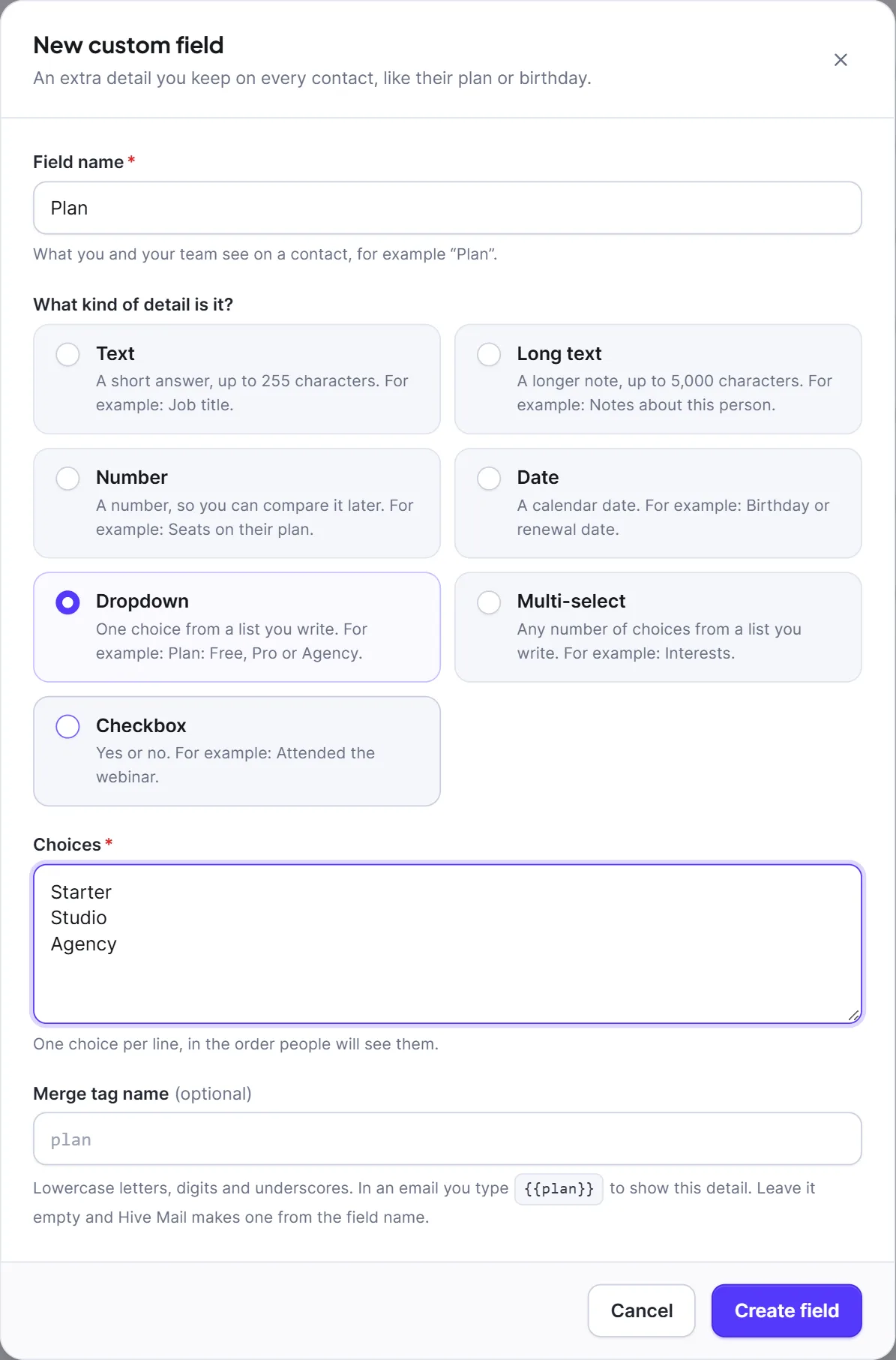
- Click New field.
- Type the Field name (required, up to 150 characters), for example "Plan".
- Under What kind of detail is it? choose a type (below).
- For a Dropdown or Multi-select, write the Choices, one per line (1 to 200, each up to 100 characters; blank and repeated lines are dropped).
- Optional: type a Merge tag name. Leave it empty and Hive Mail makes one from the field name.
- Click Create field.
| Type | What it holds |
|---|---|
| Text | A short answer, up to 255 characters. |
| Long text | A longer note, up to 5,000 characters; line breaks are kept. |
| Number | Any number, decimals allowed, so you can compare values in segments. |
| Date | A calendar date (YYYY-MM-DD) from a date picker. |
| Dropdown | Exactly one of the choices you write. |
| Multi-select | Any of the choices, as tick boxes, shown as a comma list. |
| Checkbox | Yes or no. |
The merge tag name uses lowercase letters, digits and underscores, starts with a letter, is up to 64 characters and unique. If you leave it empty, Hive Mail uses the field name in lower case with spaces and dashes turned into underscores, adds field_ if it does not start with a letter, and adds _2, _3 and so on if the word is reserved or taken.
Reserved names you cannot use: id, email, first_name, last_name, full_name, name, phone, country, company, status, source, token, score, ltv, list, lists, tag, tags, fields, created_at, updated_at, unsubscribe_link, unsubscribe_url, preferences_url, view_in_browser, site_name, site_url, business_name, business_address and current_year.
Edit, use and delete a field #
- Edit (⋯ > Edit): you can change the name and, for a Dropdown or Multi-select, the choices (editing replaces the whole list; contacts keep the value they have). The type and merge tag name are locked, because contacts already hold values in that form and emails using the tag would break.
- Use in an email: click the copy button beside the merge tag and paste it, for example
{{plan}}. Add a fallback after a bar for people with no value:{{plan|there}}. See Merge tags and fallbacks. - Where fields appear: the contact dialog and profile, CSV import (as "Custom field:" followed by the name), CSV export (one column per field), segments (the condition Custom field) and connected forms.
- Delete (⋯ > Delete, then Delete field): removes the value from every contact, and emails using the merge tag show nothing in its place.
Warning: Deleting a field cannot be undone. Export your contacts first if you might need the values.
To change a field's type, create a new field, fill it in, then delete the old one.
Next: Merge tags, Segments, Import contacts from a CSV file.


