Hive Mail > Settings > Tools is a toolbox. You need Manage settings. There is no save bar: each card acts the moment you confirm.
| Card | What it does |
|---|---|
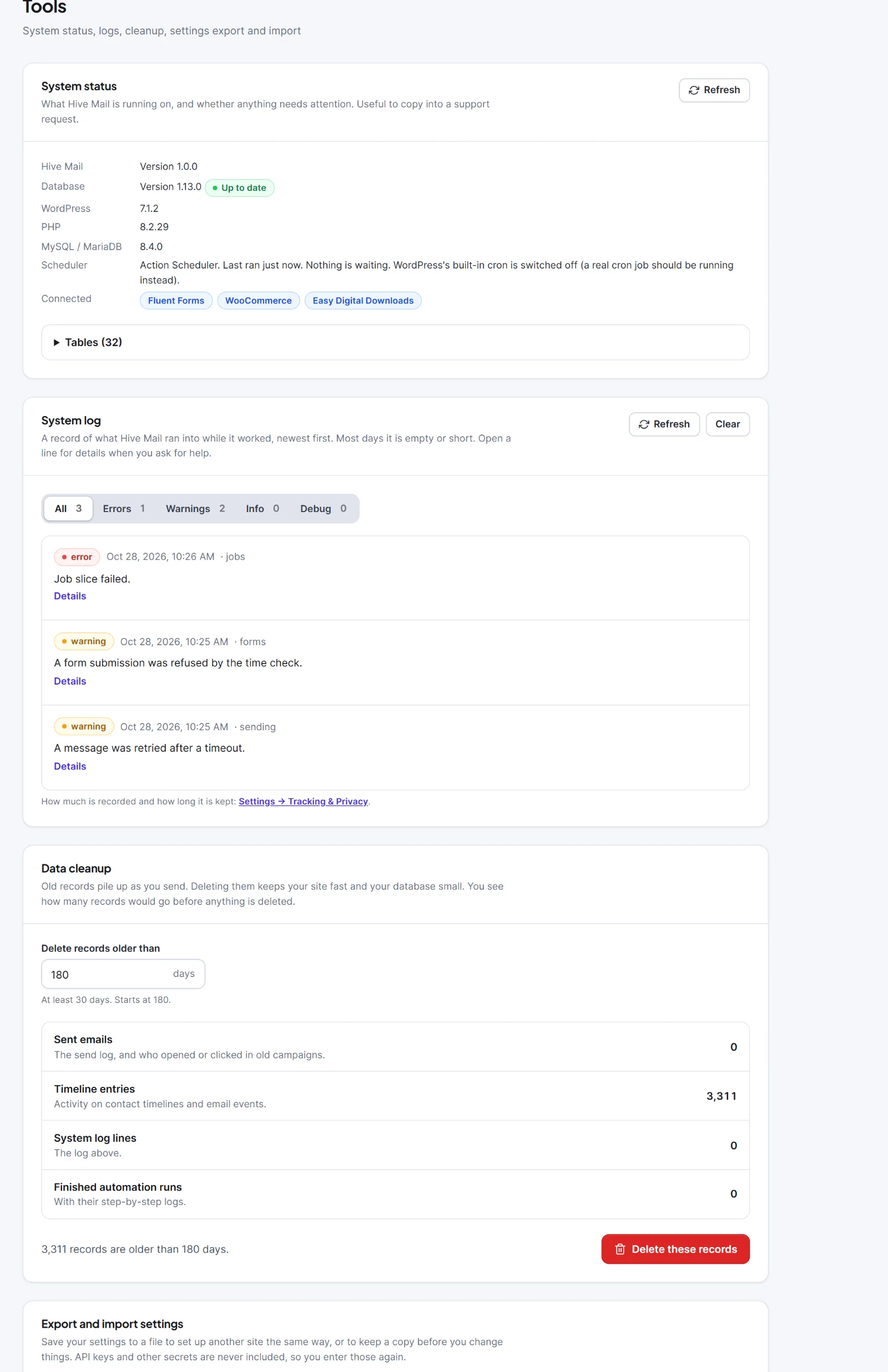
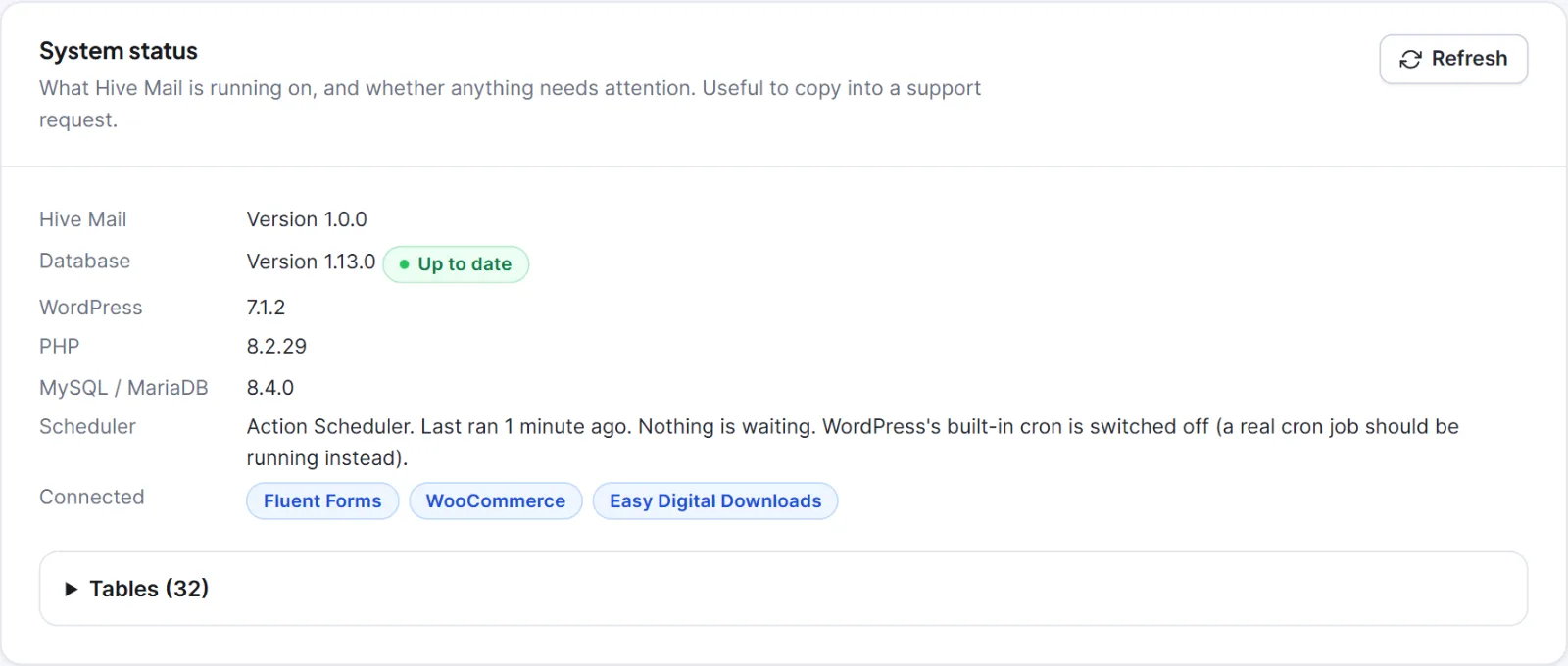
| System status | Shows the Hive Mail, WordPress, PHP and MySQL/MariaDB versions, the database version (Up to date or Needs an update), the scheduler state and the form plugins and shops found. Refresh reads again; copy it into a support request. Tables ((number)) lists each hm_ table with Rows and Size |
| System log | What Hive Mail ran into, newest first, 20 lines a page. Tabs All, Errors, Warnings, Info, Debug; Details shows the context; Refresh; Clear empties the selected level only (dialog "Clear the whole log?", then Clear the log). How much is logged and for how long is set in Settings: Tracking & Privacy |
| Data cleanup | Deletes old records for good (below) |
| Export and import settings | Moves settings between sites (below) |
| Setup wizard | Run the setup wizard again turns the wizard on and goes to the Dashboard; every step can be skipped (The setup wizard) |
| Danger zone | Delete all data…, protected (below) |
If a table is missing or the database is behind, an amber box ("A table is missing" or "The database needs an update") offers Repair tables. It runs the same upgrade as activation and deletes no data.
Data cleanup #
| Setting | What it does | Default |
|---|---|---|
| Delete records older than (days) | 30 to 3650; the last 30 days are always kept | 180 |
A counted list shows what would go: Sent emails (the send log, opens and clicks of old campaigns), Timeline entries, System log lines, Finished automation runs with their step logs.
- Type the days; the counts refresh.
- Click the red Delete these records, read the dialog and click Delete records.
- It works in batches ("Deleting… (number) so far."). If it stops, run it again.
Only sent, failed and skipped messages go, never queued ones. Consent, opt-in, status-change, unsubscribe, bounce and complaint records are always kept, and so are contacts, lists, campaigns, templates, automations and settings. Visitor data uses its own retention setting.
Warning: Cleanup cannot be undone; campaign reports lose that detail. Take a database backup first if unsure.

Export and import settings #
Export settings downloads hivemail-settings-YYYY-MM-DD.json. Import settings… takes a file up to 256 KB and shows a preview table (Setting, Now, Becomes) first; click Import (number) changes to apply it. Unknown settings are ignored.
The file holds the settings of General, Sending, Tracking & Privacy, Compliance, Forms, Notifications, the shop tabs when active and the Email footer tab. It never holds secrets (Mailgun and SendGrid keys and webhook keys, the CAPTCHA secret key) nor contacts, lists, templates, campaigns, automations, the brand kit or conversion goals.
Warning: Page choices, the Business logo and a shop's list are IDs from this site and may point elsewhere on another site; check them after an import. A page choice that is not a page on the new site resets to Hive Mail's own page.
Danger zone: Delete all data #
This puts Hive Mail back as on install day. It is switched off until the server owner allows it.
- Export your contacts first (How to export contacts).
- Add
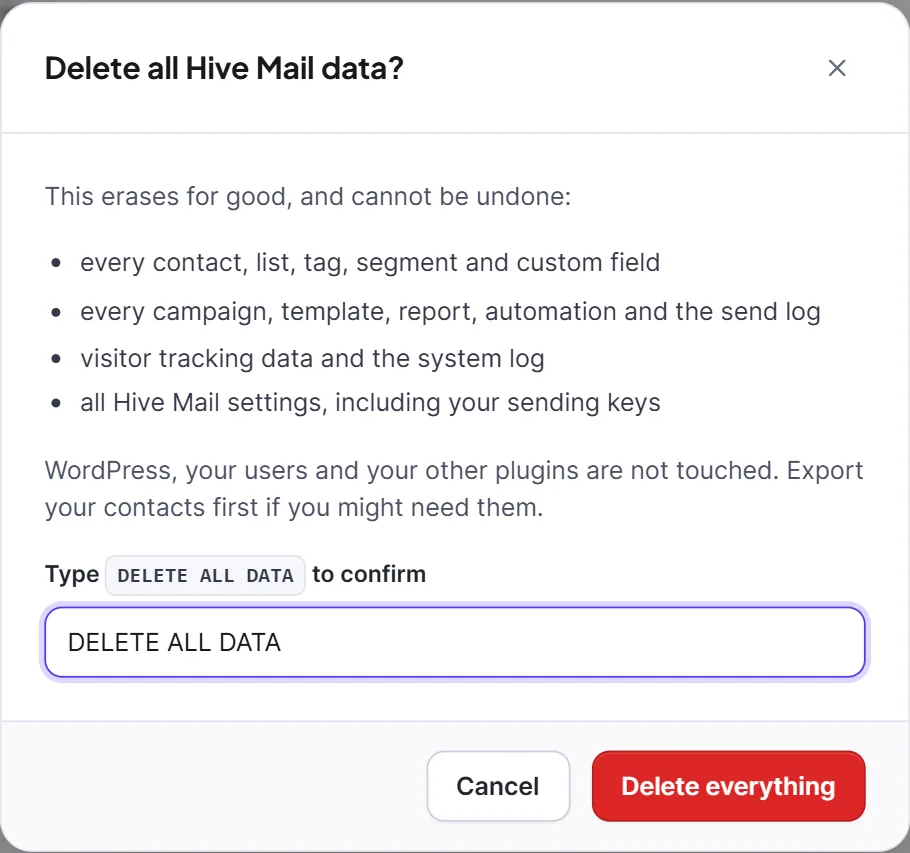
define( 'HIVEMAIL_ALLOW_RESET', true );towp-config.php, above "That's all, stop editing!" (Copy the line copies it). Reload the tab. - Click Delete all data…, read the dialog Delete all Hive Mail data?, type
DELETE ALL DATAexactly and click Delete everything. - Remove the line from
wp-config.php.
It deletes the three pages Hive Mail made (only those carrying its marker), every Hive Mail table, option and temporary value, then recreates empty tables and gives administrators their permissions again. WordPress, users and other plugins are untouched. It is not the same as deleting the plugin: Uninstalling and Delete all data.
Warning: Deleting all data cannot be undone.