

A template is an email design you keep and reuse. Start a campaign from one, point a flow's email step at one, or keep favourites here. Hive Mail also ships ready-made starter designs. To have your logo and colours on new templates, save your brand kit first.
The Templates library #
Open Messaging > Templates. Cards show 12 per page, each with a live thumbnail, the name, an editor badge (Visual, Classic, Plain text or HTML), "Changed {date}", and "Used by {n} campaign(s)".

| Control | What it does | Default |
|---|---|---|
| Editor tabs | All, Visual, Classic, Plain text, HTML | All |
| Sort menu | Last changed, Newest, Name A–Z | Last changed |
| Search templates… | Finds templates by name | Empty |
The three-dot menu on a card has Edit, Rename, Duplicate (the copy is "Copy of {name}"), Export template (.json), Download the email (.html) (.txt for Plain text) and Delete.
Make a template #
- Click New template.
- Optional: type a Name (up to 190 characters). Empty uses the name of what you start from.
- Choose an Editor: Visual builder, Classic editor, Plain text or HTML code. The starter list filters to it, and changing the editor clears the starter you picked. Not sure? See Choose an email editor.
- Under Start from, click a design on the Starters tab, or open My templates and click one of yours, or pick nothing for an empty email.
- Click Create and open.
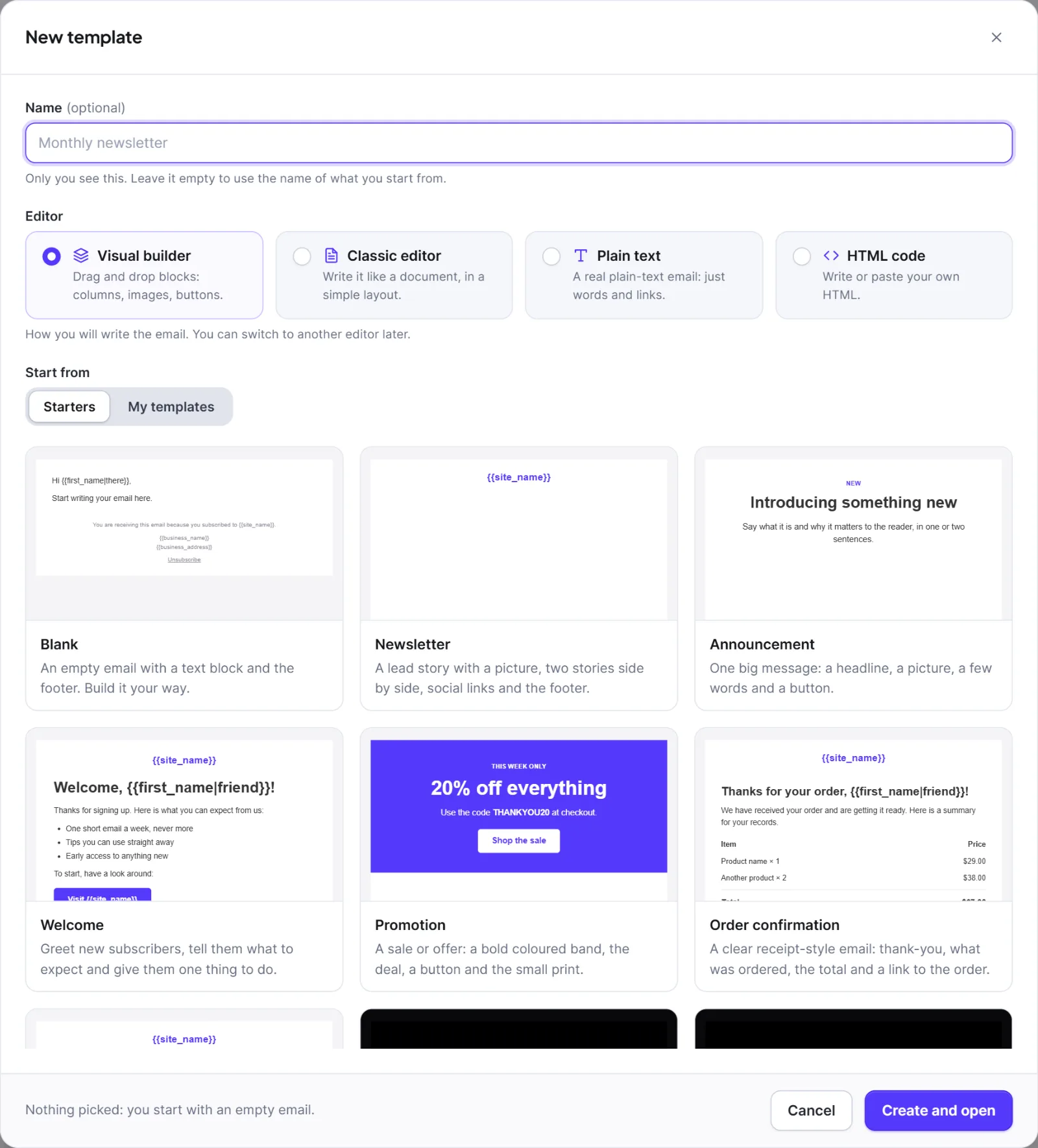
A template from a starter or from nothing takes your brand kit's colours, font, logo, footer text and social links, once the kit has been saved. A copy of your own template stays exactly as it is. Starters that need WooCommerce or Easy Digital Downloads are listed only where that shop is active, and starter pictures are grey placeholders to replace. All starters are listed on Starter designs and seasonal recipes.
Rename, delete, export, import #
- Rename: menu > Rename, type, click Rename.
- Delete: menu > Delete > Delete template. The design and its history go for good; campaigns that used it keep their own copy.
- Export: Export template (.json) gives
{name}.hivemail.json, which works for any editor. - Import: click Import, choose or drop a file, optionally type a Name, click Import and open. Accepted: a
.jsonexported from Hive Mail, or an.html/.htmfile (opens in the HTML editor), up to 1 MB. Unsafe HTML is removed, pictures stay links to the original site, and the brand kit is not applied.
How campaigns and flows use a template #
- A campaign gets its own copy. Editing or deleting the template never changes it, and the reverse.
- A flow's Send an email step points at the template itself. Editing it changes future flow emails. Deleting a template a flow uses makes the step invalid ("The email chosen for this step no longer exists.") and the flow cannot be switched on until you choose another. The delete dialog mentions campaigns only, so check your flows first. See Steps.
- To keep a campaign's email, click Save as template, type a Template name and click Save template.
Each edit keeps up to 20 earlier versions (see Choose an email editor). Templates have no folders or tags.


