

The import wizard adds many people from a spreadsheet in one go. Nothing is written until you press the final button.
Before you start: have a CSV, TSV or TXT file with one person per row and column names in the first row, create the lists you want to use, and only import people who gave you permission to email them. See Consent and the law. To look for mistyped or disposable addresses first, use Check my list.
Go to Audience > Import / Export. The Import tab shows four steps: Choose a file, Match columns, Check and choose, Import.
Step 1: Choose a file #
Drop your file on Choose a CSV file, or drop it here, or click to browse. The file can be .csv, .tsv or .txt, up to 100 MB (or your server's upload limit if smaller). Hive Mail detects the encoding and the separator (comma, semicolon, tab or pipe).

Step 2: Match columns #
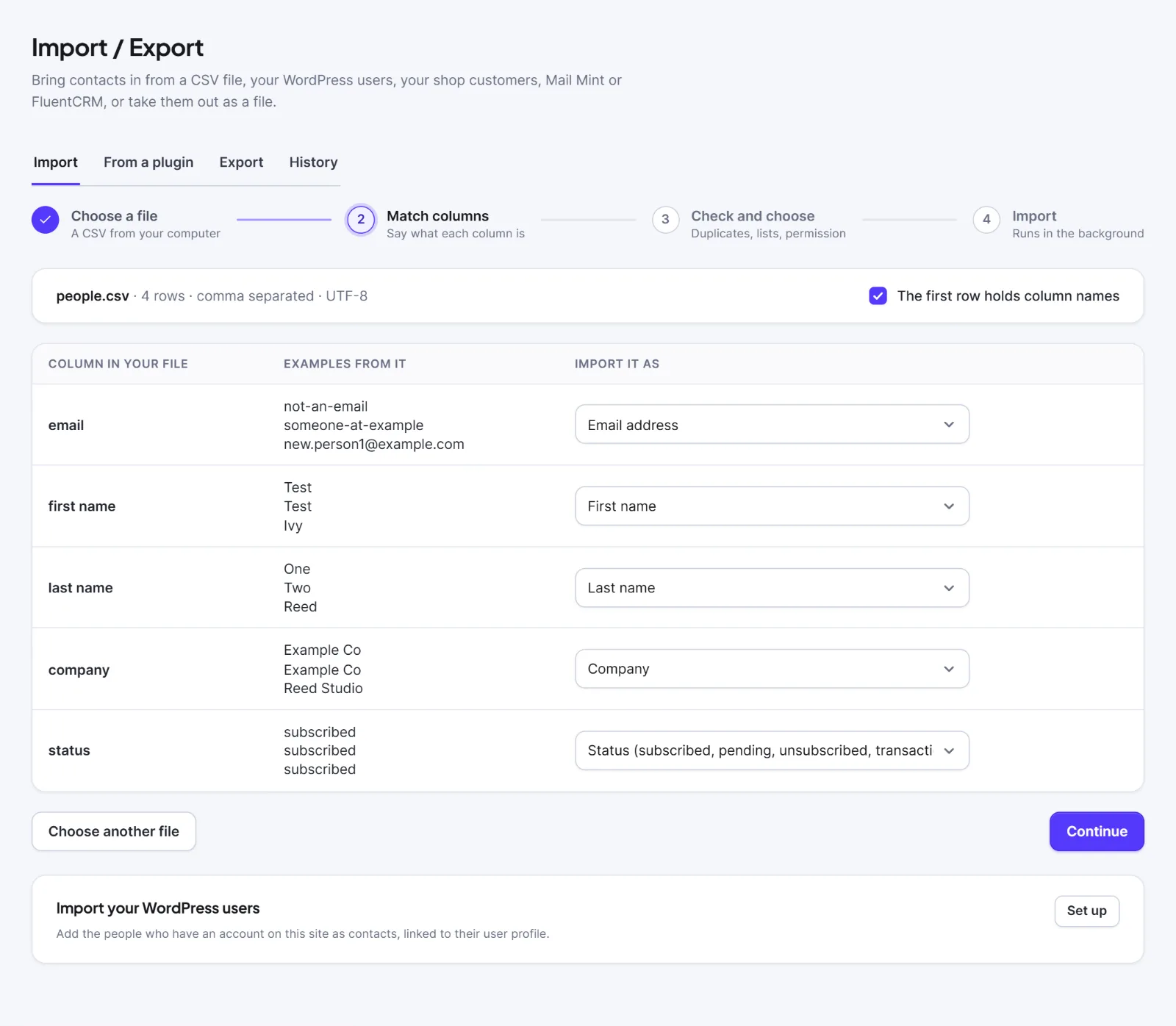
- Check the summary line (file name, rows, separator, encoding). If your first row is data, untick The first row holds column names.
- For each column, check the Import it as drop-down. Hive Mail guesses from the column name.
- Map at least the email. Choose Don't import this column for the rest.
- Press Continue.
You can map to Email address, First name, Last name, Full name (split into first and last), Phone, Country code, Company, Status, or Custom field:
Step 3: Check and choose #
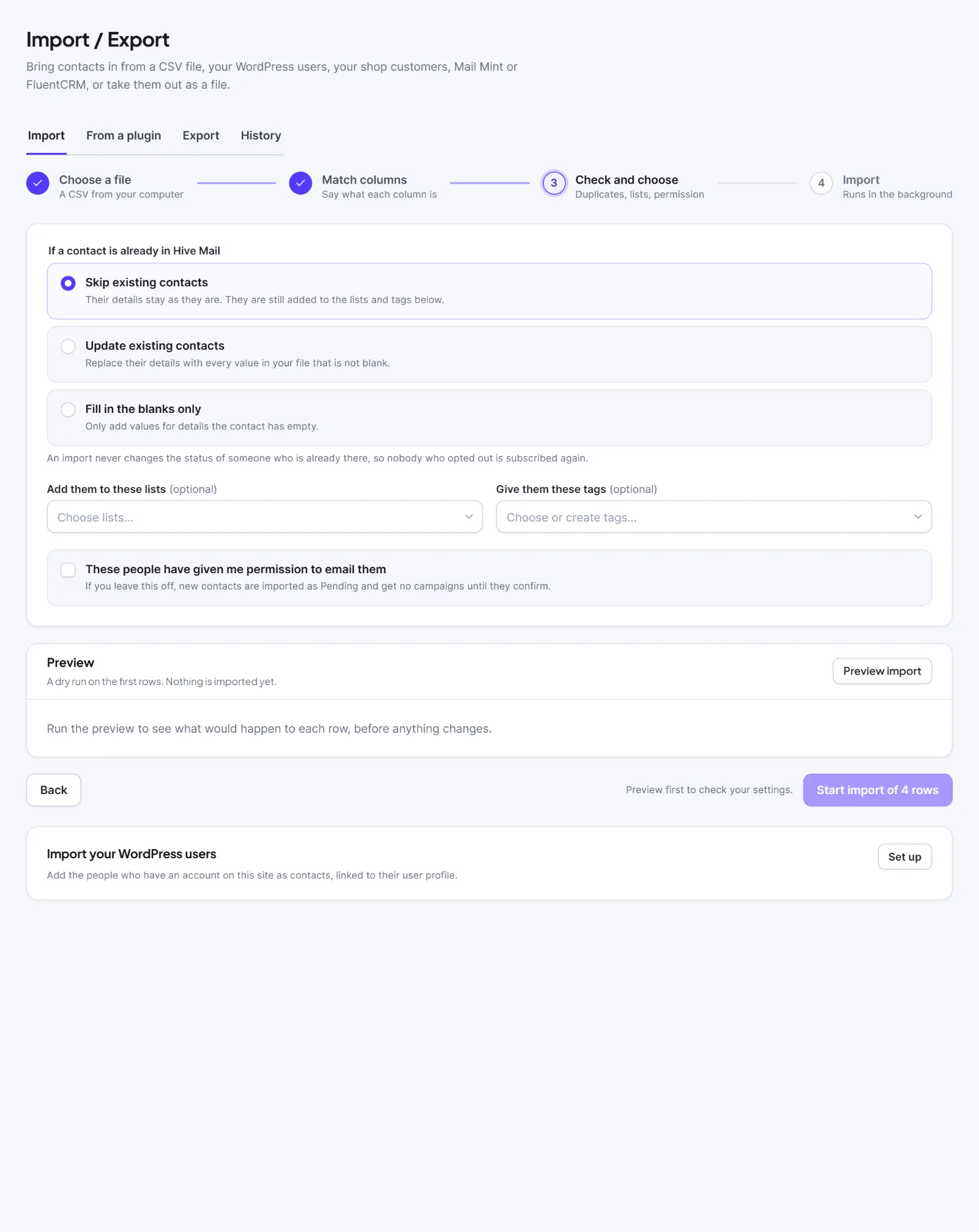
| Option | What it does | Default |
|---|---|---|
| Skip existing contacts | Their details stay as they are. They are still added to the lists and tags below. | selected |
| Update existing contacts | Replaces their details with every non-blank value in your file, custom fields included. | |
| Fill in the blanks only | Only fills details the contact has empty. | |
| Add them to these lists (optional) | Every imported and existing contact joins them. Someone who left a list stays out. | none |
| Give them these tags (optional) | The same for tags. New tags can be created. | none |
| These people have given me permission to email them | On: new contacts are Subscribed, with your name and the time saved as the record of permission. Off: they are Pending and get no campaigns until they confirm. | off |
- Read the Preview card. It is a dry run on the first rows and shows the totals New contacts, Updated, Skipped and Rejected, with a note for each rejected row.
- Change options and press Refresh preview if needed.
- Press Start import of N rows.
Step 4: Import #
Importing contacts… shows progress. You can leave the page: the job continues and appears on the History tab. At the end you see Import finished, Import cancelled or Import failed, with Rows that need attention. Press Download the rows that were not imported to get a file with the columns row, error and your originals. Fix it and import that file.
How the Status column is read #
For new contacts, "subscribed", "active" or "confirmed" mean Subscribed only if you ticked the permission box (otherwise Pending). "pending" and "unconfirmed" mean Pending, "transactional" means Transactional, and "unsubscribed", "opted out", "bounced", "cleaned", "complained" and "spam" all become Unsubscribed. New contacts get the source import. To ask Pending contacts to confirm, see Double opt-in.
Warning: An import never changes the status of someone already there, so a file cannot resubscribe a person who opted out. Only tick the permission box if it is true: it is your record that these people agreed.
Contacts in the trash with the same address are skipped, not restored. Addresses on the suppression list are rejected with "This address is on the suppression list." The uploaded file is deleted when the import ends.
This is information, not legal advice.
Next: Import errors and how to fix them, How to import WordPress users, How to export contacts.


