

Flow Studio is a second editor for the same flows as Automation > Flows: a flow started in one opens in the other. You need the permission Manage automations. Step settings are explained in Steps, Waits, conditions, goals and splits and Triggers; new to flows? Start with Automation basics.
Start a flow #
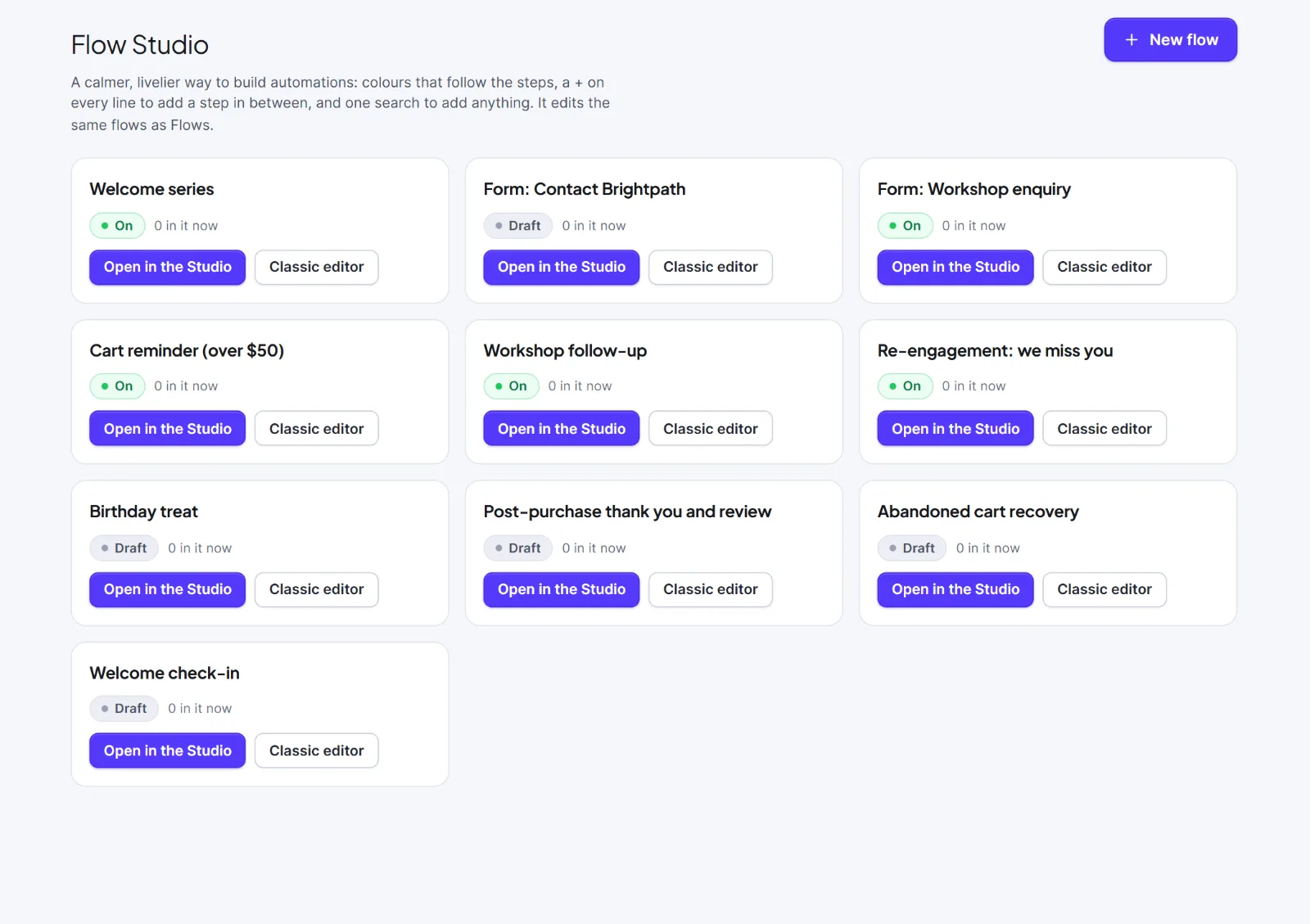
- Go to Automation > Flow Studio. Each flow is a card with its name, a status badge, "{n} in it now", Open in the Studio and Classic editor. The home lists up to 60 flows; use Automation > Flows for more.
- Click New flow. A draft called "Untitled flow" opens in the editor.
- On the card What starts this flow?, click the tile of a trigger.
- Add emails, waits and decisions after it (below).
Add a step #
There is no palette; you add every step with one search. Click Add step or press /, click the + under a free port, or hover a line and click its + to insert a step between two cards. Type in Search the steps…, use the arrow keys and Enter, or click a step. If that port already led somewhere, the steps below move down. The trigger is offered only while the flow has none. A flow holds at most 200 steps.
The steps are the same as in the classic editor: Trigger, Send an email, Wait, Wait until, If, Goal, A/B split, Merge, End, Add or remove a tag, Add to or remove from a list, Set a field, Change status, Call a webhook and Notify someone.

The top bar #
| Control | What it does |
|---|---|
| Studio (arrow) | Back to the home; saves first, or asks "Leave without saving?" |
| Name box | Rename the flow ("Name this flow") |
| Status badge | Draft, On or Paused |
| Save state | Saved, Unsaved changes, Saving…, Not saved (Try again), Changed elsewhere |
| Add step | Opens the step picker (/) |
| Test run | Walks the flow for one contact without doing anything; off while the flow has no steps |
| On/off switch | On, Paused or Off |
| ⋯ menu | Undo, Redo, Tidy up, Show the map / Hide the map, Flow settings (description, re-entry, problems), Who is in this flow, Report, Runs & logs, Keyboard shortcuts, Stop the flow… (not for drafts) |
Report and Runs & logs save the flow first: see Runs & Logs and flow reports.
Cards, lines and the canvas #
- Tile colour follows the kind of step: green Trigger, purple Actions (emails, tags, lists, fields, status, webhook, notify), amber Logic (waits, conditions, goals, splits), grey for a step the editor does not know.
- Click a card for a toolbar with Settings, Duplicate and Delete, and a drawer on the right with its settings (Close (Esc)). Rename with F2 or a double-click (80 characters).
- A red or amber flag marks problems; hover to read them. While the flow is on, a pill such as "3 here" shows how many people are at the step; click it to see who.
- Branch ports are labelled Yes, No, A, B, Met, Not met. Drag from a port to the top of another card to join them. Each port leads to one step, and nothing leads into the trigger.
- Drag a card to move it (pink guide lines, no grid). Drag the background to pan; Ctrl or ⌘ and scroll to zoom, 10% to 200%. Buttons: Zoom in (+), Zoom out (−), Fit the flow in view (0). Click Got it to hide the first-time hint.
Keyboard shortcuts #
Press ? for the Keyboard shortcuts window.
| Keys | What it does |
|---|---|
| Ctrl+Z / Ctrl+Shift+Z | Undo / redo |
| Ctrl+C / X / V | Copy, cut, paste steps (also into another flow) |
| Ctrl+D | Duplicate selected steps |
| Ctrl+A | Select every step |
| Delete or Backspace | Remove selected steps or connection |
| Tab / Shift+Tab, Enter or Space | Go through steps, select the focused one |
| Arrow keys (Shift: further) | Move selected steps |
| F2, E | Rename, edit settings |
/ |
Add a step |
| + / − / 0 | Zoom in, out, fit |
| H / V | Hand tool / select tool |
| Escape | Close the panel, clear the selection |
| Ctrl+S | Save now |
Pasting a trigger into a flow that has one says "The trigger was left out: a flow has one."
Saving, test run, on and off #
You never press save: Hive Mail checks the flow 0.5 seconds after your last change and saves after 1 second (Ctrl+S saves at once). While the flow is on, people counts refresh every 10 seconds.
- If the flow changed elsewhere, a red bar offers Load the saved version or Keep mine.
- Once a flow has run, a blue bar says people already in it finish the version they started on; changes apply to people who enter from now on.
- If a change leaves a live flow with problems, it is paused and a message says so. See Re-entry, existing contacts, and editing a live flow.
- Click Test run, pick a contact and run it. The steps light up and a bar says "Nothing was done." Click Clear to remove the path.
- Use the switch to turn the flow on ("The flow is on: people who trigger it now enter it."). With problems it says "Fix the problems first…". The same switch pauses it.
- To stop a flow, choose ⋯ > Stop the flow… and confirm Stop the flow. People leave it where they are and the flow becomes a draft.
The email step has Edit email, which opens the email builder and returns you to the same flow.
Warning: Stopping a flow removes everyone from it where they stand. They do not continue if you switch it on again.
Next: Build your first flow, Automation recipes, Automation integrations.


