

Hive Mail installs like any other WordPress plugin.
Requirements: WordPress 6.4 or newer, PHP 8.0 or newer, a normal WordPress database (the database user must be able to create tables) and an administrator account. To send real campaigns you also need an SMTP plugin, a Mailgun account or a SendGrid account, but not to install. See How Hive Mail sends email.
Install from the Plugins screen #
- In the WordPress admin, open Plugins and click Add New Plugin.
- Search for Hive Mail and click Install Now.
- Click Activate.
Install from a zip file #
- Open Plugins, click Add New Plugin, then Upload Plugin.
- Choose the Hive Mail zip file and click Install Now.
- Click Activate Plugin.

Open Hive Mail for the first time #
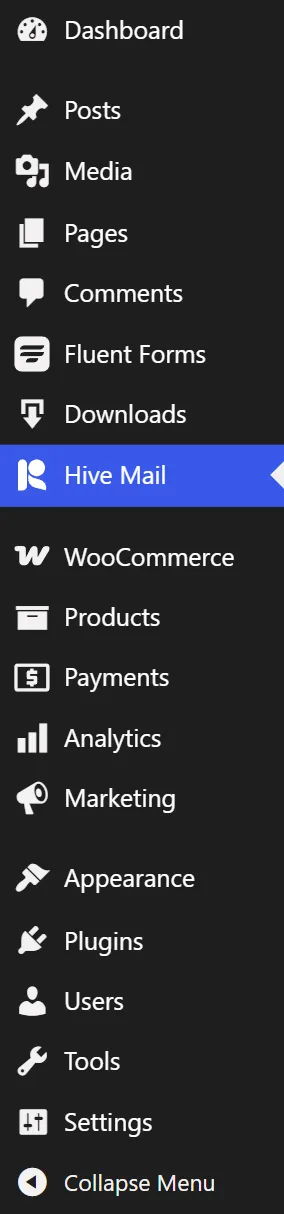
Click Hive Mail in the WordPress admin menu. On a new site the setup wizard opens over the Dashboard. Fill it in, or click Skip setup and use the First steps checklist.
What activation sets up #
Activation sends nothing and shows nothing to visitors. It creates no contacts, lists, campaigns, cookies or tracking.
| What | Details |
|---|---|
| Database tables | Tables named with your WordPress prefix followed by hm_, for example wp_hm_contacts. They are upgraded automatically when an update needs it. |
| Permissions | All Hive Mail permissions go to the Administrator role. See Settings: Roles & Permissions. |
| Three pages | Unsubscribe, Email preferences and Subscription confirmed, each holding one shortcode. See Unsubscribe and email preference pages. |
| Scheduled work | A timer that runs once a minute and a daily clean-up job. See Scheduled sending and cron. |
If you delete one of the three pages, a button in Settings > Compliance can recreate it. Until then, a plain Hive Mail page answers, so links in emails keep working.
Warning: Do not deactivate Hive Mail while campaigns are out. The unsubscribe, confirmation and tracked links in emails you already sent stop working while the plugin is off. Deactivating deletes no data. See Uninstalling and Delete all data.


