

A tag is a coloured label you put on people, such as "VIP" or "Footer form". Tags help you find people and choose who gets an email, but they change nothing about whether someone is emailed; only the status decides that. Lists are groups you send to; tags are labels about a person.
Open Audience > Tags. Looking needs "See the audience"; changing needs "Manage the audience". The table shows Tag (a coloured chip), People (contacts carrying it, trash excluded) and Created. Click a row, or choose View contacts in the ⋯ menu, to open Contacts filtered to that tag.
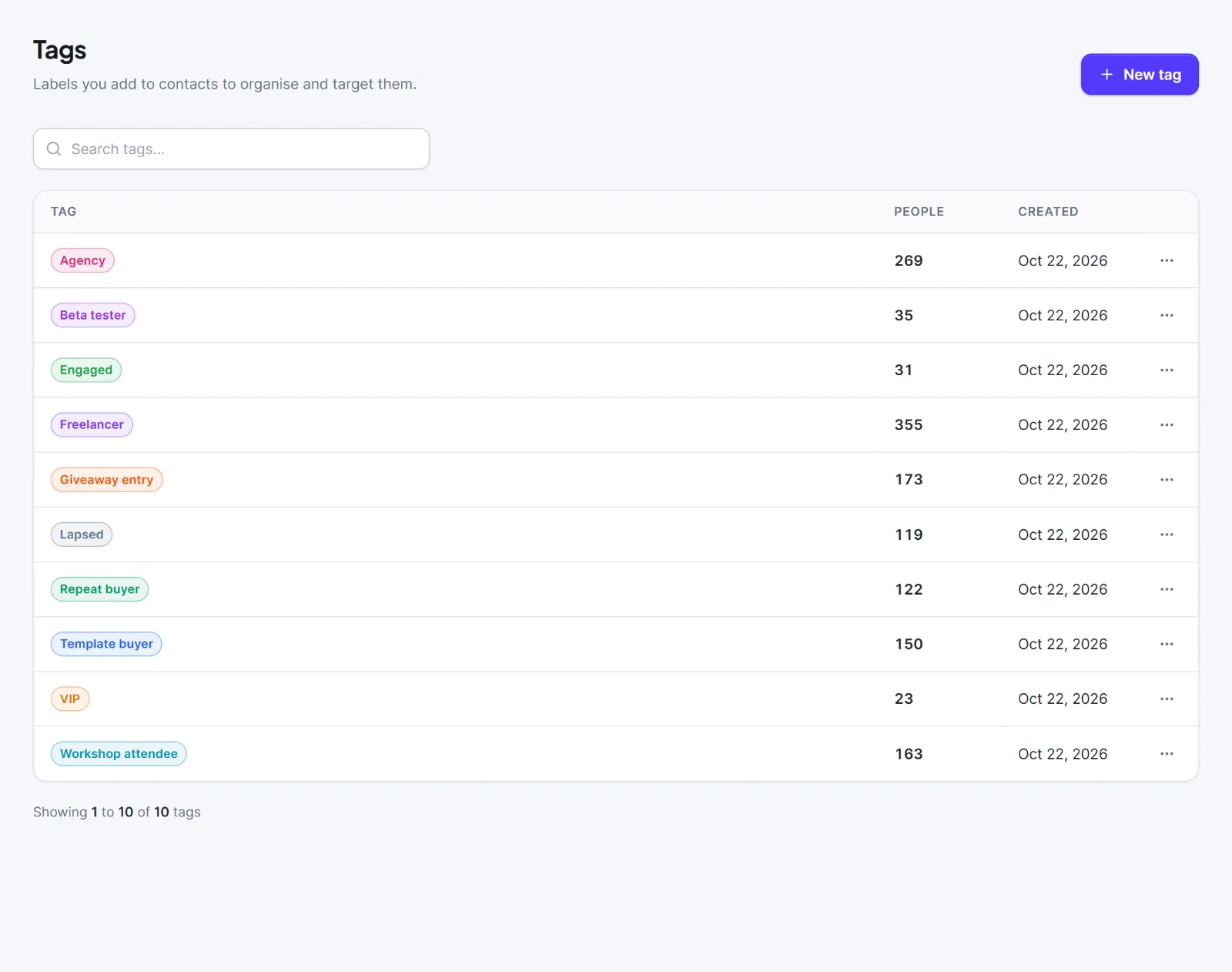
Create a tag #
- Click New tag.
- Type a Tag name (required, unique, up to 150 characters).
- Choose a colour: Purple (default), Blue, Cyan, Green, Lime, Amber, Red, Pink or Grey. The colour only helps you tell tags apart.
- Click Create tag.

To rename or recolour, use ⋯ > Edit and Save changes.
Put a tag on people #
- One person: the Lists and tags card on the profile, or the Edit contact dialog. See The contact profile.
- Many people: tick rows on Contacts, then Add under Tags in the bulk bar.
- On import: the option Give them these tags. See Import contacts from a CSV file.
- From a form or flow: signup and connected forms can give tags, and a flow has the step Add or remove a tag. See Steps.
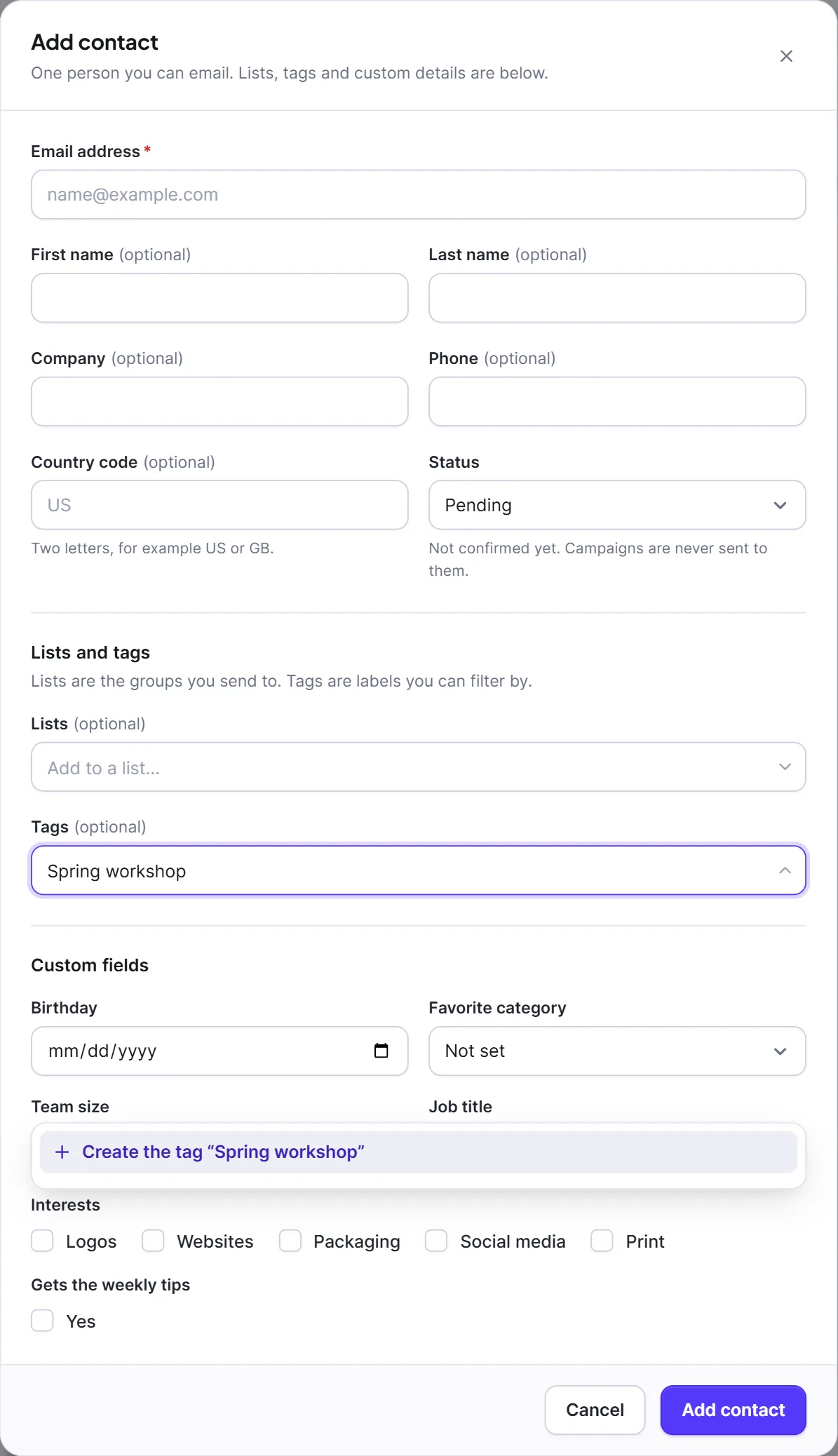
In any tag picker, type a word that does not exist and pick the last row, Create the tag “…”, to create it at once. Names are matched ignoring capitals, so "vip" uses the existing "VIP". A tag created this way shows in grey until you edit it and choose a colour.
Delete a tag #
- Open ⋯ > Delete.
- Read Delete the tag “…”? and click Delete tag.
Warning: Deleting a tag removes it from every contact and cannot be undone. The contacts stay in your audience.
Next: Segments, Lists, Choose who gets a campaign.


