

The From a plugin tab reads another plugin's data on your site and copies it into Hive Mail. It only reads: nothing in the other plugin is changed. The data must be in this site's database (the plugin can be inactive, if its tables are still there). For a full FluentCRM move, see Migrate from FluentCRM.
Choose a source #
- Go to Audience > Import / Export and open From a plugin.
- A card appears for each source that has data: Mail Mint, FluentCRM, Easy Digital Downloads, WooCommerce or AffiliateWP, with a badge and a count.
- Press Import from
. If nobody is there yet, the button reads Set up live sync.
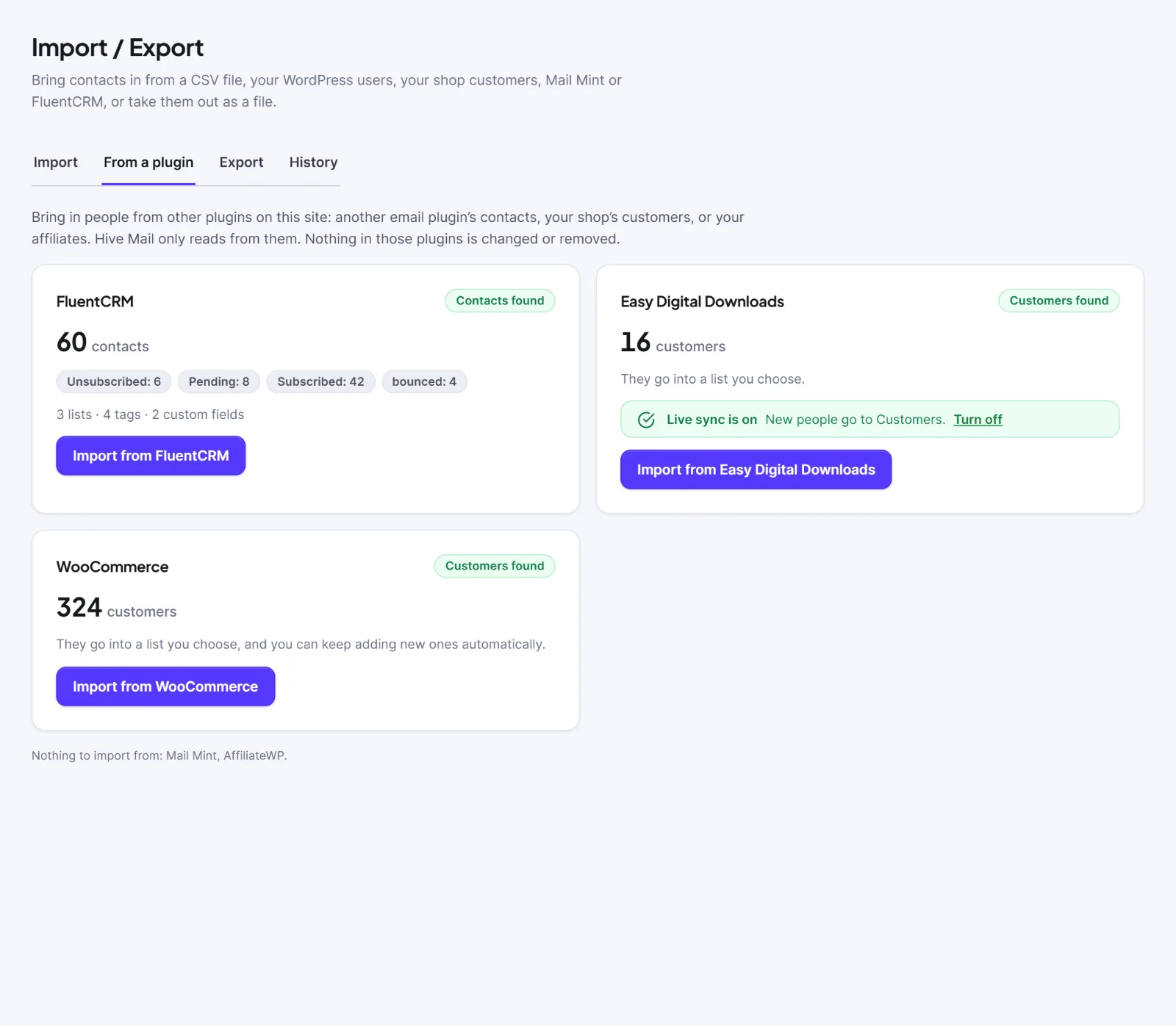
| Source | What becomes a contact | Status they arrive with | Default list |
|---|---|---|---|
| Mail Mint, FluentCRM | Contacts, with lists, tags and custom fields | Their own statuses | The lists and tags they have |
| Easy Digital Downloads | Customers, one per email | You choose | Customers |
| WooCommerce | Everyone who placed an order, one per billing email, guests included | You choose | Customers |
| AffiliateWP | Affiliates (user email, else payment email) | You choose | Affiliates |
Copy contacts from Mail Mint or FluentCRM #
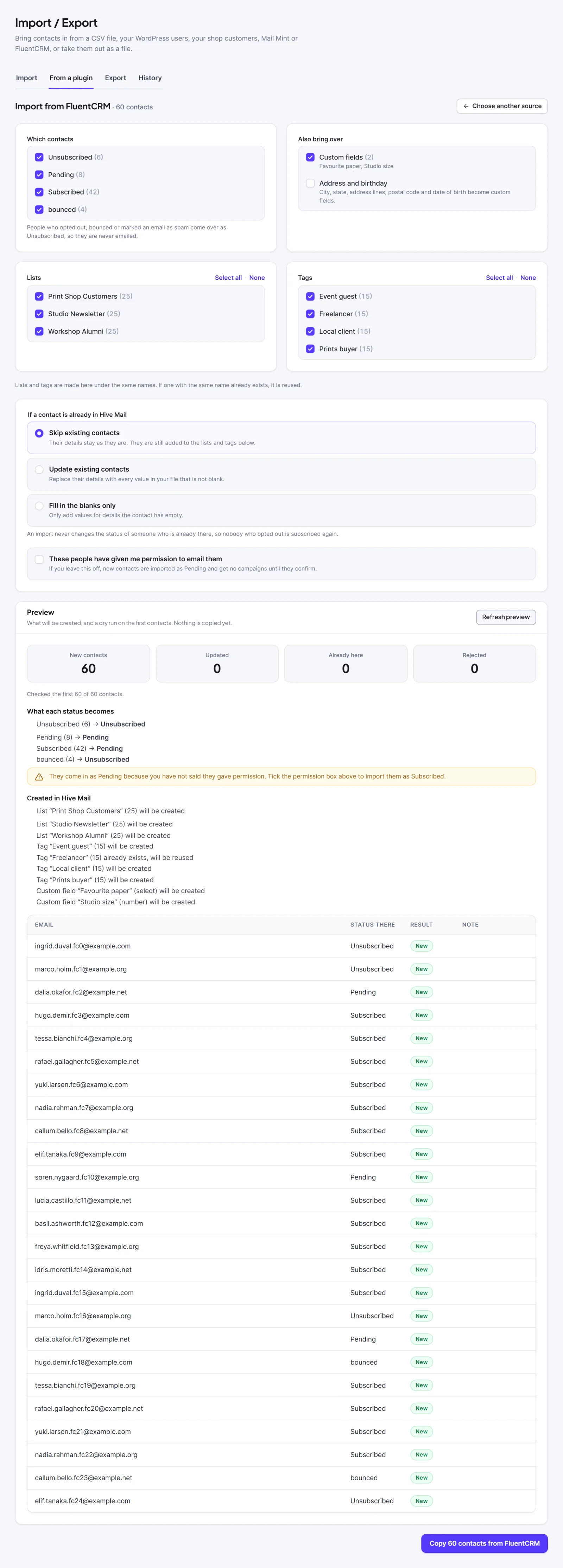
- Under Which contacts, tick the statuses to bring over (at least one). People who opted out, bounced or marked spam come over as Unsubscribed.
- Under Also bring over, keep Custom fields ticked. Tick Address and birthday to also create City, State, Address line 1 and 2, Postal code and Date of birth as custom fields (off by default).
- Under Lists and Tags, tick what to recreate (Select all or None). Existing names are reused.
- Choose how to handle duplicates and whether you confirm permission, as in the CSV import.
- Press Preview. It shows New contacts, Updated, Already here, Rejected, what each status becomes, and what will be created in Hive Mail.
- Press Copy N contacts from
.
Status mapping: subscribed, active and confirmed become Subscribed (only with your permission tick, otherwise Pending); pending and unconfirmed become Pending; transactional stays Transactional; unsubscribed, opted out, bounced, cleaned, complained and spam become Unsubscribed. The original added date is kept. A value that does not fit its new custom field is dropped and counted; the contact is kept.
Bring in shop customers or affiliates #
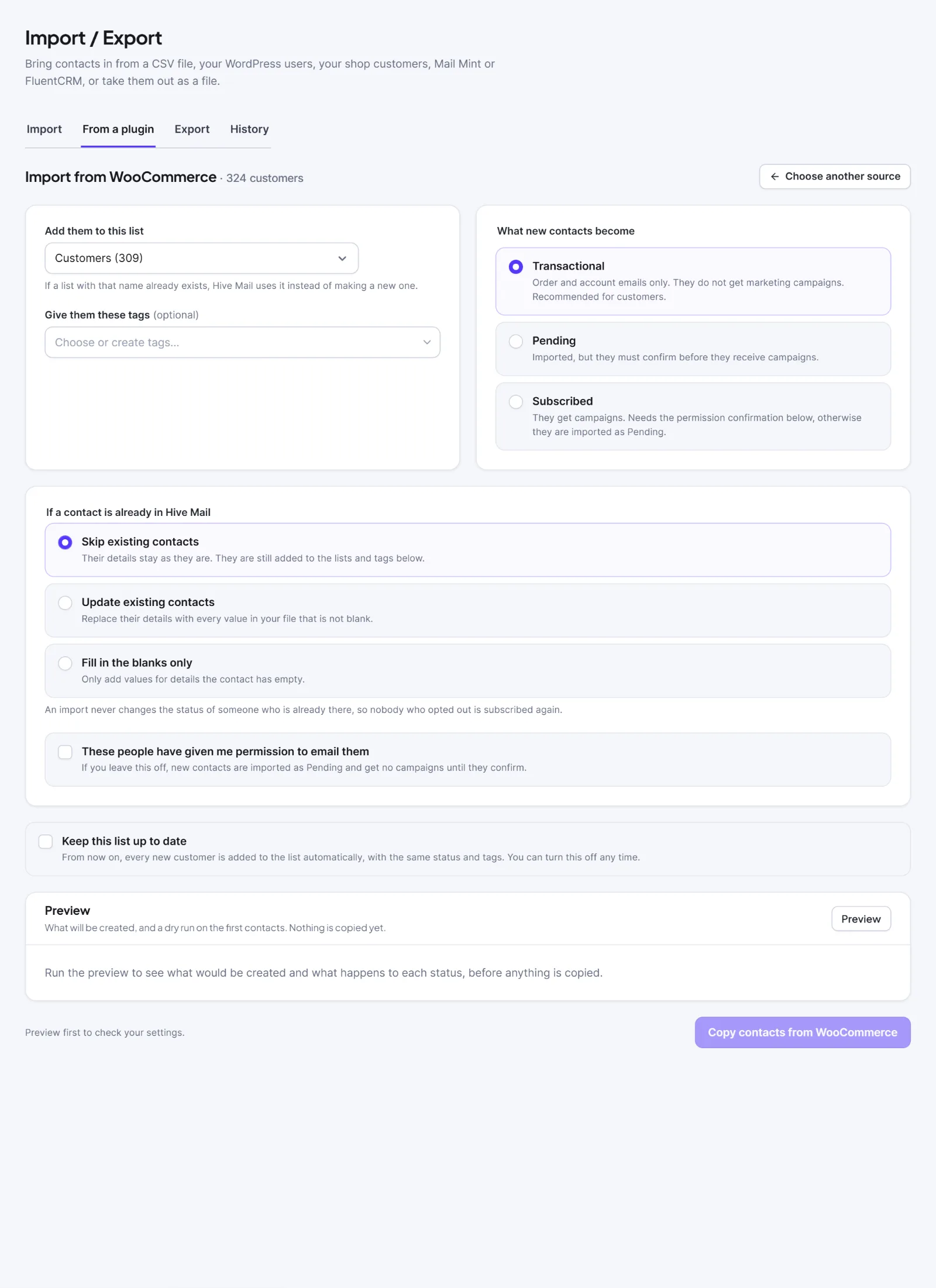
- Press Import from WooCommerce, Easy Digital Downloads or AffiliateWP.
- Under Add them to this list, choose Create a new list or an existing one. Optionally add tags under Give them these tags.
- For AffiliateWP, tick which statuses to bring (Active, Pending, Inactive, Rejected).
- Under What new contacts become, choose Transactional (order and account emails only, never campaigns; recommended for customers), Pending or Subscribed. Subscribed needs your permission tick, otherwise they arrive as Pending.
- Press Preview, then Copy N contacts from
.
Keep a list up to date (live sync) #
Switch on Keep this list up to date while importing. New customers or affiliates are then added to the list automatically with the same status and tags: when an Easy Digital Downloads purchase completes, a WooCommerce order reaches Processing or Completed, or an AffiliateWP affiliate is created or changes status. If nobody is there yet, press Turn on live sync. To stop, press Turn off in the "Live sync is on" strip on the card; Change live sync lets you choose again. A live sync failure is logged and never reaches your shop's checkout.
Contacts get the source migration (other email plugins), edd, woocommerce or affiliatewp. An existing contact keeps its status; sync only adds them to the list and tags. At the end, press Download the rows that were not copied for failures.
Warning: Do not tick the permission box unless these people agreed to be emailed.
This is information, not legal advice.


